
After you connect your Amazon account to Scale Insights, your advertising campaigns become available in SI. You can start applying automation to those campaigns right away, or create new campaigns if you need a new structure.
Before You Begin
Before assigning automation rules, make sure you've enabled automation for the relevant ASINs in Scale Insights. Otherwise, your automation rules may not work as expected.
Follow the Set Automation for an ASIN guide to learn how to enable automation for your products.
Choose Your Starting Point
You don't need to rebuild your existing campaigns to get started with Scale Insights.
Choose the path that best fits your current setup and goals, then select the recommended step in the table to learn more about the process.
|
Your situation |
Recommended next step |
|
I have existing campaigns and want to automate them |
Go to Assign Your First Automation Rule. Then, expand your automation with Get Your First Optimization Win. |
|
I am launching a new product and need campaigns |
Start with Understand the Scaling Blueprint, then follow Create New Campaigns. |
|
I want to expand or restructure my advertising strategy with additional campaigns |
Review the Scaling Blueprint, then use Create New Campaigns to build campaigns that support your strategy. |
Next: Once you've assigned your rules or created new campaigns, move on to Monitor Your Automation and Optimize Performance to learn how to track results, review automation activity, and optimize your campaigns during the first two weeks.
Understand the Scaling Blueprint
The Scaling Blueprint organizes campaign growth into four stages:
Auto → Discovery → Sales → Ranking
Each stage has a corresponding preset Strategic Objective, pre-configured for new campaigns created through Mass Campaigns. These objectives group automation rules designed to support each stage of your campaign's growth.
You can also assign these preset Strategic Objectives to your existing ads to apply the same structured automation strategy.
Learn more: Scaling Blueprint
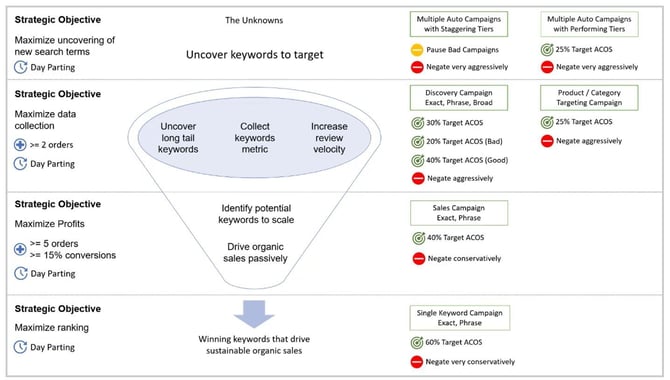
Stage 1: Bulk Auto
Use automatic targeting to collect search-term data and identify potential keyword and product targeting opportunities.
Stage 2: Discovery
Use discovery campaigns to test relevant keywords and targeting opportunities. The goal is to identify targets worth investing in further.
Stage 3: Sales
Focus on targets that have demonstrated sales potential and optimize them to support more consistent sales performance.
Stage 4: Ranking
Focus on strategic keywords that can help improve your product's visibility and organic ranking, while managing advertising efficiency.
The stages are a framework, not a requirement to start from scratch. If your existing campaigns already have useful sales and keyword history, you may be able to start at Discovery, Sales, or Ranking based on your goals and available data.
Create New Campaigns
Scale Insights lets you create new Sponsored Products campaigns through Mass Campaigns. You can use these tools when launching a product, expanding your advertising strategy, or building a new campaign structure.
Available Campaign Types
Under Mass Campaigns, you can choose from the following campaign creation options:
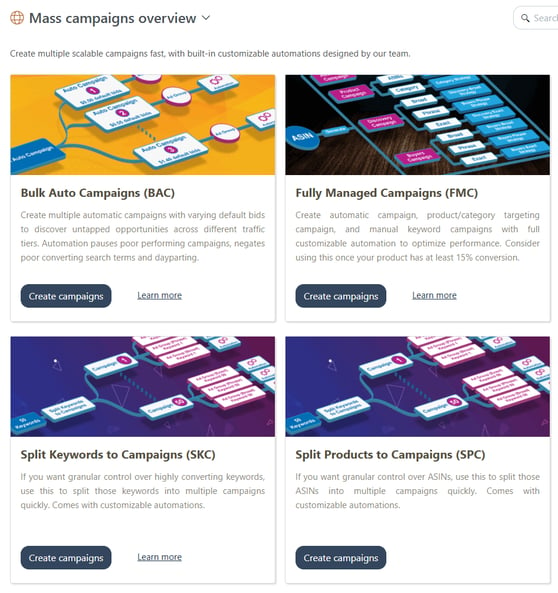
1. Fully Managed Campaigns
Create Sponsored Products campaigns based on the Scaling Blueprint. This option helps you build a structured campaign setup across the Auto, Discovery, Sales, and Ranking stages according to your selected settings.
For a walkthrough of how to create Fully Managed Campaigns, check: How to Create Fully Managed Campaigns (FMC)
2. Single Keyword Campaigns
Create Sponsored Products campaigns focused on a specific keyword. This setup gives you more control over targeting and bidding for an individual keyword.
3. Single Product Campaigns
Create Sponsored Products campaigns focused on a specific ASIN target. This setup can help you target individual products as part of your advertising strategy.
4. Bulk Auto Campaigns
Create multiple Sponsored Products automatic targeting campaigns in bulk. These campaigns help you discover relevant search terms and product-targeting opportunities from Amazon's automatic targeting.
Understand campaign data availability
Newly created campaigns may take a few minutes to appear in Amazon Seller Central.
For Fully Managed Campaigns and other workflows that use historical search-term data, Scale Insights can use search terms with sales from the last 90 days to suggest keyword and product targets during campaign creation. You can also manually add targets that aren't included in the suggested list.
Keep in mind: Recent advertising data may be incomplete because of Amazon's reporting and sales attribution delays. Give the data time to update before evaluating campaign performance.
Assign Your First Automation Rule
If your existing campaigns are already available in Scale Insights, you can start automating them without creating new campaigns.
Automation rules tell Scale Insights how to respond to campaign performance based on your chosen strategy.
Step 1: Choose your optimization goal
Think about what you want to improve first. For example, you might want to reduce wasted spend, manage high-ACOS keywords, or adjust bids toward a Target ACOS.
Choose a rule that aligns with your goal rather than assigning rules simply because they're available.
See: Overview of Each Automation Algorithm
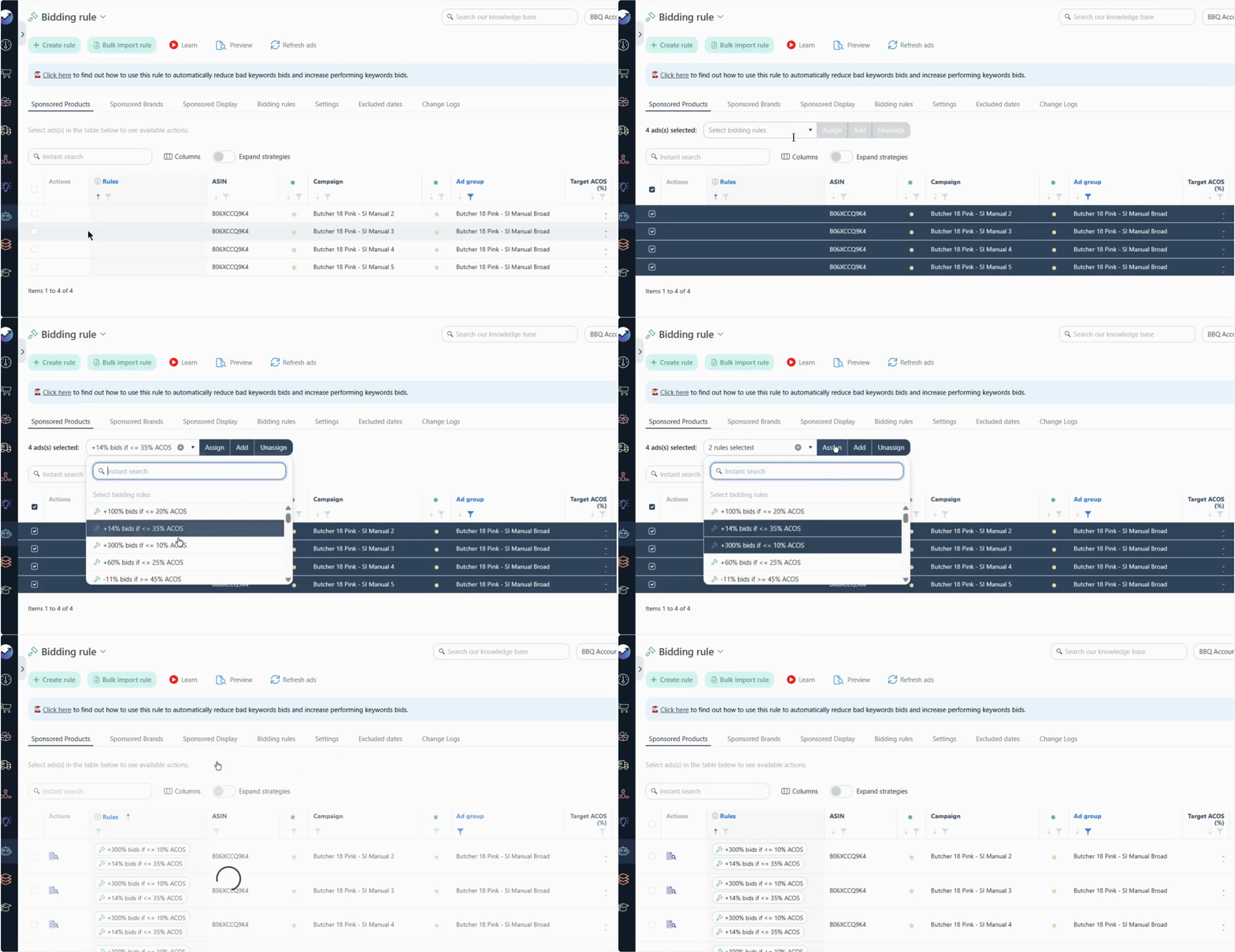
Step 2: Select the ads you want to automate
- Open Automation.
- Select the Algorithm you want to apply.
- Go to the Rules page for the list of preset rules.
- Go to the Sponsored Ad Type tab.
- Select the ads or campaigns you want to manage.
- Assign the rule you want to apply. Check: Assign Rules to Your Ads
You can start with preset rules or create your own rule:
Step 3: Preview rule action
Use Preview to review the proposed changes and confirm that the selected rule fits your strategy.
Previewing lets you inspect the proposed actions before assigning the rule. The preview itself does not apply changes to Amazon; the rule must be assigned for automation to take effect.
Also, previews may become available immediately for existing campaigns. For newly created campaigns, previews may not appear until enough performance data has been generated to meet the rule's configured criteria. This may take a week or longer, depending on campaign activity.
See: Preview Proposed Rule Changes
Build a Strategic Objective
Instead of assigning automation rules to your ads individually, create a Strategic Objective to group multiple rules into a structured, reusable strategy.
This allows you to manage related automation rules together, apply them consistently across your campaigns, and align your automation with your advertising goals.
Get Your First Optimization Win
A practical starting point is to look for opportunities to reduce unnecessary advertising spend.
1. Block Non-converting Search Terms
A Negative Rule can help prevent spend on search terms that aren't converting, based on the conditions you configure.
Watch: Stop Wasting Money on Bad Keywords
2. Blacklist Unwanted Keywords
Add single-word terms from the Main Words list to the Blacklist to apply negative phrase targeting, or add specific keywords directly in the blacklist to prevent them from being targeted in your campaigns.
Watch: Exclude Unwanted Keywords
3. Manage High-ACOS Keyword Bids
If a keyword's ACOS is above your target, a suitable Bidding Rule can lower its bid toward your Target ACOS strategy.
Watch: Master Your Keyword Bids
Always review a rule's conditions and actions before assigning it. You can also edit the rule settings to adjust its conditions, actions, and other parameters to match your strategy. The best rule depends on your product economics, campaign data, and advertising goals.
4. Optimize Ads by Hourly Performance
Use a Dayparting Rule to pause or enable ads based on hourly performance trends. This helps you allocate your advertising budget toward the times when your campaigns perform best.
Watch: Schedule Ads Based on Hourly Performance
What's Next?
Once you've assigned your rules or created new campaigns, continue to Monitor Your Automation and Optimize Performance to learn what to monitor over your first two weeks.