
Before You Begin
To automate your ads in Scale Insights, you need to enable automation for the ASINs you want to optimize and link the relevant ad groups to those automated ASINs.
- Automate your ASINs to make them eligible for Scale Insights automation.
- Link your ad groups to an automated ASIN so you can apply automation rules or a Strategic Objective to the ads you want to optimize.
Scale Insights handles ASIN linking differently depending on the number of ASINs in an ad group:
- Ad groups with multiple ASINs or variations: You need to manually select which variation ASIN to link to the ad group. This is usually the best-selling ASIN.
- Ad groups with a single ASIN: Scale Insights automatically links the ad group to that ASIN.
You can enable ASIN automation before linking your ad groups. Just make sure the ad groups are linked to the correct associated ASIN before assigning your automation strategy.
[drawer]Enable Automation for an ASIN
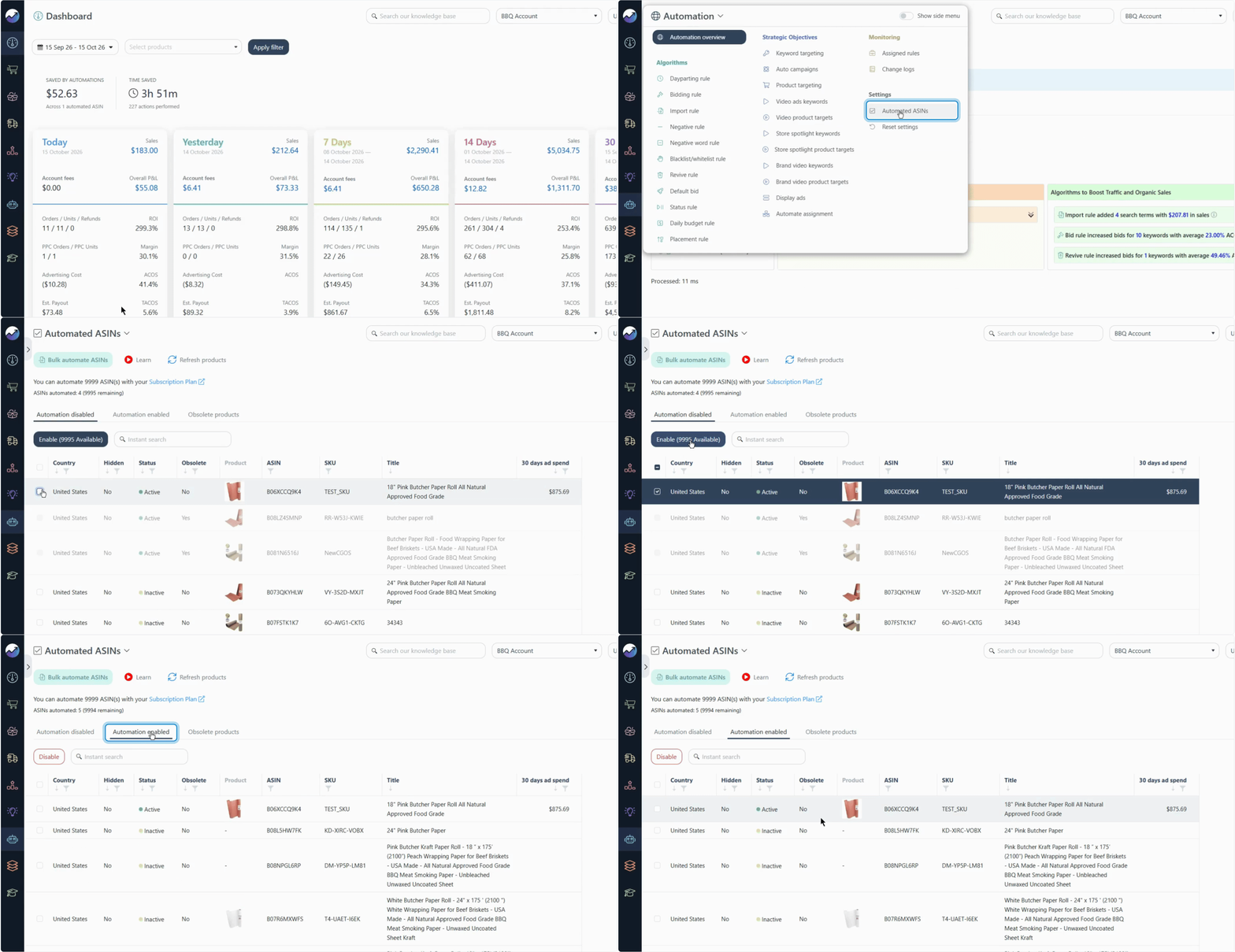
Follow these steps to enable automation for your selected products.
- In Scale Insights, go to Automation → Automated ASINs
.png?width=220&height=189&name=IMG-201(5).png)
- Open the Automation Disabled tab to view ASINs that haven't been enabled for automation.
.png?width=420&height=214&name=IMG-202(4).png)
- Select the ASINs you want to automate, then click Enable.
.png?width=670&height=147&name=IMG-203(5).png)
Tip: Use the 30 Days Ad Spend column to review each product's recent advertising spend when deciding which ASINs to automate. Consider this alongside your optimization goals and the product's overall performance..png?width=670&height=78&name=IMG-204(4).png)
- Open the Automation Enabled tab and confirm that your selected ASINs appear in the list.
.png?width=670&height=148&name=IMG-205(1).png)


Once your ASINs are enabled, proceed to configure and assign the appropriate automation rules to the relevant ad groups.
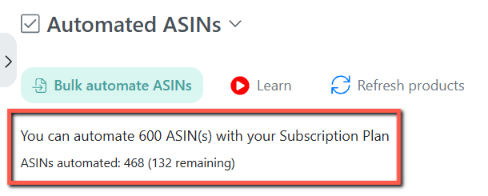
At the top of the page, you'll see your available automation slots based on your subscription plan, including the number of slots used and remaining. Check your remaining slots before enabling additional ASINs.
[drawer]Disable Automation for an ASIN
If you no longer want Scale Insights to automate a product's advertising, you can disable automation for its ASIN.
- Go to Automation → Automated ASINs
- Open the Automation Enabled tab.
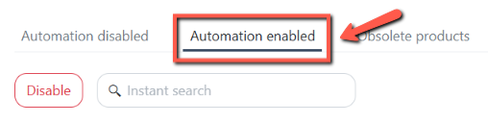
- Select the ASINs you want to disable, then click Disable.

Important: Disabling an ASIN does not automatically unassign every rule that operates independently of ASIN automation. Review the following rules and unassign them separately when necessary:
- Dayparting Rule
- Daily Budget Rule
- Placement Rule
Daily Budget and Placement rules operate at the campaign level. If a campaign contains ad groups associated with different ASINs, review the affected campaign and its rule assignments before making changes.
[drawer]Enable or Disable ASIN Automation in Bulk
If you need to manage automation for multiple ASINs, you can use the Bulk Automate ASINs feature to enable or disable automation in one go instead of updating each ASIN individually.
Follow these steps:
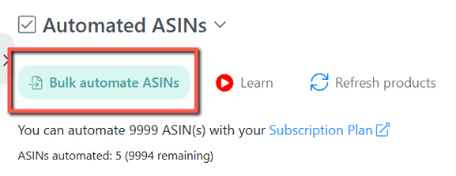
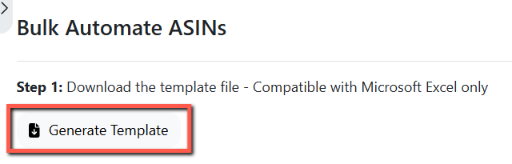
- On the Automated ASINs page, click Bulk Automate ASINs.
- Download the Excel file.
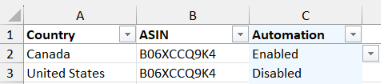
- Update the automation status of the ASINs you want to enable or disable.
- Upload the completed file.

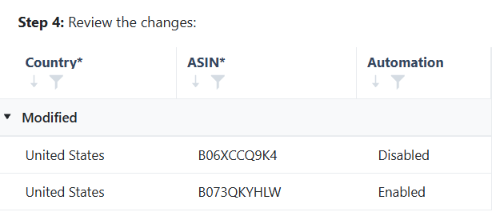
- Review the changes displayed in the table to make sure they're correct.
- Click Submit to apply the changes.
[drawer]Review Obsolete Products
The Obsolete Products tab helps you identify products that have been inactive or out of stock (OOS) for an extended period.
To review these products:
- Go to Automation → Automated ASINs
- Open the Obsolete Products tab.

- Review the listed products and check their current advertising and inventory status.
.png?width=620&height=268&name=IMG-208(2).png)

Use this information to determine whether any follow-up action is needed, such as reviewing the product's status or inventory availability.
[drawer]Common Questions
Why can't I find my ASIN under Automation Enabled?
Check whether the ASIN has been enabled and whether you're viewing the correct marketplace. If it still doesn't appear, review its current status and associated ASIN settings.
Why isn't automation running for my ad group?
Confirm that the ad group is linked to the correct associated ASIN, automation is enabled for that ASIN in the relevant marketplace, and the appropriate automation rules or Strategic Objective have been assigned.
Will disabling an ASIN stop all its automation rules?
Not necessarily. Dayparting, Daily Budget, and Placement rules may operate independently of ASIN automation. Review their assignments and unassign them separately when necessary.
What's Next?
Now that your ASINs are enabled for automation, learn how the automation engine works, configure your optimization strategy, and understand how your automated ASINs are counted.
Continue with these guides to complete your setup:
- Overview of the Automation Engine — Understand how the automation engine works and how algorithms and rules help optimize your advertising.
-
Overview of Each Automation Algorithm — Learn what each algorithm does, when to use it, and how it can help optimize your Amazon advertising.
-
How to Create a Strategic Objective and Assign It to Your Ads — Learn how to create an optimization strategy and apply it to your ads.
- How Are Automated ASINs Calculated? — Understand how automated ASINs are counted and how associated ASINs and marketplaces affect your automation requirements.