
Before Scale Insights can show ranking data for a keyword, you need to add the keyword to your tracked keywords.
Keyword tracking is enabled when the toggle button is green in the Keyword Tracking table.
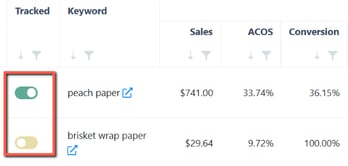
You can track keywords for one or multiple ASINs and add keywords individually or in bulk.
Navigation: Keyword Ranking
Before you start
Your account includes a default keyword tracking allowance. The current default is 30 tracked keywords.
If you need to track more keywords, you can purchase an additional Keyword Tracking Plan.
The tracking allowance is shared across your account rather than being assigned separately to each country or marketplace.

Important
Keyword tracking is associated with the ASIN you select and works at the child ASIN level, rather than the parent ASIN level.
When setting up tracking, select the ASIN you want to monitor and add the keywords that are relevant to that product.
Watch this quick walkthrough to learn the different ways to track keywords and ASINs.
[drawer]Track a keyword manually
Use manual tracking when you only need to add a few keywords.
- Go to Keyword Ranking.
- Select the ASIN you want to track.
- Click Track New Keywords.
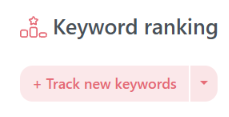
- Enter the product(s) and keywords you want to monitor.
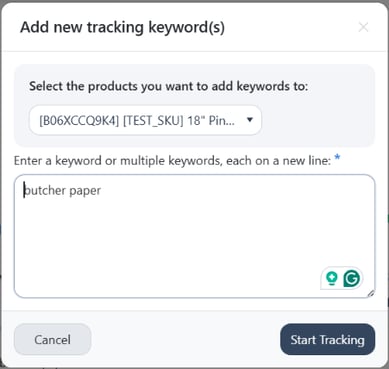
- Click Start Tracking.
Once tracking is enabled, the keywords will appear in your Keyword Ranking data as information becomes available.
[drawer]Track keywords in bulk
If you need to add or update many keywords, you can use Bulk Upload Keywords.
- Go to Keyword Ranking.
- On Track New Keywords, select Bulk Upload Keywords.
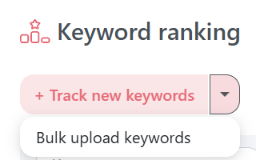
- Download or prepare the upload template.
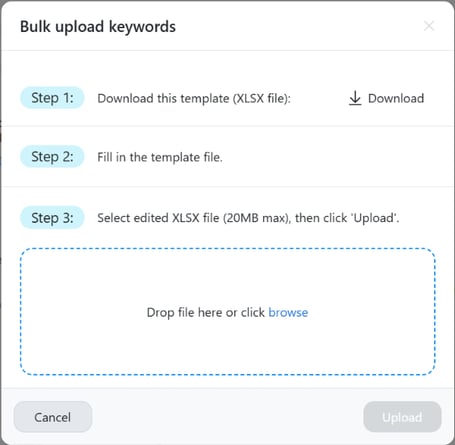
- Set Track to YES for keywords you want to track, and NO for keywords you don't want to track.

- Upload the file.
The Keyword Ranking page refreshes after the upload to reflect the changes.
Important
Bulk keyword uploads apply only to the currently selected marketplace. Make sure you have selected the correct marketplace before uploading your file.
[drawer]Track multiple ASINs
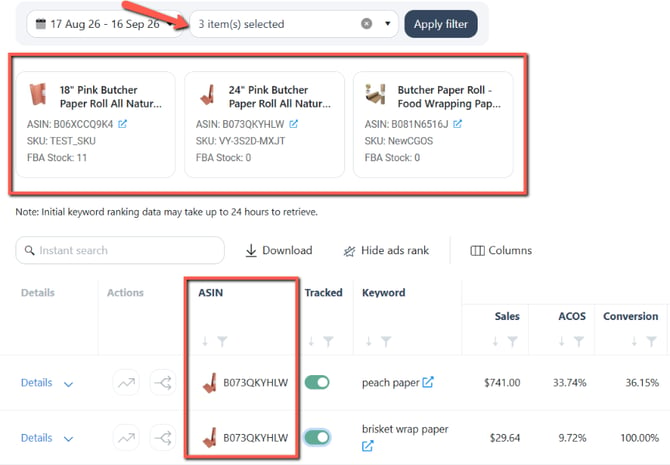
If you manage several products, you can select multiple ASINs when working with Keyword Ranking.
This is useful when:
- Several products target similar keywords.
- You want to compare ranking between products.
- You manage multiple related products.
- You want to manage keyword tracking across several products.
The selected ASINs are displayed in the interface, and the Keyword Ranking table includes an ASIN column so you can filter the results by product.
What can you track?
Keyword Ranking lets you monitor:
- Organic Rank – Your product’s position in organic search results.
- Ads Rank – Your product’s Sponsored Products position.
- Keyword performance – Sales, spend, ACOS, conversions, and other performance metrics.
- Ranking trends – 7-day and 14-day organic ranking averages and trend indicators.
- SQP data – Search demand and market performance for supported keywords.
Which keywords should you track?
Prioritize keywords that are relevant to your product and useful for your analysis.
Consider tracking:
- Important product keywords
- Keywords that generate sales
- High-demand search queries
- Keywords you’re actively advertising
- Keywords where your product has strong conversion potential
- Keywords you want to improve or monitor over time
You don’t need to track every possible keyword. Focus on keywords that can help you make better advertising and product decisions.