
Automation rules help you turn your advertising strategy into repeatable actions. Instead of manually reviewing performance and making the same adjustments, you can configure rules to evaluate your criteria and automate decisions across your ads.
In Scale Insights, you can create a rule from scratch, clone an existing rule, or customize a preset rule to match your advertising goals.
Follow the guide below to create, configure, and assign an automation rule.
[drawer]Create an Automation Rule
Navigation: Automation > Algorithms
Follow these steps to create a rule:
- Go to Automation > Algorithms.
- Select the relevant algorithm for the type of optimization you want to perform.
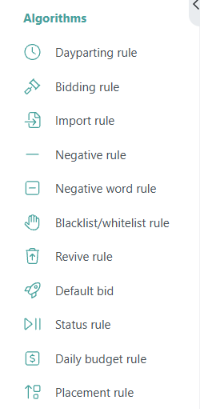
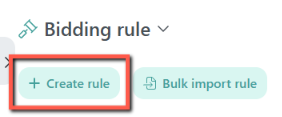
- Click the option to create a new rule.
- Configure the rule's priority, trigger conditions, action, and limits.
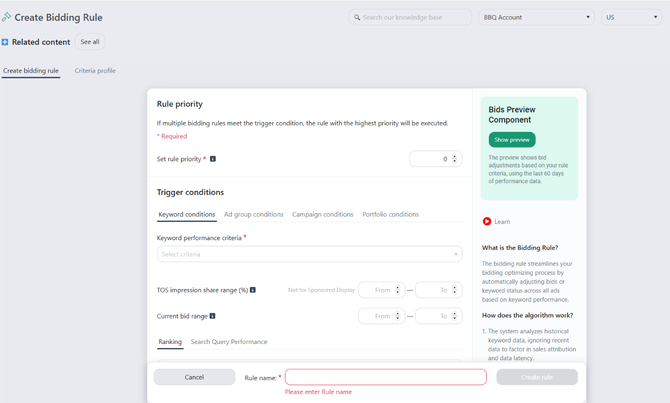
- Enter a descriptive rule name that reflects its purpose. Click Create to save the rule.

- Review the rule preview, where available, to check the proposed changes.
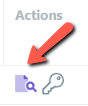
The available settings depend on the selected algorithm. For example, a Bidding Rule adjusts bids, while a Negative Rule identifies search terms to exclude.
[drawer]Customize Rule Settings
1. Set the Rule Priority
Rule priority determines which rule takes precedence when multiple rules could apply to the same target.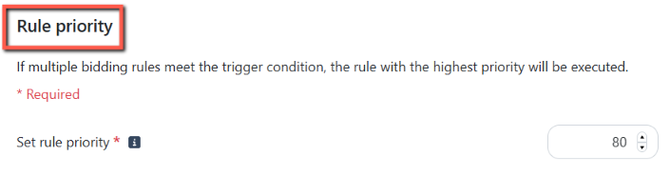
For example, you might have two Bidding Rules:
- Rule A: Reduce bids when ACOS is above your target.
- Rule B: Increase bids when a keyword generates consistent sales.
If a keyword meets both rules' conditions, the priority settings help determine which rule takes precedence.
When configuring priority:
- Review the other rules that may apply to the same targets.
- Set the rule's priority according to your intended optimization strategy.
- Check how the rule interacts with other assigned rules, especially mutually exclusive rules.
Tip
Prioritize rules based on your optimization goals. Review the priority settings and rule interactions to avoid conflicting actions.
For more information, see Stackable and Mutually Exclusive Rules.
2. Set the Trigger Conditions
Trigger conditions define when a rule should run. Depending on the algorithm, you can configure conditions at the search term, keyword, ad group, campaign, or portfolio level.
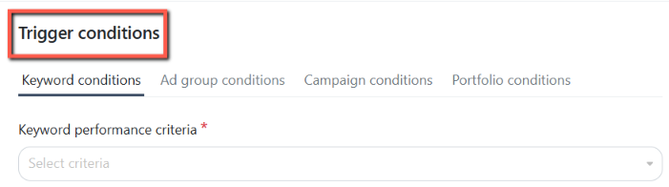
The available conditions and levels vary by algorithm.
Conditions follow AND logic, meaning all configured conditions must be met for the automation rule to run.
To configure trigger conditions:
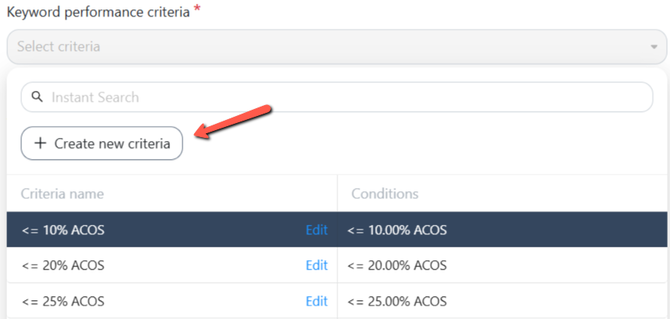
- Select from the preset list of criteria profile.

- To create a new criteria profile, click Create New Criteria.
- Select the metric and comparison operator.
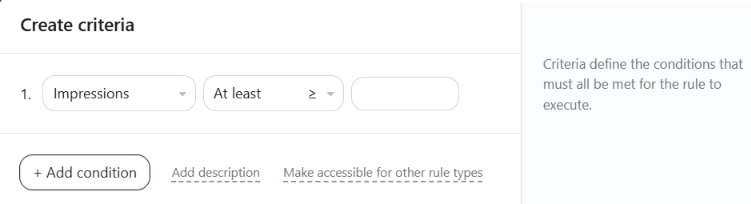
- Enter the threshold value, and click Create.

- Add other rule conditions as needed to refine which targets qualify.
Understand how rules evaluate data
Trigger conditions work with the performance data available to Scale Insights. The metrics and observation periods used can affect when a target qualifies for a rule.
Read How Do Algorithms Analyze Data? to understand how Scale Insights evaluates data and determines whether a rule should run.
3. Configure the Rule Action
The rule action defines what Scale Insights should do when all trigger conditions are met.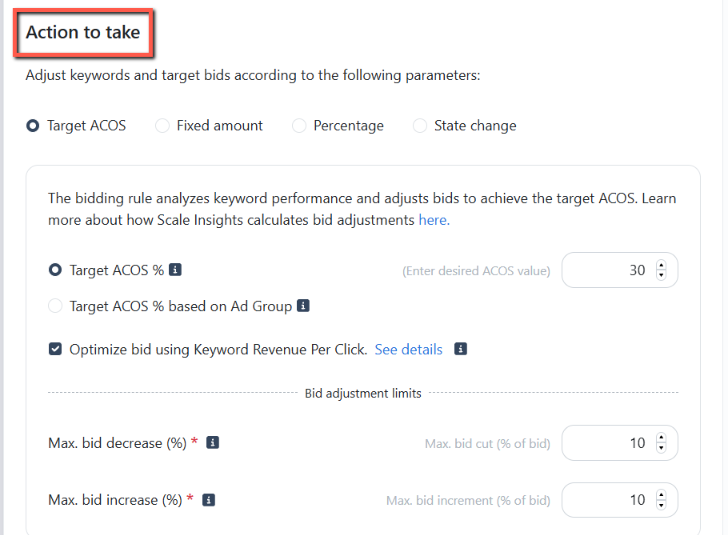
The available actions depend on the selected algorithm. Examples include:
- Bidding Rule: Adjust bids based on your configured bidding strategy.
- Negative Rule: Add qualifying search terms as negative targets.
- Import Rule: Import qualifying search terms into the appropriate targeting structure.
- Status Rule: Change the status of eligible targets or ads, depending on the configuration.
To configure the action:
- Locate the action or adjustment settings in the rule editor.
- Select the action supported by the algorithm.
- Enter the required values or parameters.
- Configure any additional action settings available to refine optimization based on specific performance metrics.
Some algorithms support additional layers of actions for more precise optimization. For example, the Bidding Rule's Normalize Bid feature adjusts bids based on placement modifiers and Amazon's Dynamic Bidding — Up and Down strategy.
Learn more in Normalize Bids Based on Placement Modifier and Dynamic Up & Down Strategy.
Strategy Simulator for Bidding Rules
The Bidding Rule also includes a Strategy Simulator within the rule creation page. Use it to simulate and evaluate your rule strategy before applying it.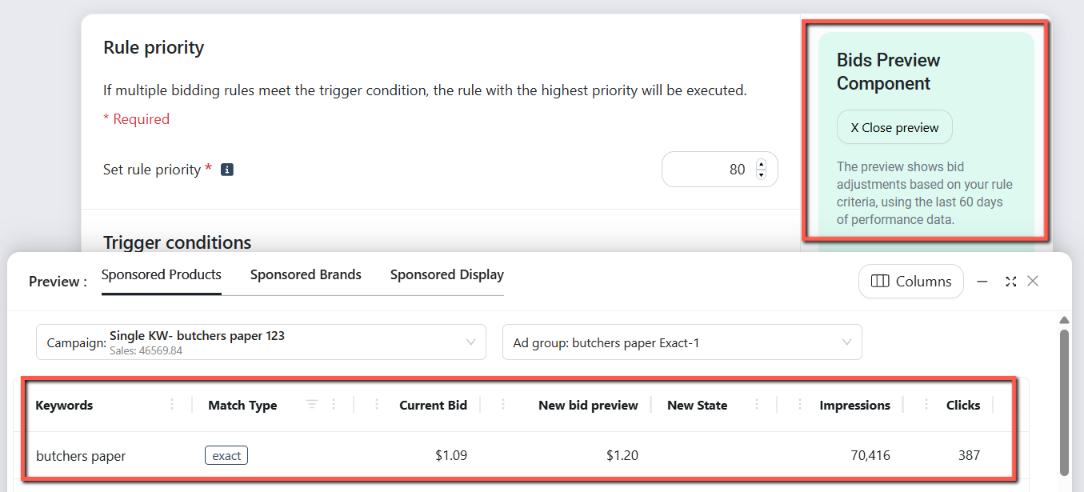
For details, see the March 26, 2026 Release Notes — Bidding Rule Strategy Simulator.
Tip
Make sure the configured actions align with your optimization goal. Review the available settings for the selected algorithm to understand how additional actions may affect the final outcome.
4. Configure the Limits
Limits help control how a rule applies changes and keep adjustments within your intended boundaries.
Depending on the algorithm, the available settings may include minimum or maximum bid values, bid adjustment constraints, or other parameters that limit an action.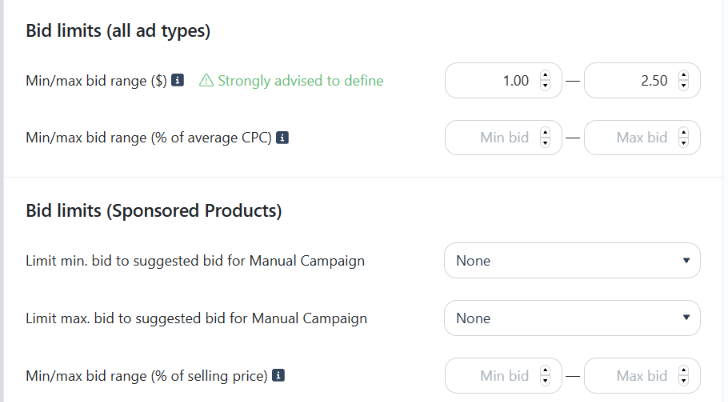
To configure limits:
- Review the limit settings available for the selected rule.
- Set the appropriate boundaries, where supported.
- Consider how the limits affect your optimization strategy.
- Check the preview to confirm that the proposed changes align with your intended boundaries.
Example: When configuring a Bidding Rule, you may set a maximum bid to prevent bids from exceeding an acceptable amount, if the selected rule supports that setting.
Tip
Conditions determine when a rule qualifies to run, while limits help control the changes it can make. Configure both to keep your automation aligned with your advertising goals.
5. Preview the Rule
Before applying a rule, review its proposed behavior using the preview, where available.
The preview helps you check whether the rule identifies the intended targets and whether its proposed actions match your strategy.
When reviewing the preview, check the following:
- Eligible targets: Are the expected keywords, search terms, or other entities included?
- Trigger conditions: Are the criteria identifying the targets you intended to optimize?
- Proposed actions: Would you make the same changes if you were reviewing the data manually?
- Limits: Do the proposed adjustments respect your configured boundaries?
- Unexpected results: Are any targets included or excluded in a way you did not expect?
If the preview doesn't match your expectations, return to the relevant settings, adjust the conditions or action, and review the results again.
Tip
Start with a small group of relevant ads. Review the proposed changes before expanding the rule to more ad groups.
[drawer]Clone an Automation Rule
If you want to create a rule similar to an existing one, cloning lets you reuse its configuration instead of starting from scratch.
This is useful when you want to apply a similar optimization strategy with different trigger conditions, actions, limits, or priorities.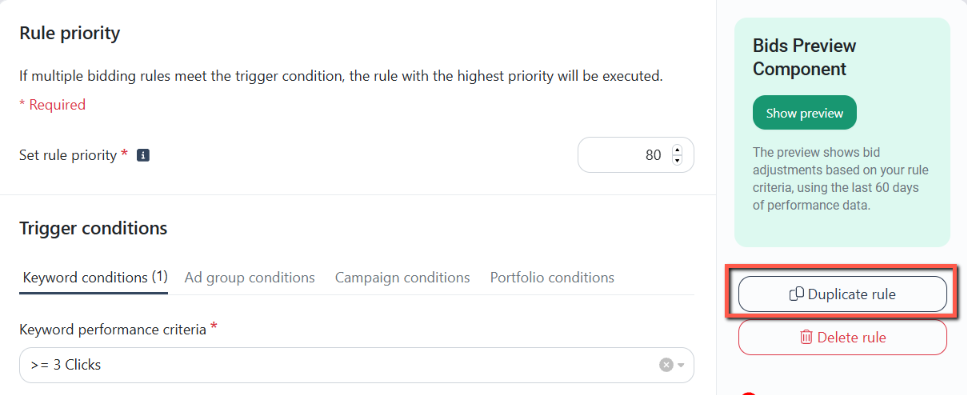
To clone a rule:
- Go to Automation > Algorithms.
- Select the relevant algorithm.
- Find the rule you want to duplicate. Click the rule name to open the edit page.
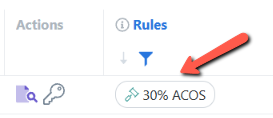
- Click the Duplicate option, if available.
- Give the new rule a descriptive name. Click Create a Clone.
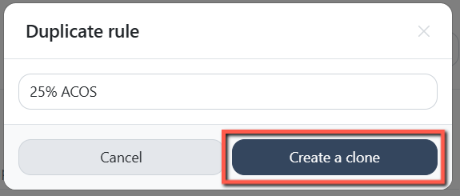
- Review and customize its priority, trigger conditions, actions, and limits.
- Click Create Rule to save the new rule.

- Preview the proposed changes, where available.
Example: You have a Bidding Rule that reduces bids when ACOS exceeds 40%. You want a more aggressive rule for targets with significantly higher ACOS. Clone the existing rule, adjust its trigger conditions and action, and give it a name that clearly distinguishes it from the original.
Tip
Review the cloned settings before assigning the new rule. A cloned rule should reflect the intended strategy for its targets rather than simply repeat the original configuration.
[drawer]Edit an Existing Automation Rule
If your advertising strategy changes, you can update an existing rule instead of creating a new one.
To edit a rule:
- Go to Automation > Algorithms.
- Select the relevant algorithm.
- Find the rule you want to update. Click the rule name to open the edit page.
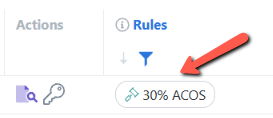
- Review and update its priority, trigger conditions, actions, or limits.
- Save your changes.
- Preview the proposed changes, where available.
Before editing a rule, consider which ad groups or targets currently use it. Updating a shared rule may affect its behavior wherever it is assigned.
If you want to test a different approach without changing the original rule, consider cloning it and customizing the new version instead.
What's Next?
Once your rules are configured, assign them to the relevant ads and monitor their performance.
- How to Automate Your Ads — Learn how to assign automation rules to your ads.
- How Do Algorithms Analyze Data? — Understand how algorithms evaluate performance data and determine when rules should run.
- Using Strategic Objectives — Group related rules into a strategy and apply it across multiple ad groups.
- Overview of Each Automation Algorithm — Learn what each algorithm does and choose the right one for your optimization goals.
- Reviewing Automation Actions Taken — Review recorded automation activity and check whether rules are behaving as expected.
Start with a clear optimization goal, configure the conditions and actions to match your strategy, and review the proposed changes before expanding automation to more ads. As you gain confidence in your rules, you can refine your settings and build a more consistent advertising workflow.