
Automation rules help you optimize your ads based on your advertising strategy by automatically taking actions according to your configured conditions.
Before You Begin: Link Ad Groups to an Automated ASIN
For automation rules to apply to your ads, your ad groups must be linked to an automated ASIN before you assign the rules.
Scale Insights handles ASIN linking differently depending on the number of ASINs in an ad group:
- Ad groups with multiple ASINs or variations: You need to manually select which variation ASIN to link to the ad group. This is usually the best-selling ASIN.
- Ad groups with a single ASIN: Scale Insights automatically links the ad group to that ASIN.
If an ad group isn't linked yet, you can link it using either of these methods:
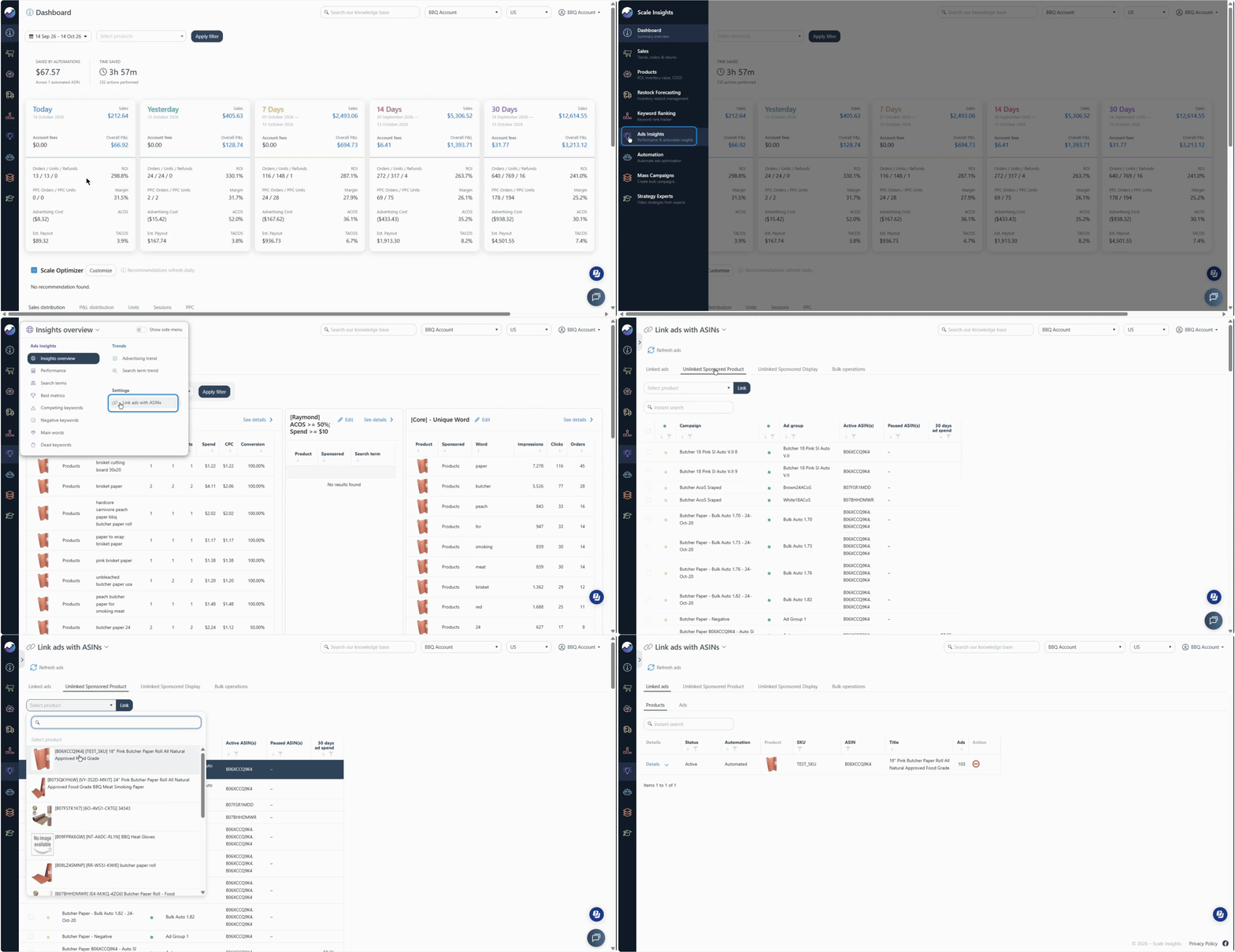
- Link Ads to an ASIN page: Go to the page and link the relevant ad groups to an automated ASIN.
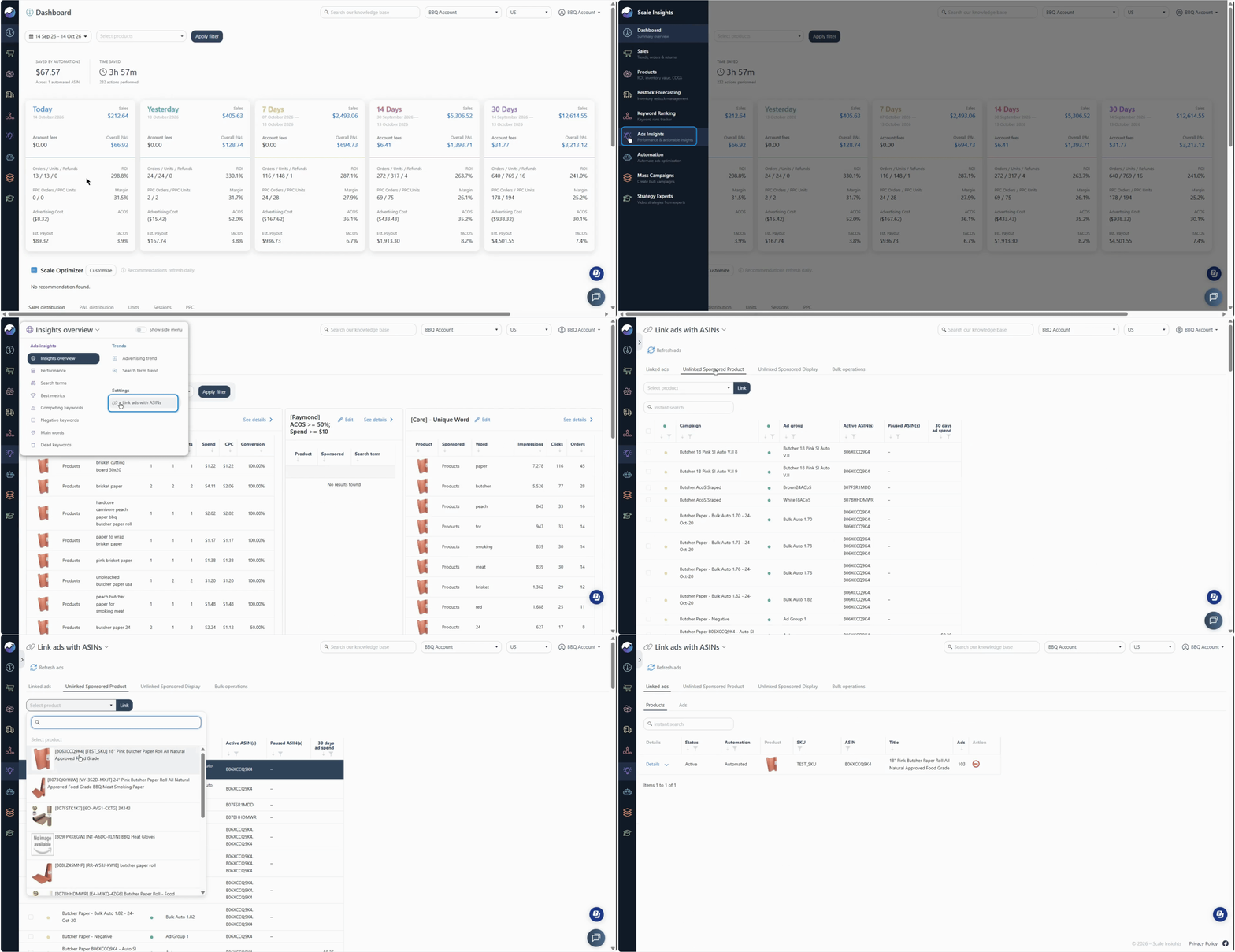
Learn how to link ads to an ASIN here: Steps to Link Ads to ASINs - Rule assignment page: Select an automated ASIN directly when assigning rules.
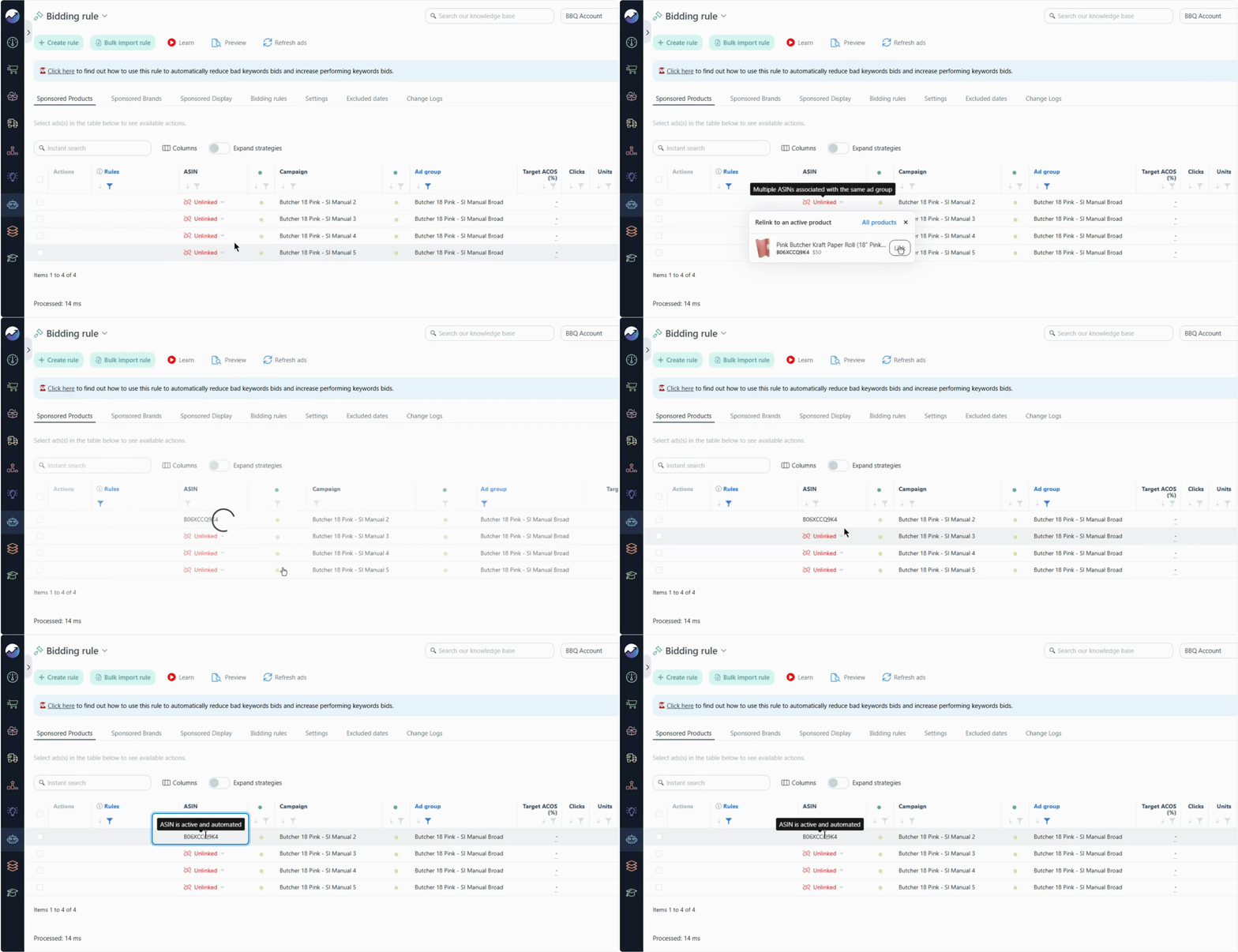
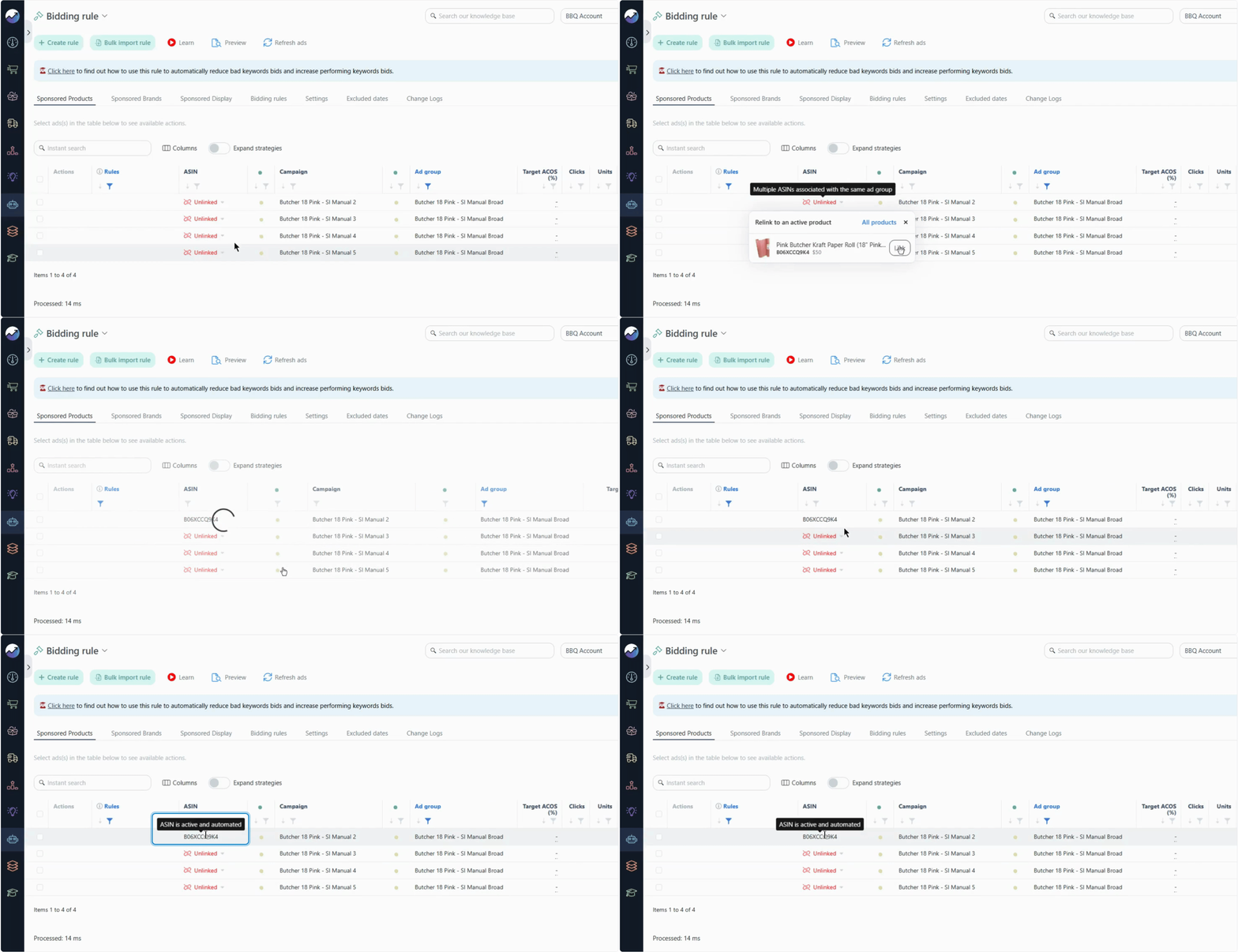
Once your ad groups are linked to an automated ASIN, you can proceed with assigning automation rules.
[drawer]Choose Your Automation Rules
Before assigning rules, identify the ones that align with your optimization goals.
- Go to Automation > Algorithms and select the algorithm you want to use.
.png?width=170&height=370&name=algorithms(1).png)
- Review the available preset rules and choose the ones that fit your strategy.
.png?width=581&height=133&name=bidding-20rules-20tab(1).png)
- If needed, review the rule configuration to understand its conditions and actions.


Each rule defines the conditions under which specific actions are taken on your ads. For example, a Bidding Rule can adjust bids based on your configured conditions.
For help configuring a specific rule, refer to its corresponding guide: Overview of Each Automation Algorithm
Learn how to edit and apply preset rules: How to Edit Preset Automation Rules
[drawer]Assign Rules to Your Ads
Once you've linked your ad groups to an automated ASIN and configured the rules to use, assign the rules to the ads you want to automate.
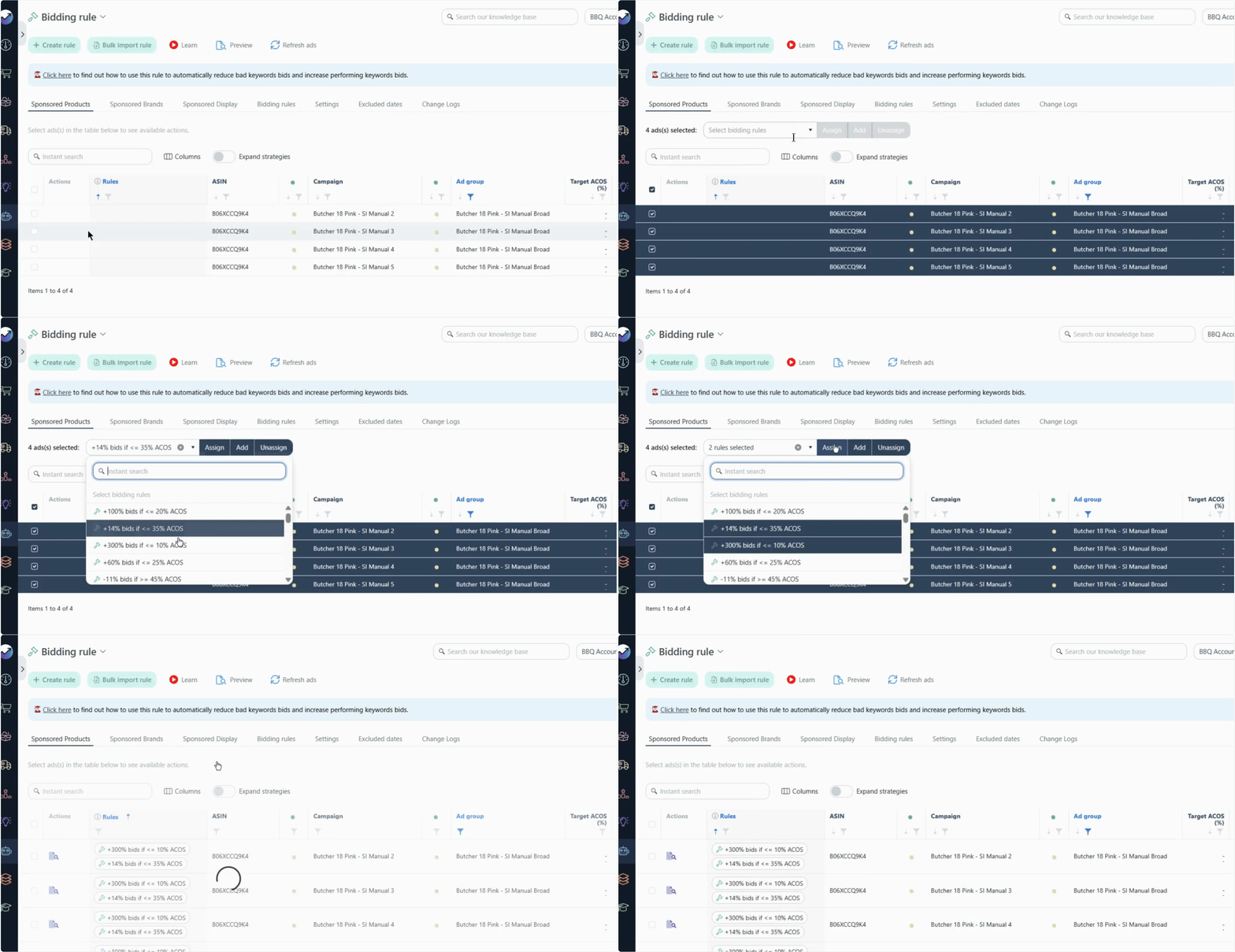
- Open the relevant algorithm and select the appropriate ad-type tab.
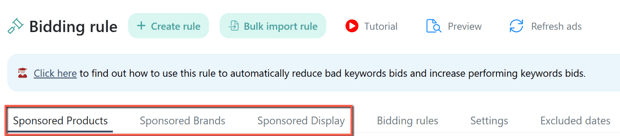
- Select the ads or ad groups you want to automate.
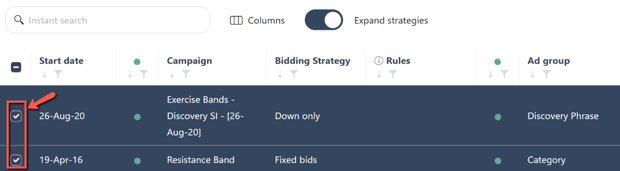
- Choose the rule or rules you want to assign. Click Assign to apply the selected rule(s).
.png?width=577&height=279&name=how-20to-20automate-20--20rule(1).png)


[drawer]Preview the Proposed Changes
Preview the proposed changes to understand what your rules would do and check whether the actions align with your optimization strategy.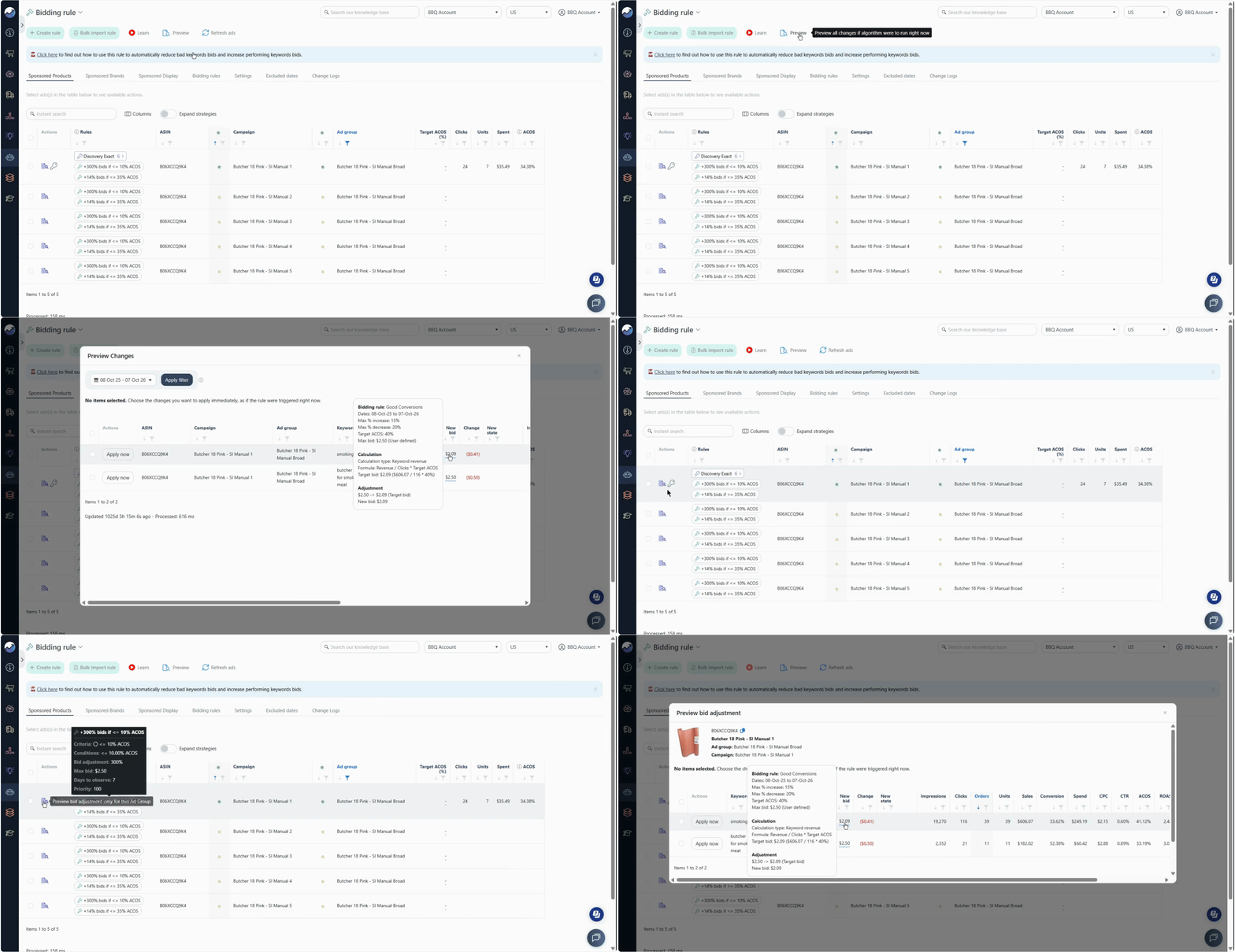
Preview all changes for an algorithm
Click the Preview button to see what the algorithm will change if it runs now.

Hover over individual changes to view their calculations, where available.

Review the proposed actions to understand how the rules would affect the selected ads.
Preview changes for a single ad
To inspect a specific ad, click Preview under the Actions column for that ad.
This lets you examine the proposed changes and calculations for an individual ad.
Tip
If the proposed changes look unexpected, review the rule configuration and the ads assigned to it before proceeding.
[drawer]Unassign Rules
You can remove a specific rule from selected ads or remove all assigned rules when you need to update your automation setup.
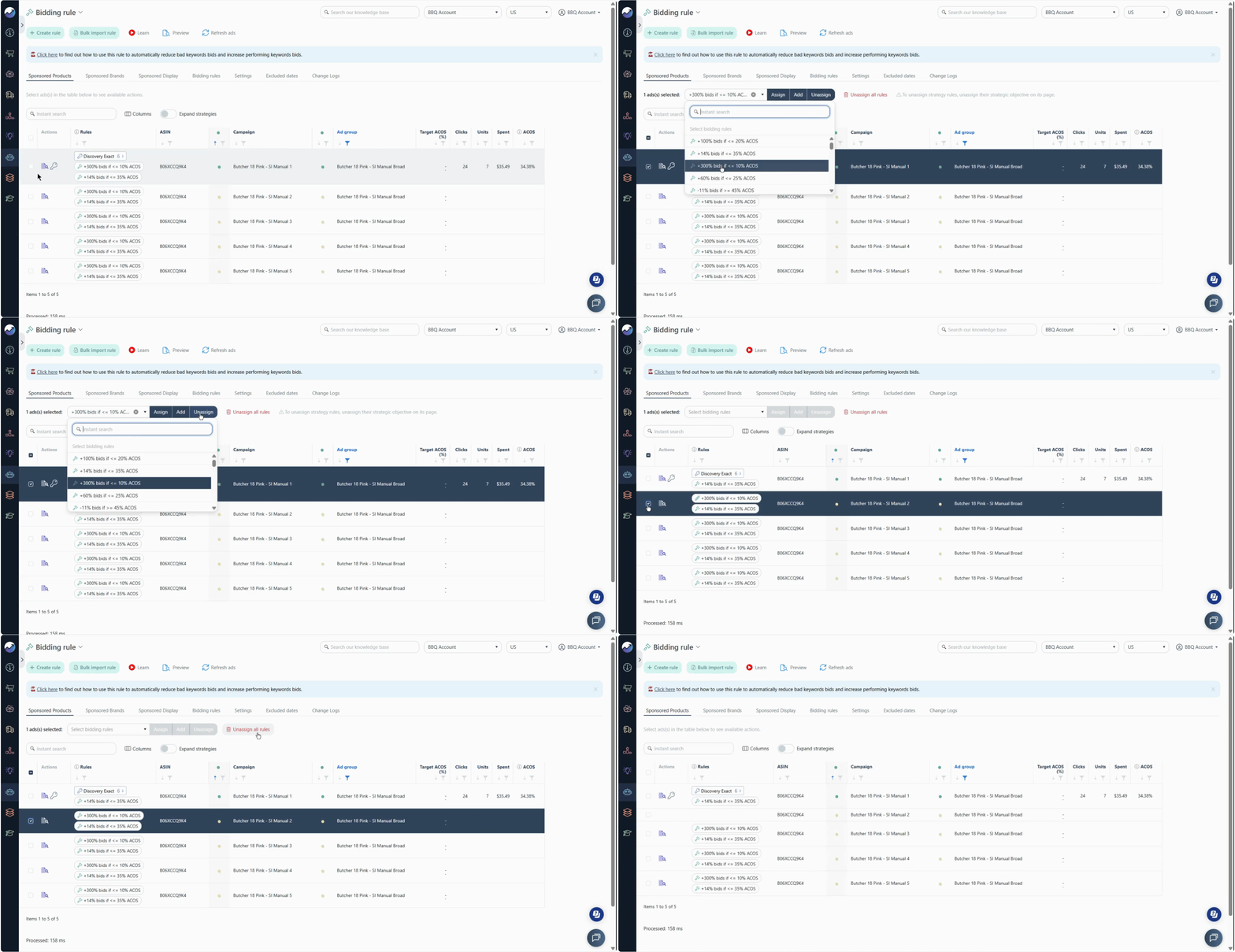
Unassign a specific rule
- Select the ads you want to update.
- Choose the rule you want to remove from the rule dropdown menu.
- Click Unassign.
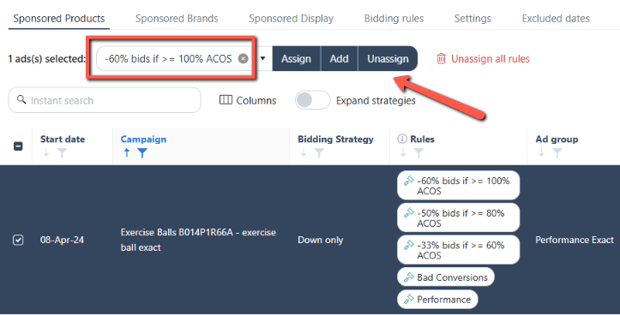

This removes the selected rule assignment from the chosen ads.
Unassign all rules
- Select the ads you want to update.
- Click Unassign all Rules to remove all assigned rules from those ads.
.png?width=620&height=261&name=how-20to-20automate-20--20unassign(2).png)

Important
Unassigning a rule changes its assignment. It does not necessarily reverse changes the rule has already made to your ads.
What's Next?
Review your automation setup regularly to ensure your rules and assignments continue to support your advertising goals.
If you need to adjust your strategy, revisit your rule configurations or update the rules assigned to your ads. For more information, explore the individual algorithm guides: Overview of Each Automation Algorithm