
Why Normalize Bids?
Amazon can increase your bid based on your campaign's placement modifiers and bidding strategy. If your bidding rules calculate keyword bids without accounting for these adjustments, the resulting bids may not align with your intended Target ACOS.
Bid normalization adjusts the optimal bid calculated by Scale Insights to account for these Amazon bidding adjustments.
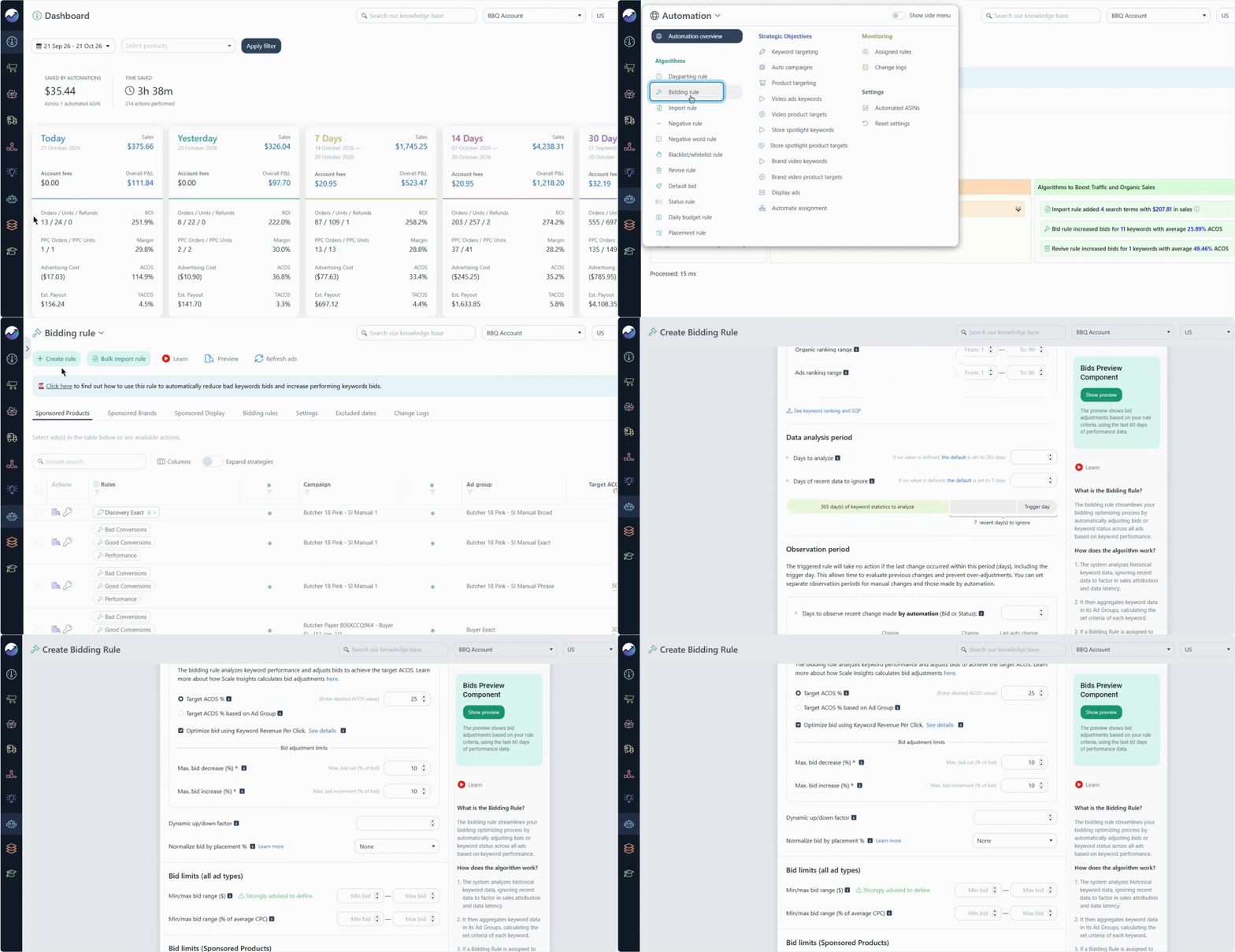
You can normalize bids based on:
- Dynamic Up and Down: Accounts for the campaign's dynamic bidding strategy.
- Placement modifiers: Accounts for the campaign's Top of Search (TOS), Product Pages (PP), or Rest of Search (ROS) modifier.
You can also combine both options if your campaign uses both adjustments.
[drawer]Normalize Bids Based on Dynamic Up and Down
Amazon's Dynamic Up and Down strategy can increase your bid when Amazon predicts a click is more likely to convert and decrease it when a click is less likely to convert.
Bid normalization accounts for the dynamic bidding factor when calculating the bid that Scale Insights should target.
Formula: Normalized bid = Capped optimal bid × Dynamic factor
Example
Suppose the keyword has a current bid of $1.04.
Your bidding rule calculates an optimal bid of $1.10 after applying the minimum and maximum bid limits.
Your campaign uses a dynamic bidding factor of 0.90.

The normalized bid is calculated as follows: $1.10 × 0.90 = $0.99
The normalized bid is $0.99.
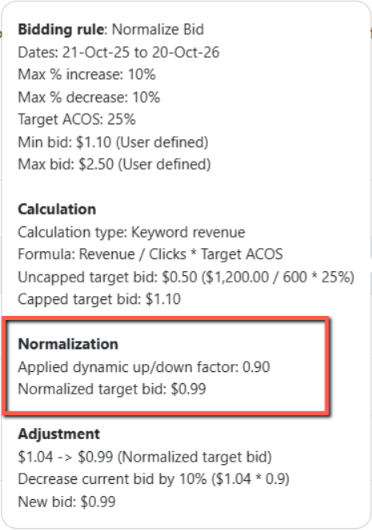
The system will adjust the current bid toward the normalized target bid, while respecting the maximum increase and decrease limits configured in the rule to determine the final bid.
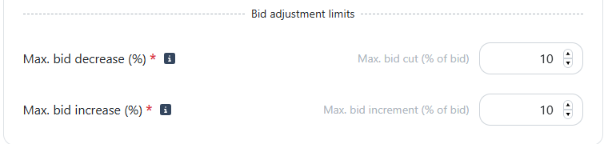
The final bid is $0.99.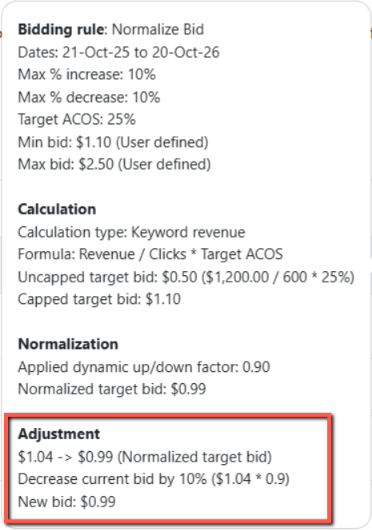
[drawer]Normalize Bids Based on Placement Modifiers
Amazon allows you to increase bids for specific placements using placement modifiers. For example, a 200% Top of Search modifier allows Amazon to increase the base bid by up to 200% for eligible Top of Search auctions.
Bid normalization accounts for the selected placement modifier when calculating the target bid.
Formula: Normalized bid = Pre-normalized bid × (100 ÷ (100 + Placement modifier %))
Example
Suppose your keyword has a current bid of $1.45.
Your bidding rule calculates an optimal bid of $1.72 after applying the minimum and maximum bid limits.
Your campaign uses a 50% Top of Search modifier.

The normalized bid is calculated as follows: $1.72 × (100 ÷ (100 + 50)) = $1.15.
The normalized bid is $1.15.
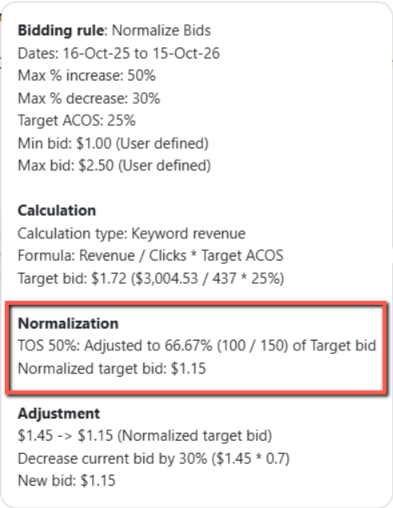
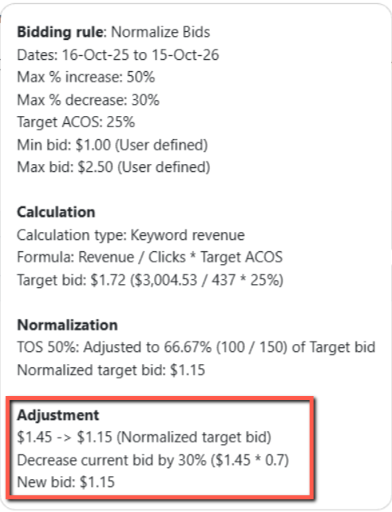
The system will adjust the current bid toward the normalized target bid, while respecting the maximum increase and decrease limits configured in the rule to determine the final bid.
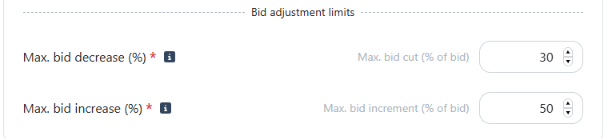
The final bid is $1.15.
Here's how different Top of Search modifiers affect the calculation when the starting bid is $1.72:
| TOS modifier | Calculation | Normalized bid |
|---|---|---|
| 100% | $1.72 × (100 ÷ (100 + 100)) | $0.86 |
| 150% | $1.72 × (100 ÷ (100 + 150)) | $0.69 |
| 200% | $1.72 × (100 ÷ (100 + 200)) | $0.57 |
The higher the placement modifier, the lower the normalized base bid, because Amazon can apply a larger increase to the bid for that placement.
Note
The same formula applies when normalizing based on a Product Pages or Rest of Search modifier. Use the percentage for the placement selected in your configuration.
[drawer]Combine Both Normalization Options
If your campaign uses both Dynamic Up and Down bidding and placement modifiers, you can enable both normalization options.
Scale Insights first calculates the optimal bid and applies the minimum and maximum bid limits. It then normalizes the capped optimal bid based on the selected dynamic factor and placement modifier.
Example
- Calculate the capped optimal bid: $2.50.
- Apply the 0.90 dynamic factor: $2.50 × 0.90 = $2.25.
- Apply the 60% TOS modifier normalization: $2.25 × (100 ÷ (100 + 60)) = $1.41.
The resulting normalized bid is $1.41.
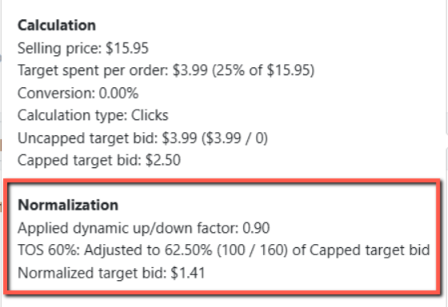
This calculation shows how both adjustments can be accounted for when determining the target bid.
How to Set Up Bid Normalization
Follow these steps to configure and review bid normalization in the Bidding Rule.
- Open the bidding rule you want to configure, or click Create Rule.
- Select Target ACOS as the computation type the rule will use.
- Enable the normalization option for the Dynamic Up and Down factor if your campaign uses this bidding strategy.
- Enable placement modifier normalization and select the applicable placement: Top of Search, Product Pages, or Rest of Search.
- If your campaign uses both adjustments, configure both normalization options.
- Configure the other bidding rule settings before saving and applying the rule.
- Click Preview to review the bid calculation and check the normalized target bid.
Tip
Use Preview to understand how the normalization settings affect the calculated bid before applying the rule to your campaigns. Click the preview's New Bid value to view the calculations.
Understanding the Bid Calculation Sequence
Bid normalization is applied after the optimal bid calculation process. Scale Insights follows this sequence:
- Calculate the optimal bid based on the bidding rule.
- Apply the minimum and maximum bid limits to determine the capped optimal bid.
- Normalize the capped optimal bid based on the configured dynamic factor, placement modifier, or both.
- Shift the current keyword bid toward the normalized target bid, according to the bidding rule's adjustment logic.
You can also download the Bid Normalization Excel file to explore how different parameters and placement modifiers affect the calculated bid.
Important
The minimum and maximum bid limits are applied before normalization. Therefore, the normalized target bid may differ from the capped optimal bid.
The maximum bid increase and decrease percentages configured in the rule are considered when determining the final bid.
To inspect the calculation for a bidding rule, click Preview. The normalization calculation appears in the new bid's tooltip.
Things to Keep in Mind
- Supported campaigns: Bid normalization is available for Sponsored Products when using the Target ACOS computation type.
- Placement modifiers remain unchanged: Normalization adjusts the bid calculation in Scale Insights. It does not change the placement modifiers or bidding strategy configured in Amazon Ads.
- Review the Preview calculation: If the resulting bid differs from your expectations, check the selected normalization settings, placement percentage, dynamic factor, and minimum and maximum bid limits.
What's Next?
- How to Calculate the Optimum Bid — Learn how Scale Insights calculates optimal bids.
- 2 Different Approaches to Bidding Rules — Understand the approaches used to calculate and adjust keyword bids.