
Amazon Auto Campaigns can help you discover search terms that customers use to find and purchase your products. With Scale Insights, you can use these search terms as a source for your Import Rules and automatically transfer qualifying terms into your intended destination ad groups.
For example, when an Auto Campaign discovers a search term that generates sales, you can create an Import Rule to evaluate its performance against your configured criteria and add it as a keyword to a Manual campaign.
This allows you to turn search term discoveries into actionable targeting opportunities without manually reviewing and transferring each term.
How Auto Campaign Grouping Works
When you select Auto Campaign as your Search Terms Source, Scale Insights groups Auto Campaigns according to their associated ASIN.
This allows search term performance data from multiple Auto Campaigns associated with the same ASIN to be consolidated for evaluation by the Import Rule.
Example:
Suppose you have the following Auto Campaigns:
| Auto Campaign | Associated ASIN |
|---|---|
| Auto Campaign 1 | ASIN A |
| Auto Campaign 2 | ASIN A |
| Auto Campaign 3 | ASIN A |
| Auto Campaign 4 | ASIN B |
| Auto Campaign 5 | ASIN B |
Scale Insights groups these campaigns as follows:
- ASIN A: Auto Campaigns 1, 2, and 3
- ASIN B: Auto Campaigns 4 and 5
This means search term data from campaigns associated with the same ASIN can be consolidated rather than evaluated as completely separate sources.
Why this matters: You can use search term performance gathered across multiple Auto Campaigns associated with the same ASIN when identifying terms that meet your Import Rule criteria.
How to Import from Auto Campaigns
Follow these steps to configure an Import Rule that uses Auto Campaigns as its search terms source.
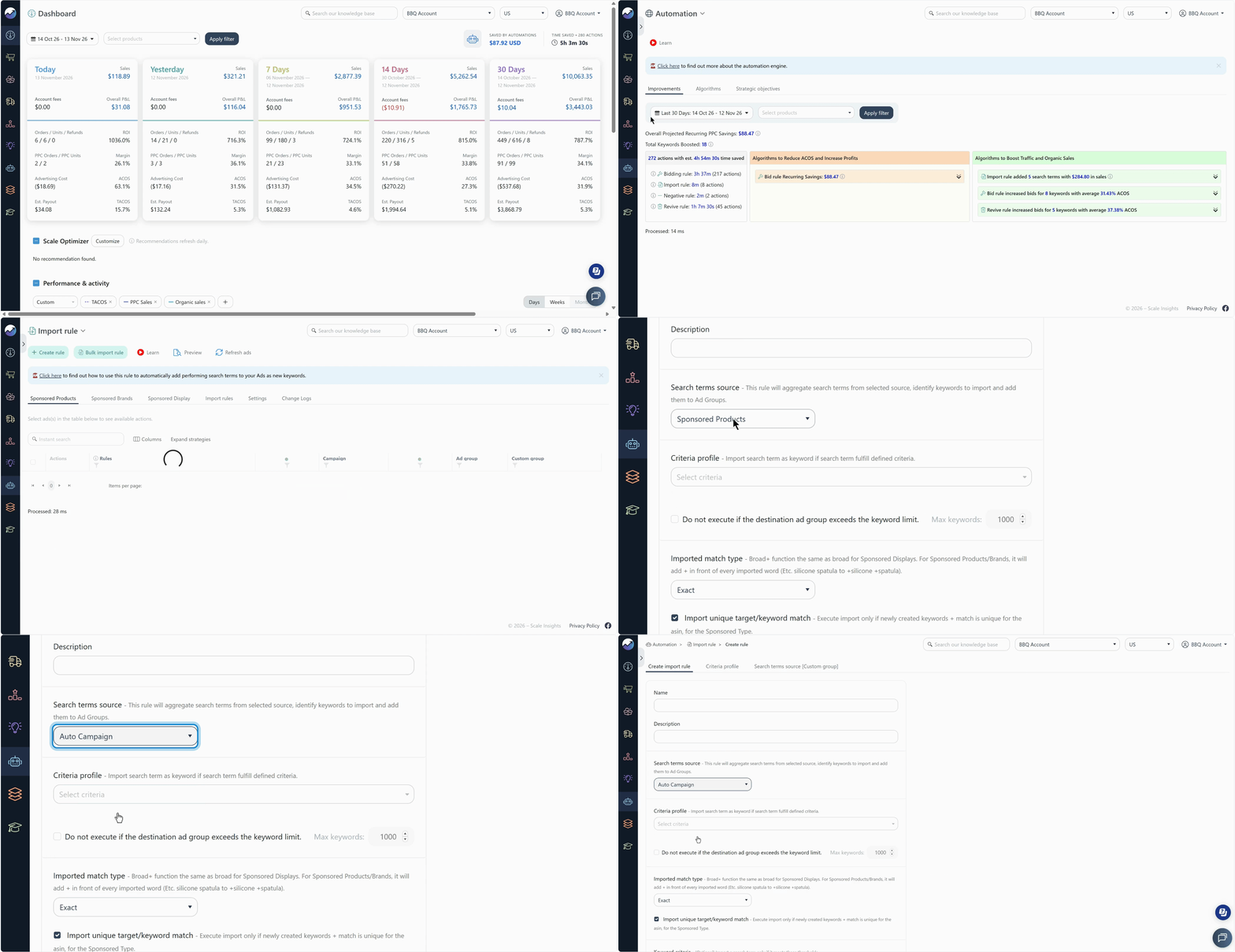
Step 1: Open the Import Rule Configuration
Navigate to Automation > Import Rule and create a new Import Rule or open an existing one.
Locate the Search Terms Source section in the configuration.
Step 2: Select Auto Campaign as the Source
Under Search Terms Source, select Auto Campaign.
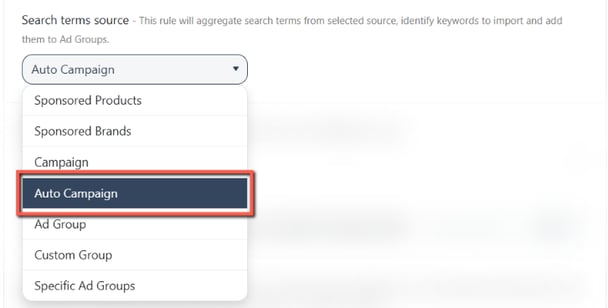
This tells Scale Insights to retrieve search term data from the Auto Campaigns associated with the relevant ASIN.
Step 3: Configure Your Import Criteria
Set the conditions that determine which search terms qualify for importing.

Choose conditions that align with your advertising goals and the performance requirements for the keywords or product targets you want to collect.
Set other rule settings to refine your Import Rule, such as the Import Match Type.

Step 4: Select the Destination Ad
Choose the ad group where Scale Insights should create the qualifying keywords or product targets.
Make sure the destination ad is appropriate for the search terms you want to harvest. For example, if you're collecting relevant customer search terms from an Auto Campaign, you may want to direct them to a corresponding Manual campaign.
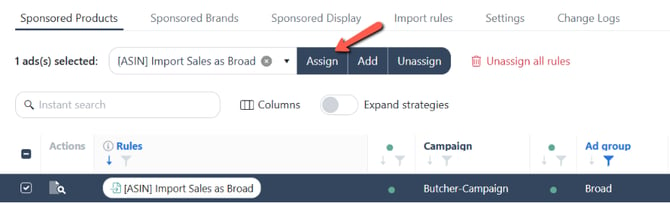
Step 5: Save and Assign the Import Rule
Once you've finalized your configurations, save the Import Rule and assign it to the intended destination ad.
This makes the rule available for evaluation against the selected Auto Campaign source and configured criteria.
Related Articles
- What is the Import Rule? – Understand how Import Rules work and how they automate the collection of qualifying search terms.
- Considerations with Import Rule – Review important considerations before configuring and assigning Import Rules.