
What is a Criteria Profile?
A Criteria Profile defines the performance conditions that must be met before an Automation Rule takes action.
Instead of building the same conditions each time you create a rule, you can save them as a Criteria Profile and reuse them across supported rules.
Navigation: Automation > Rules > Create/Edit Rule > Criteria Profile
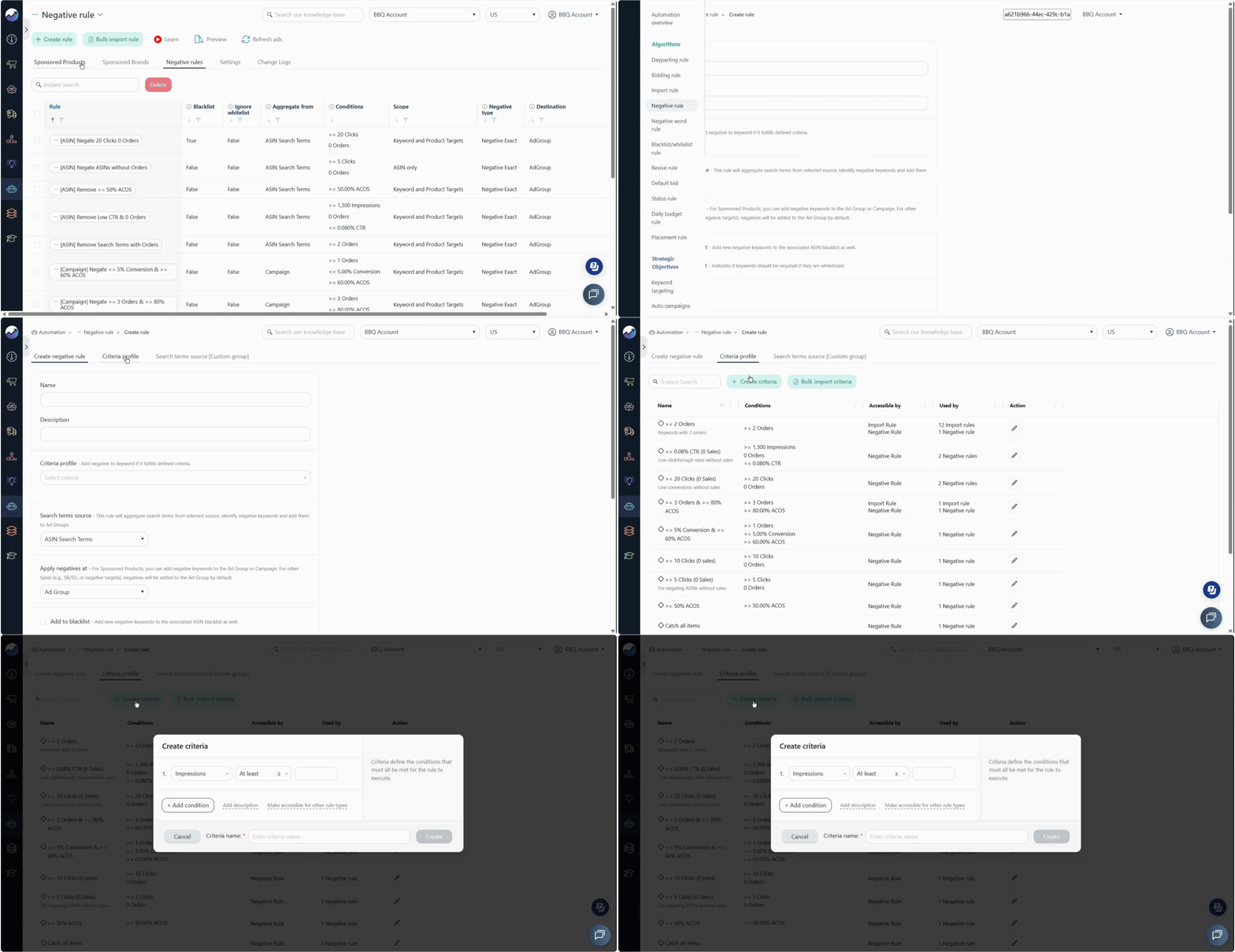
For example, you can create a profile that identifies search terms with:
- Orders: 0
- Spend: at least $10
You can then use this profile in a Negative Rule to identify search terms that are spending money without generating orders.
Think of a Criteria Profile as a reusable filter for your automation strategy. It defines what qualifies, while the Automation Rule determines what to do with the qualifying items.
How Criteria Profiles Help You Manage Rules
Criteria Profiles are useful when you want to:
- Keep your automation strategy consistent — Use the same performance thresholds across multiple rules instead of recreating them manually.
- Separate conditions from actions — Define what qualifies in the Criteria Profile and configure what happens next in the Automation Rule.
- Reuse proven conditions — Once you have a set of conditions that works for your strategy, you can reuse it across supported rules.
- Make changes easier — Update a reusable profile when your strategy changes instead of editing the same conditions in multiple places.
- Scale your setup — Create or update multiple Criteria Profiles using the bulk import option when managing a large automation setup.
[drawer]How to create a Criteria Profile
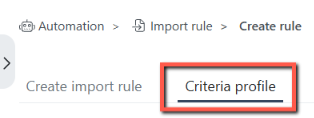
1. Open Criteria Profile
Go to Automation > Rules > Criteria Profile. Click Create to create a new profile.
2. Select the metrics and define the conditions
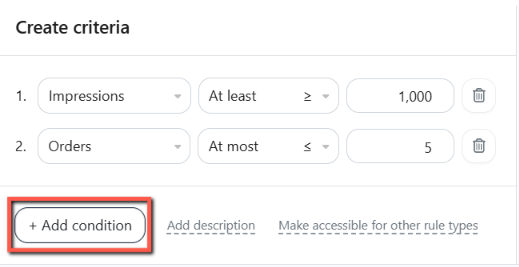
Choose the performance metrics you want to use and set the appropriate conditions.
Click Add Condition to add multiple metrics and make the criteria more specific.
3. Set the criteria range
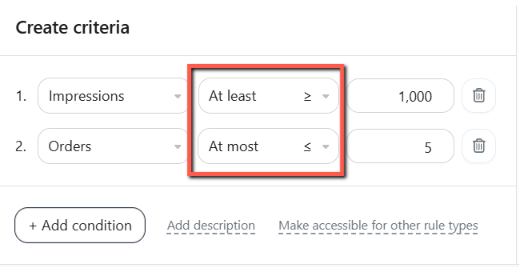
Use the available minimum and maximum conditions to define the range that qualifies.
For example:
- At least 1000 means the metric must be 1000 or higher.
- At most 5 means the metric must be 5 or lower.
When using both values, make sure the At least value does not exceed the At most value.
4. Give the profile a clear name
Choose a name that makes it easy to understand what the profile is looking for.
A descriptive name makes it easier to identify the right profile when selecting it for an Automation Rule, especially when you have several profiles with similar conditions.

5. Save the profile
Review the conditions and click Create.

Your Criteria Profile can now be selected when configuring supported Automation Rules.
[drawer]Clone an existing Criteria Profile
If you already have a Criteria Profile with conditions that are close to what you need, you don't have to create a new one from scratch.
You can clone or duplicate the existing profile and update the specific threshold you want to change.
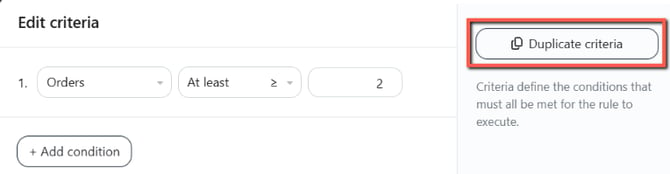
For example, you may already have:
No Orders | Spend ≥ $10
If you want to create another profile with the same conditions but a higher spend threshold, clone it and change the threshold to:
No Orders | Spend ≥ $20
This saves time and helps keep related criteria consistent.
Tip
Always assign the cloned profile an appropriate, descriptive name. The name should make it clear how it differs from the original profile, especially if the profiles are used by different Automation Rules.
[drawer]Using a Criteria Profile with an Automation Rule
Creating a Criteria Profile does not perform an action on its own.
The profile defines which items qualify. The Automation Rule determines what happens next.
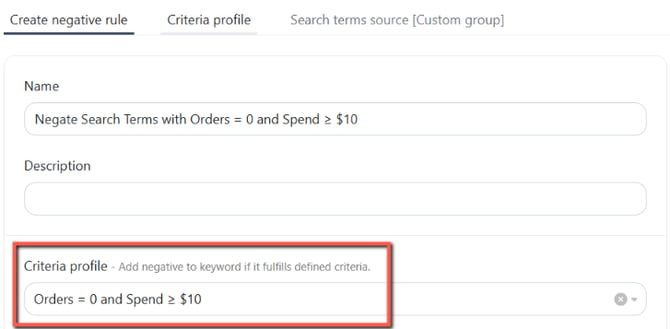
For example:
Criteria Profile
Orders = 0 and Spend ≥ $10
Negative Rule
Negate qualifying search terms
This separation makes your automation setup easier to maintain. If you later decide that $10 of spend is too low and change it to $15, you can update the Criteria Profile rather than rebuilding the rule conditions.
The exact way a Criteria Profile is applied depends on the Automation Rule you're configuring.
[drawer]Check where a Criteria Profile is being used
The Criteria Profile page also helps you understand how your profiles are being used.
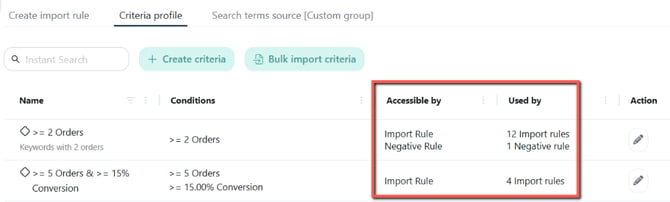
For each Criteria Profile, you can see:
- Which Automation Rules can access the criteria
- How many rules are using the criteria
- The types of Automation Rules using it
This is particularly useful before editing an existing profile.
For example, if a profile is being used by several Negative Rules and Import Rules, changing its conditions may affect how all of those rules evaluate data.
Review the rules using a profile before making significant changes to its conditions.
[drawer]Managing Criteria Profiles
From the Criteria Profile page, you can review, edit, clone, or manage your existing profiles.
If you have many profiles, use descriptive names to make them easier to identify and search.
You can also use Bulk Import to create or update multiple Criteria Profiles through an Excel template.
Related: Bulk Import Rules and Criteria
[drawer]Important limitations and considerations
A Criteria Profile does not trigger an action on its own
A profile only defines the conditions. You must select it in a supported Automation Rule for those conditions to be used.
The rule's lookback period affects the data evaluated
The Criteria Profile conditions are evaluated using the analysis/lookback period configured by the applicable Automation Rule.
For example, the same profile may produce different results when used with a rule analyzing 7 days of data versus one analyzing a longer period.
Choose thresholds carefully
A condition that is too broad can qualify too many items, while a condition that is too restrictive may qualify very few.
Before applying a profile broadly, consider whether the thresholds match your optimization strategy and the amount of data available.
Changes can affect multiple rules
A Criteria Profile can be reused across Automation Rules. Changing its conditions can therefore affect multiple rules at the same time.
Before editing a profile, check the rules using the criteria on the Criteria Profile page to understand where it is currently being used.
Minimum and maximum values must be valid
When both At least and At most are used, the minimum value cannot be greater than the maximum value.
[drawer]Best practices
Use descriptive names.
Name profiles based on the conditions they represent, such as No Orders | Spend ≥ $10. This makes them easier to identify when configuring rules.
Clone when only a small change is needed.
If a new profile uses the same conditions with a different threshold, clone the existing profile and update the relevant value instead of recreating it.
Keep criteria focused.
Only add metrics that help define the performance pattern you want the Automation Rule to act on.
Review where a profile is used before editing it.
Check the number and types of rules using the profile so you understand the potential impact of changing its conditions.
Start with thresholds you can justify.
Use your account's performance and optimization goals rather than choosing arbitrary numbers.
Use Bulk Import for large-scale changes.
If you need to create or update many profiles, use the bulk import workflow instead of editing each profile individually.
Related articles
- Bulk Import Rules and Criteria - Learn how to create or update multiple Automation Rules and Criteria Profiles at once using a bulk import template.
- Algorithms Overview - Learn how a specific automation algorithm works.