
Managing automation individually can take time, especially when you need to create or update many rules or Criteria Profiles with similar settings.
Bulk Import lets you use Excel templates to create and update multiple automation rules and Criteria Profiles at once. You can also filter and sort the template to find specific items, make your changes, and upload the completed file back to Scale Insights.
Bulk Import is available across supported automation algorithms, making it useful for managing automation at scale.
Why use Bulk Import?
Bulk Import can help you:
- Create multiple rules or Criteria Profiles at once instead of setting them up individually.
- Update multiple existing rules or Criteria Profiles in a single operation.
- Make large-scale changes faster by working with your data in Excel.
- Filter and sort the template to quickly find the rules or criteria you want to change.
- Review your changes before applying them to your account.
For example, if several rules need the same type of update, you can download the template, filter it to the relevant rules, make your changes, and upload the file instead of opening each rule individually.
What can you manage with Bulk Import?
Automation Rules
You can use Bulk Import to create or update rules across supported automation algorithms.
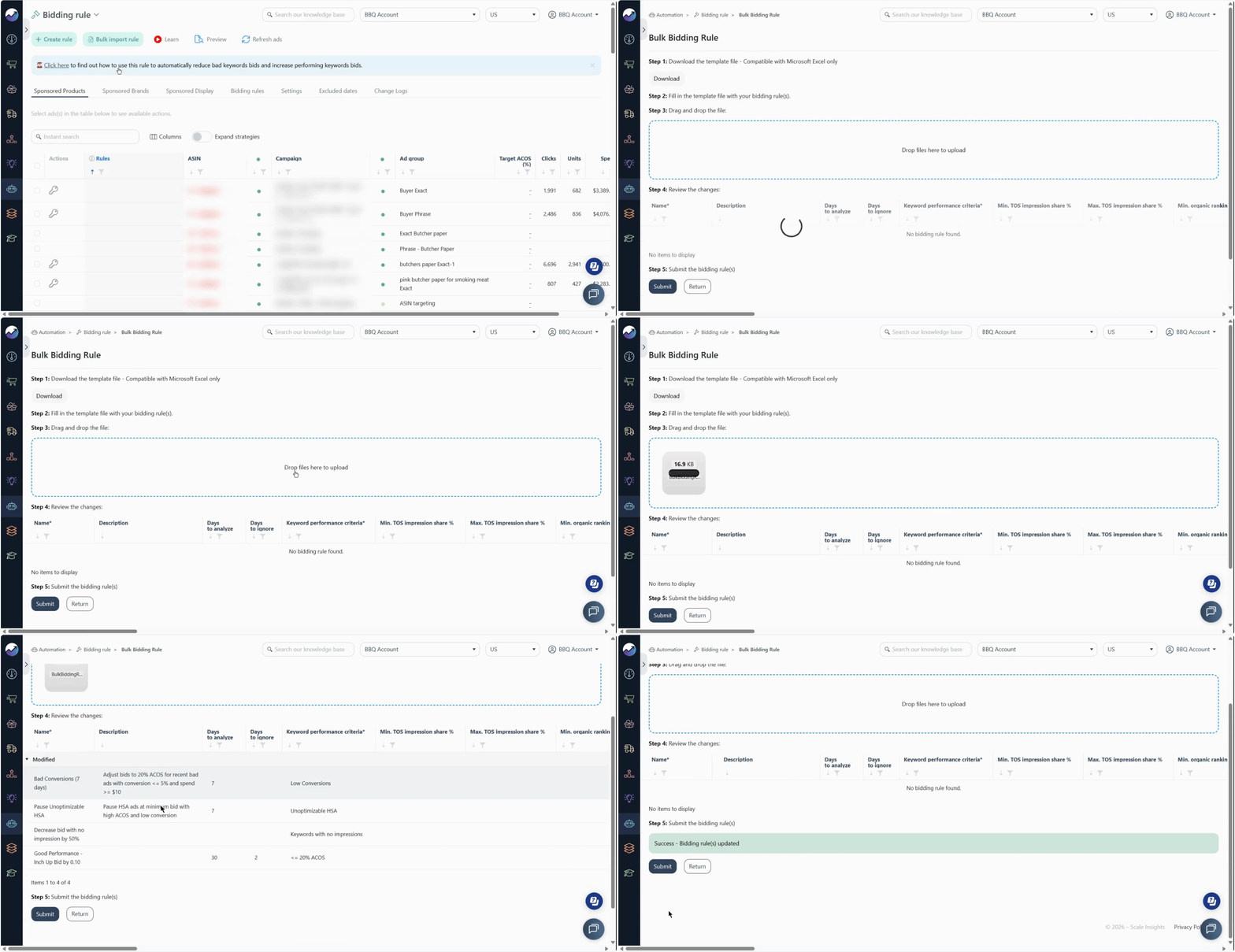
The available fields depend on the algorithm and may include the rule's criteria, settings, limits, and other configuration options.
Criteria Profiles
You can also use Bulk Import to create new Criteria Profiles or make bulk changes to existing profiles.
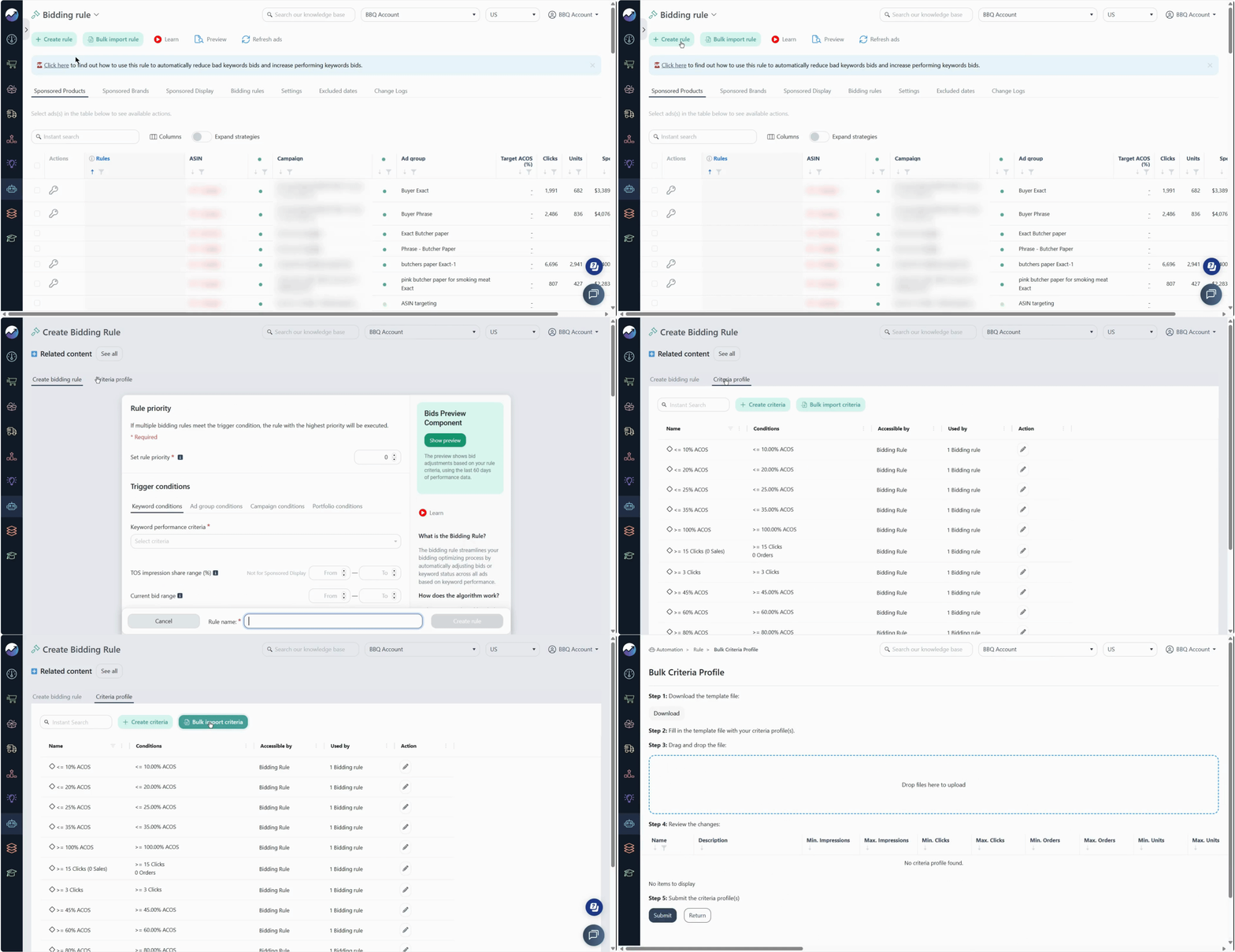
Supported changes include:
- Profile name
- Conditions
- Rules
- Accessibility
This is useful when you manage multiple Criteria Profiles and need to make consistent changes without opening each profile individually.
Follow this quick walkthrough to see how to use Bulk Import to create or update multiple automation rules.
[drawer]How to use Bulk Import
1. Open the relevant Automation page
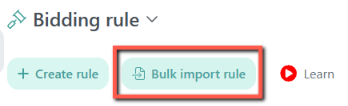
For automation rules, go to Automation and open the relevant algorithm.
For Criteria Profiles, open the rule creation or edit page, then go to the Criteria Profile tab.
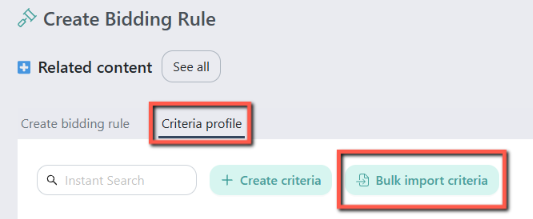
From the relevant page, look for the Bulk Import option.
2. Download the template
Download the Excel template provided for the item you want to manage.
Use the downloaded template as the starting point for your changes. The available fields depend on whether you are working with an automation rule or a Criteria Profile.
3. Find the items you want to change
If you are updating existing rules or Criteria Profiles, use the template's filter and sort functions to narrow down the items you want to work with.

Filtering is available for bulk import rules and criteria, making it easier to update specific items in a large template.
4. Make your changes
Edit the relevant fields in the Excel template.
You can use Bulk Import to:
- Update supported settings for existing automation rules.
- Create new automation rules.
- Update existing Criteria Profiles.
- Create new Criteria Profiles.
- Apply similar changes across multiple items.
The available fields vary depending on the selected algorithm or Criteria Profile template, so use the current template as your reference.
Tip
Keep the template structure intact. Avoid deleting or renaming required columns.
5. Save and upload the template
Save your completed Excel file and upload it through Bulk Import.

6. Review the validation results
Bulk Import provides specific warning messages that help identify where an error occurs in the file and which input needs to be corrected. This makes it easier to fix the spreadsheet without manually checking every row.
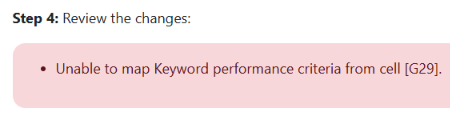
For example, the validation may identify:
- Missing required information
- Invalid or inconsistent values
- Duplicate entries
- Values that exceed the allowed character limit
If validation identifies an issue, use the warning message to locate the affected field, correct the spreadsheet, and upload it again.
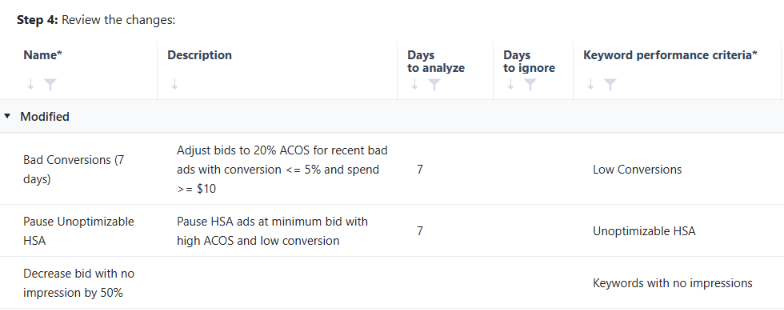
Once the file passes validation, review the changes displayed on the table.
6. Submit the changes
Click Submit to apply the changes and save the rules or criteria.
[drawer]Important limitations and things to check
Available fields depend on what you are importing
The fields available in the template vary depending on the automation algorithm or whether you are working with a Criteria Profile.
Always use the template provided for the specific item you are managing.
Use the current template
Download a fresh template before making changes, particularly if you have not used Bulk Import recently.
The templates are updated as validation and supported settings change. Using the current template helps ensure that you have the latest available fields and input options.
Required fields must be completed
Some fields are required to create or update an item.
If required information is missing, the upload may not pass validation. Mandatory field validation helps identify these fields before you complete the import.
Check dependent fields
Some options depend on other settings.
When you change a configuration, review the related fields and use the available dropdown options where provided. Dynamic dependent dropdowns help ensure that related selections remain valid.
Check for invalid or inconsistent values
Bulk Import checks the information in your file and can flag issues such as invalid or inconsistent inputs, duplicate entries, and values that exceed the allowed character limit.
Specific warning messages help pinpoint the location of an error and highlight the input that needs to be corrected.
Correct validation errors before importing
If the uploaded file contains validation errors, correct the affected cells in the Excel template and upload the file again.
Use the warning message to locate the problem rather than checking the entire spreadsheet manually.
Review bulk changes before completing the import
A single upload can affect multiple rules or Criteria Profiles, so review your spreadsheet carefully before uploading it.
Use filtering and sorting to confirm that you are changing the intended items and verify the values before completing the import.
Bulk Import supports only supported settings
Bulk Import does not necessarily expose every option available in the individual editor.
The fields available in the current template determine which settings can be created or updated through Bulk Import.
Related articles
- Automation Overview – Learn how Scale Insights automation works.
- Algorithms Overview – Learn how a specific automation algorithm works.