Scale Optimizer helps you find optimization opportunities in your Amazon advertising campaigns without having to manually review every keyword and search term.
Instead of automatically changing your campaigns, Scale Optimizer reviews your performance data and presents recommendations you can review, apply once, or automate.
This gives you more control over when and how optimization changes are made.
What can Scale Optimizer help you with?
Depending on your Optimizer settings and campaign performance, Scale Optimizer can recommend actions such as:
- Adjusting a keyword's bid toward a target ACOS
- Pausing a poor-performing keyword
- Negating a low-performing search term
- Gradually increasing the bid of a keyword with low traffic volume
Scale Optimizer can generate up to 5 recommended actions per day, helping you focus on specific optimization opportunities instead of manually reviewing every possible change.
When should I use Scale Optimizer?
Scale Optimizer can be useful when you want to:
- Quickly identify optimization opportunities across your account
- Review a potential change before applying it
- Make a one-time optimization without creating an automation rule
- Turn a recurring optimization opportunity into a rule
- Focus recommendations on specific types of ad groups using Ad Group Signals
Important
Scale Optimizer currently focuses on ad groups without assigned rules. This helps keep recommendations separate from your existing rule-based automation.
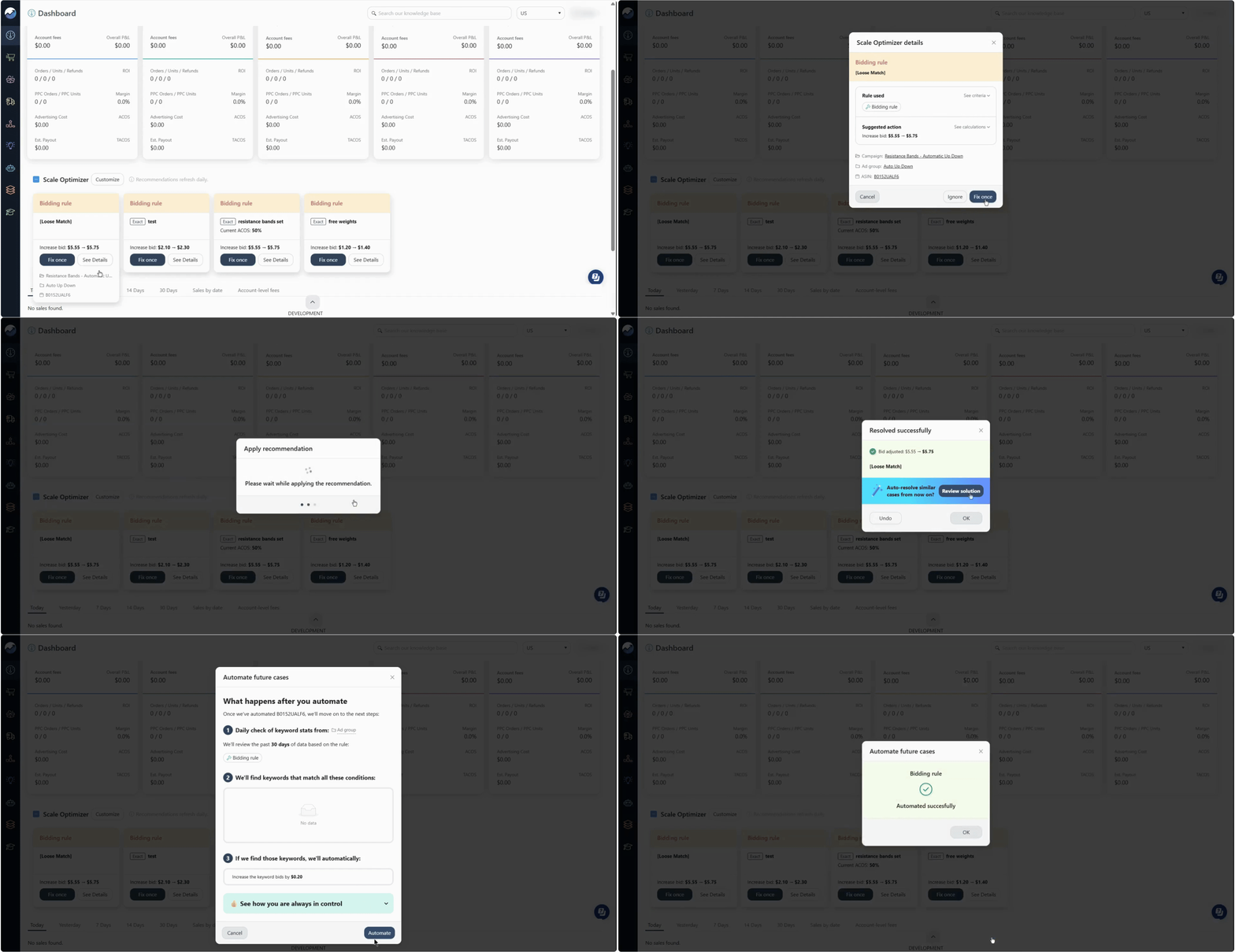
Follow this quick walkthrough to see how to set up and use Scale Optimizer.
[drawer]How Scale Optimizer works
The process is simple:
1. Scale Optimizer reviews performance data
It evaluates keyword and search term performance against the conditions defined in your Optimizer settings.
2. Recommendations are generated
When an ad group and its keywords or search terms meet the relevant conditions, Scale Optimizer can generate a recommendation.
3. You review the recommendation
You can inspect the performance data, criteria, and calculation behind the recommendation before deciding what to do.
4. You choose how to proceed
You can either:
- Fix the recommendation with a one-time change, or
- Create automation to turn the recommendation into a rule.
[drawer]How to review a recommendation
Before applying a recommendation, click See Details.
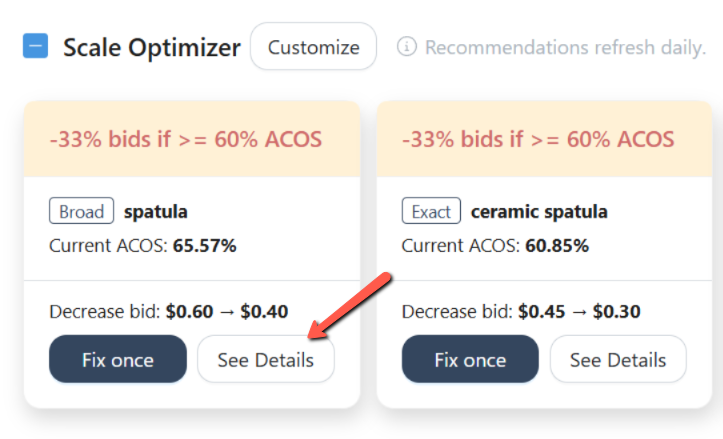
This lets you understand why Scale Optimizer identified the opportunity and review information such as:
- The Optimizer criteria
- The calculation behind the recommendation
- Keyword or search term performance
- The associated ad group
- The associated campaign
What should you look at?
Think of the recommendation as a starting point for your review, rather than an automatic instruction to make a change.
Check:
1. The performance data
Review the available performance metrics for the keyword or search term.
For example, if a bid reduction is recommended, look at the performance data that led to the recommendation.
2. The Optimizer criteria
Check the conditions that triggered the recommendation.
This helps answer:
Why did Scale Optimizer recommend this change?
3. The recommended action
Check exactly what Scale Optimizer wants to change.
Depending on the Optimizer, this could be a bid adjustment, keyword pause, search-term negation, or another supported action.
4. The ad group and campaign
Make sure the recommendation fits the campaign structure and strategy you are using.
If Ad Group Signals are configured, the recommendation will only apply to ad groups that meet the relevant Signal criteria.
[drawer]Fix Once or Create Automation
Once you've reviewed a recommendation, you can decide whether to apply it once or turn it into automation.
Fix Once
Choose Fix Once to apply the recommendation as a one-time change.
.png)
For example, Scale Optimizer may recommend reducing a keyword's bid because its current performance is above your target ACOS.
Selecting Fix Once applies the recommended adjustment without creating a rule for the ad group.
Use Fix when you want to:
- Make a one-time adjustment
- Test a recommendation manually
- Handle a specific optimization opportunity
- Avoid creating automation for the change
Create Automation
Choose Review Solution to turn the recommendation into a rule and apply it to future cases.
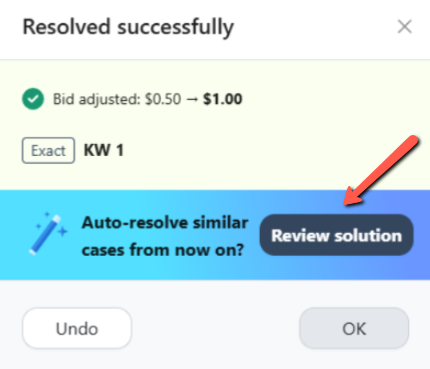
Or select Yes, Automate to automatically resolve similar issues found and automate them going forward.
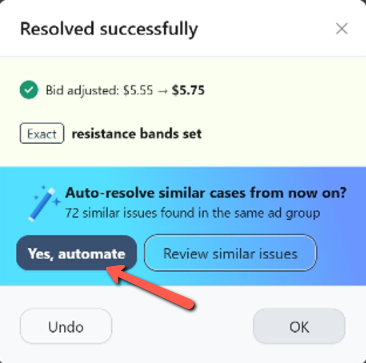
This is useful when you identify an optimization pattern that you want Scale Insights to handle repeatedly.
[drawer]What happens after I apply a recommendation?
Scale Optimizer keeps a record of its actions.
(1).png)
You can review the changes in the History Log, including:
- Which Optimizer triggered the action
- The affected keyword or search term
- The ad group and campaign
- The action that was performed
Applied changes are also visible under: Ads Insights → Manual Change History
[drawer]Can I undo a change?
Yes.
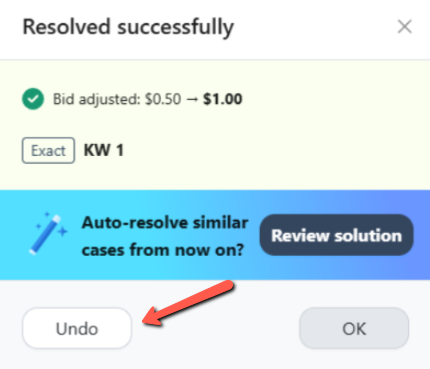
If you apply a recommendation and later decide to reverse it, use Undo from the recommendation.
The previous bid or status will be restored.
This lets you test an optimization without permanently committing to the change.
What should I do next?
Once you understand how recommendations work, the next step is understanding which ad groups can qualify for them.