
Scale Insights includes preset Ad Group Signals for common campaign structures.
You can also create custom Signals when you need more control over which ad groups qualify for a Scale Optimizer recommendation.
Before you create a Signal
Start with one question:
Which type of ad group do I want this Signal to identify?
For example, you might want a Signal for:
- Single-keyword Exact Match ad groups
- Keyword-targeted ad groups
- Product-targeted ad groups
- Ad groups using placement modifiers
- Ad groups with a specific number of targets
Create a Signal based on the ad group characteristic you want to optimize.
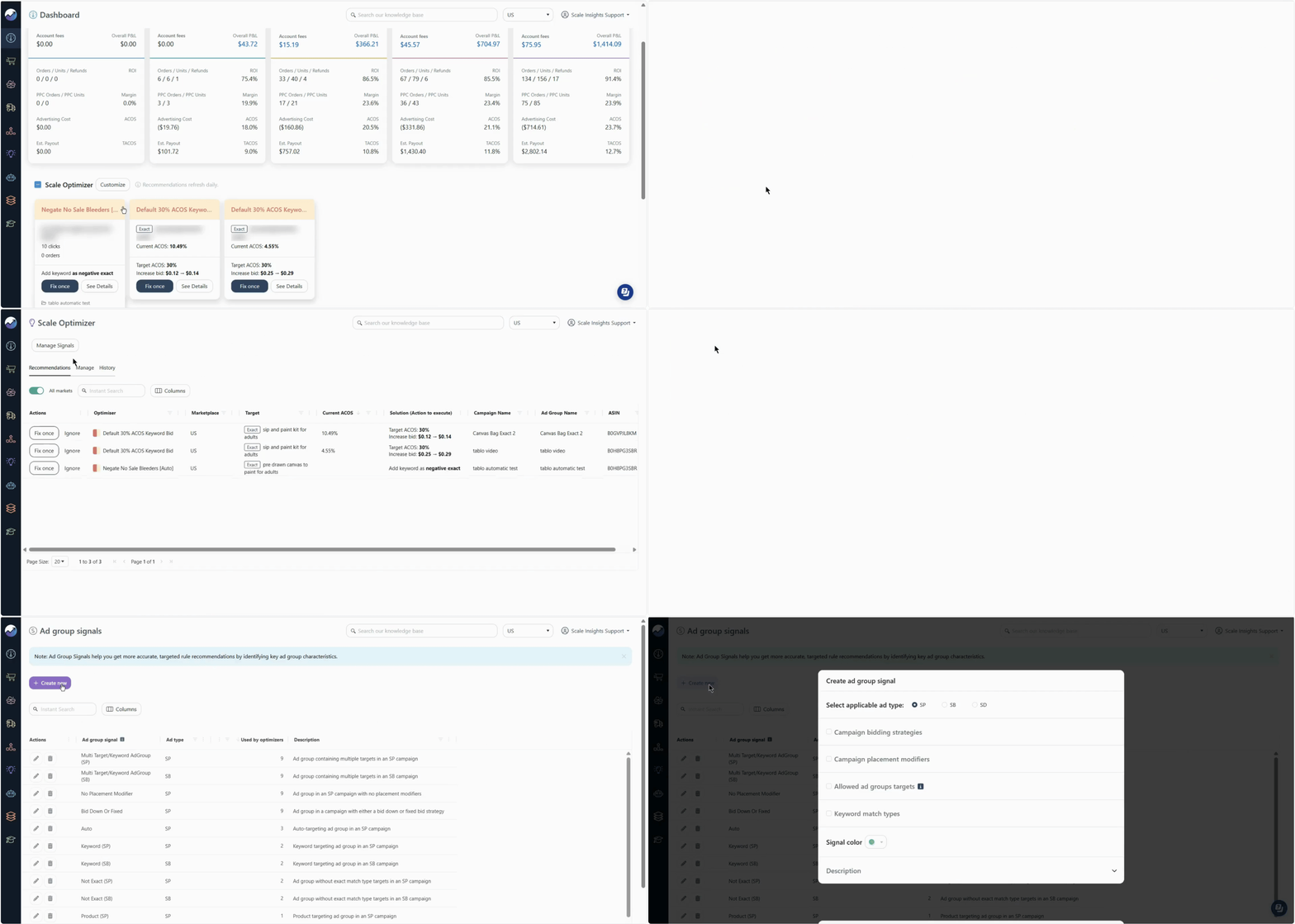
[drawer]How to Create and Edit an Optimizer
Navigation: Main Dashboard > Scale Optimizer > Customize > Manage Signals
-
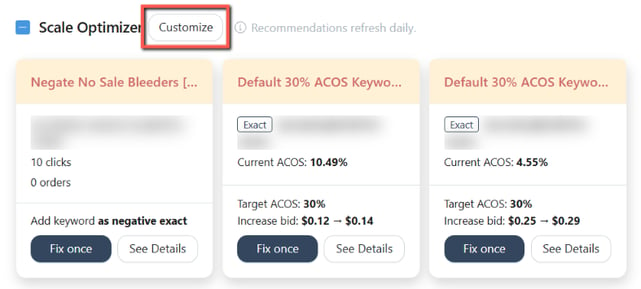
On the Main Dashboard, go to Scale Optimizer and click Customize.
-
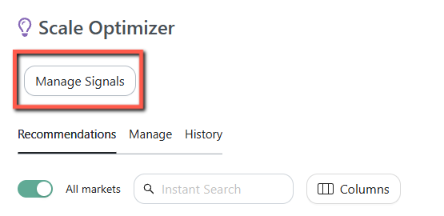
Open Manage Signals.
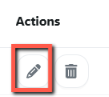
- To edit an existing or preset Ad Group Signal, click the pencil icon next to it.
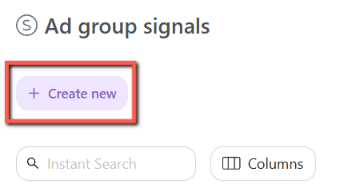
- To create a new Ad Group Signal, click Create New.
- Select the Sponsored Ad type the Signal should apply to.
Depending on your setup, this can include:
- Sponsored Products
- Sponsored Brands
- Sponsored Display
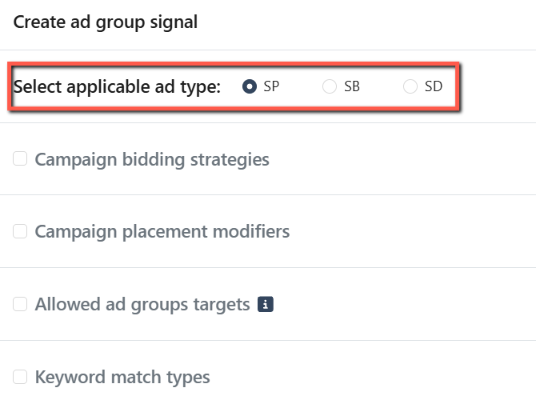
The available criteria will change based on the selected ad type.
Choose the ad type that matches the campaign structure you want to identify.
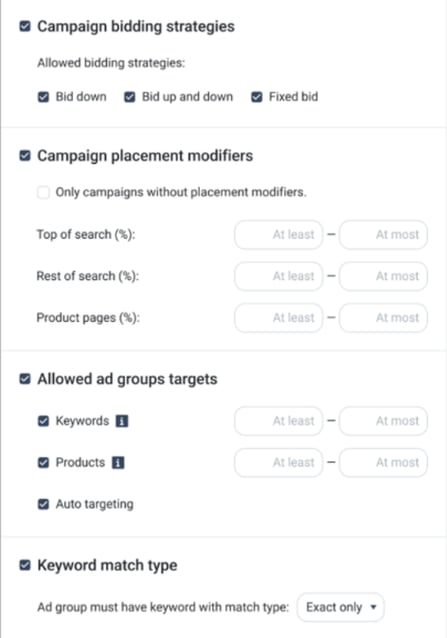
- Define the Signal criteria
The criteria determine which ad groups can match the Signal.
Depending on the selected ad type, available criteria can include:
- Bidding strategy
- Placement modifiers
- Targeting type
- Number of targets
- Keyword Match type
Think of these criteria as filters.
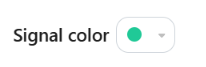
- Choose a color to your Signal to make it easier to identify visually.
- Enter an Ad Group Signal name and click Create to save it.

[drawer]Preset vs custom Signals
Scale Insights provides preset Signals for common use cases.
Use a preset Signal when:
- It already matches your campaign structure
- You want to get started quickly
- You don't need additional filtering
Create a custom Signal when:
- Your campaign structure requires different conditions
- You want to target a narrower group of ad groups
- Your optimization strategy depends on specific ad group characteristics
[drawer]Edit an existing Signal
You can edit Signals from the Ad Group Signal Settings page.
Depending on the available settings, you can refine:
- The Signal criteria
- The Signal name
- Other Signal properties
Before changing an existing Signal, consider whether it is already being used by a Scale Optimizer recommendation.
Changing its criteria can change which ad groups qualify for those recommendations.
[drawer]Delete a Signal
You can delete a Signal when you no longer need it.
However, deleting a Signal does not delete the Scale Optimizer recommendation that used it.
Instead:
Deleting a Signal removes it from the filters of recommendations that use it.
If the recommendation depended on that Signal to identify a specific group of ad groups, review the affected recommendation after deleting the Signal.
[drawer]Best practices
Keep Signals focused
A Signal should identify a meaningful group of ad groups.
Avoid adding criteria simply because they are available.
Use descriptive names
Make the purpose of the Signal clear from its name.
Start simple
If you're creating your first custom Signal, start with a few meaningful criteria.
You can refine the Signal later if your optimization strategy changes.
Avoid conflicting Signals
Make sure the Signals selected for a recommendation describe compatible ad group structures.
Review Signals periodically
Campaign structures can change over time.
Review your Signals periodically to make sure they still reflect how your account is organized and how you want to optimize it.
What's next?
Once your Signal is created, add it to the relevant Scale Optimizer recommendation.
Scale Optimizer will use the Signal as a filter when determining which ad groups qualify.
If you want to understand the logic behind that filtering, see:
How Ad Group Signals Work with Scale Optimizer
If you want to learn how the Scale Optimizer works, go to: