
The Dayparting Rule allows you to control your advertising activity by applying different actions at specific hours of the day. Instead of using the same advertising settings throughout the day, you can adjust your strategy based on when your products are more likely to generate sales.
With dayparting, you can:
- Schedule your ads: Turn ad groups on or off during specific hours.
- Adjust keyword bids hourly: Increase or decrease keyword bids during specific hours based on your advertising performance and strategy.
Both options can be configured within the same Dayparting Rule, giving you more flexibility to manage your advertising throughout the day.
Navigation: Automation → Dayparting

Why Use the Dayparting Rule?
Not every hour generates the same advertising results. Some products receive more traffic and conversions during certain hours, while others may experience clicks without generating many orders.
Dayparting helps you adapt your advertising strategy to these patterns instead of using the same settings around the clock.
Here are some ways you can use it:
1. Reduce Unnecessary Advertising Spend
Running ads 24/7 doesn't always mean you're getting the most out of your advertising budget.
For example, your campaigns may receive a significant number of clicks during overnight hours but generate very few orders. If this pattern occurs consistently, you may be spending your budget during periods when customers are less likely to purchase.
In some cases, sellers may use click farms to generate fake clicks on competitors' ads during off-peak hours, depleting their daily budgets before peak sales hours.
In this report, a user received over 100 suspicious clicks, resulting in a 790.23% ACOS for the day.

If you notice unusual click activity or poor conversion rates during overnight hours, you can use Ad Scheduling to pause ad groups during these hours or Hourly Bid Adjustments to reduce keyword bids while keeping your ads active.
This gives you more control over how much you spend during less productive periods.
2. Capture More Opportunities During High-Performing Hours
Some products consistently generate more orders during specific hours of the day.
For example, if your product receives more conversions in the afternoon, you may want to increase keyword bids during those hours to compete more aggressively for advertising placements.
With Hourly Bid Adjustments, you can increase bids during stronger periods and reduce them during weaker ones without manually changing your bids throughout the day.
The screenshot below is from one of SI's test results. The top image doesn't use dayparting, while the bottom image is the same campaign one day later with dayparting.

If you want to use dayparting, you can start by finding the optimum hours to enable your ads.
[drawer]Two Ways to Use Dayparting
Dayparting provides two ways to manage advertising activity. You can use either approach independently or combine them within the same rule.
1. Ad Scheduling
Ad Scheduling lets you control when your ad groups are enabled or paused.
You can select specific days and hours when you want your ads to run. For example, if your products consistently generate fewer sales overnight, you can schedule your ad groups to be disabled during those hours and enabled again when your target selling hours begin.
When to use it:
- You want to stop advertising completely during certain hours.
- You notice recurring periods of high clicks but very few conversions.
- You want to concentrate your advertising activity during specific selling hours.
2. Hourly Keyword Bid Adjustments
Hourly Bid Adjustments let you increase or decrease bids by applying percentage modifiers to your existing base bids.
For example, if a keyword has a base bid of $1.00:
- A +20% adjustment increases the bid to $1.20.
- A -20% adjustment decreases the bid to $0.80.
This allows you to bid more aggressively during high-performing hours and reduce bids when performance is weaker, without necessarily turning your ads off.
When to use it:
- You want to increase bids during hours with stronger conversion performance.
- You want to reduce bids during hours with weaker advertising results.
- You still want to capture traffic during less productive hours without bidding as aggressively.
Important: Hourly bid adjustments apply to keyword bids, ASIN targets, and audiences. Each hourly adjustment is calculated independently from the base bid, rather than accumulating from the previous hour.
[drawer]How to Configure a Dayparting Rule
Once you've identified the hours you want to target, you can create a Dayparting Rule to manage your ad scheduling and hourly bid adjustments.
Follow these general steps to set up your rule:
Step 1: Navigate to Dayparting
Go to Automation > Dayparting and create a new Dayparting Rule.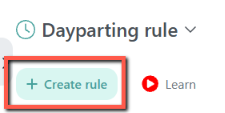
Step 2: Review Your Hourly Performance
Before configuring your rule, review your historical performance to determine which hours need adjustments.
You can use Dayparting Trend to identify sales patterns or upload your Amazon Hourly Report directly on the Dayparting page to review hourly advertising metrics.

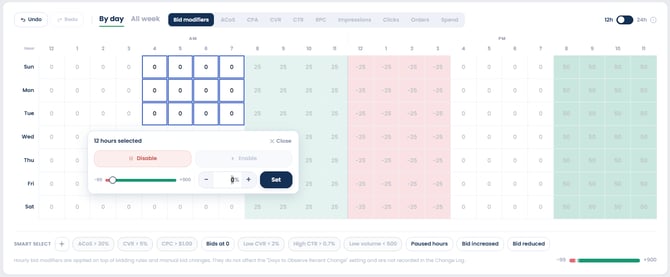
Step 3: Configure Your Hourly Settings
Select the days and hours you want to modify, then configure your preferred actions:
- Ad Scheduling: Choose whether to Enable or Disable ad groups during specific hours.
- Hourly Bid Adjustments: Enter percentage modifiers to increase or decrease bids during selected hours.
You can also bulk-select multiple days and hours to apply the same settings more efficiently.
Step 4: Save and Assign Your Rule
Once you've configured your settings, click Create Rule to save your configuration.
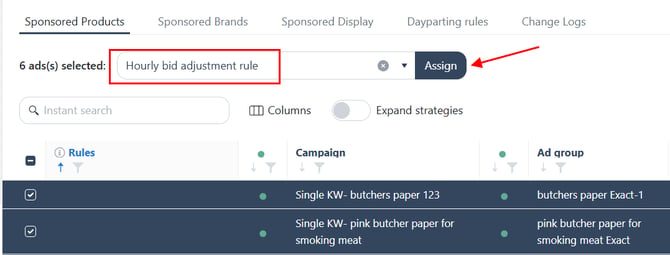
Next, select the campaigns and ad groups you want the rule to apply to, choose your Dayparting Rule from the dropdown, and click Assign.
Step 5: Preview Your Rule
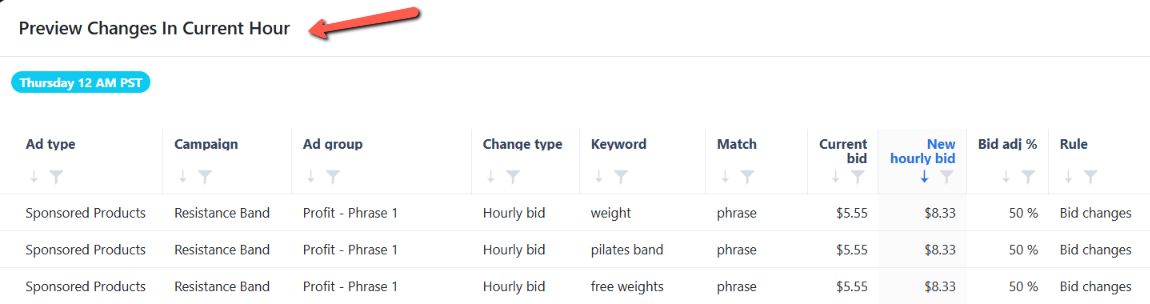
After assigning the rule, use the Preview feature to review the changes that would be applied if the rule were executed at the current time.
Check that the correct ad groups, schedules, and bid adjustments are reflected in the preview.

Step 6: Monitor Your Rule
After the rule runs, check Automation > Change Logs > Dayparting to verify that the scheduled actions were executed as expected.
Review the affected campaigns and ad groups to make sure the changes match your configuration.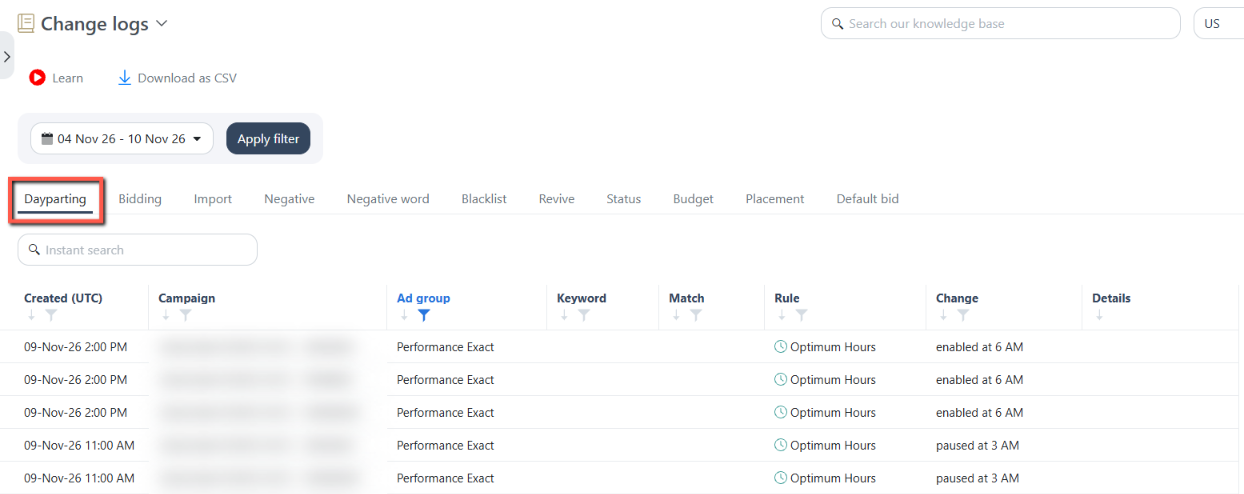
[drawer]Things to Consider Before Using Dayparting
Before applying a schedule or hourly bid adjustment, consider the following:
1. Look for Consistent Performance Patterns
Avoid making scheduling decisions based on a single unusually good or bad day. Review several weeks of historical data to identify patterns that consistently occur.
2. Consider Your Advertising Objectives
Low sales during a particular hour don't automatically mean you should turn off your ads.
For example, you may still want to maintain advertising visibility during slower hours to attract new customers or support longer-term growth.
Consider your campaign objectives, product performance, and advertising costs before excluding any hours.
3. Check Your Marketplace Time Zone
Dayparting follows the selected Amazon marketplace's time zone, not your computer's local time.
Make sure you're reviewing the correct marketplace hours when analyzing performance and configuring your schedule.
4. Combine Both Approaches When Needed
You don't have to choose between Ad Scheduling and Hourly Bid Adjustments.
You can use both within the same Dayparting Rule. For example, you can keep your ads active and increase bids during high-performing hours, reduce bids during weaker hours, and completely pause advertising during periods you want to exclude.
This gives you more flexibility to manage your advertising based on your product's hourly performance.
What's Next?
Now that you understand how the Dayparting Rule works, explore these guides to learn how to configure and use its features:
-
Optimum Hours to Drive Ads – Learn how to identify the best hours to run your ads based on historical performance.
- Getting Started with Hourly Bid Adjustments – Learn how to adjust keyword bids based on hourly performance to capture more opportunities and manage ad spend.
- Using Dayparting for Ad Scheduling – Learn how to schedule your ads by enabling or pausing ad groups during specific days and hours.