
A Strategic Objective combines automation rules into a reusable strategy. If you'd like to understand how it works within the Automation Engine, see Overview of the Automation Engine.
Follow the walkthrough below to learn how to create and assign a Strategic Objective to your ads.
[drawer]Create a Strategic Objective
Create a Strategic Objective by grouping the automation rules you want to use for a specific advertising goal.
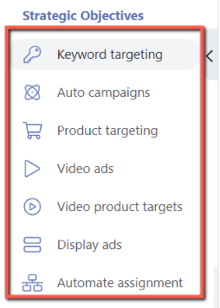
- Go to Automation > Strategic Objectives. Select the campaign type.
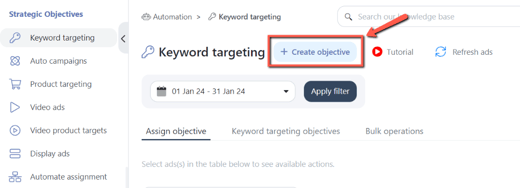
- Click Create Objective.
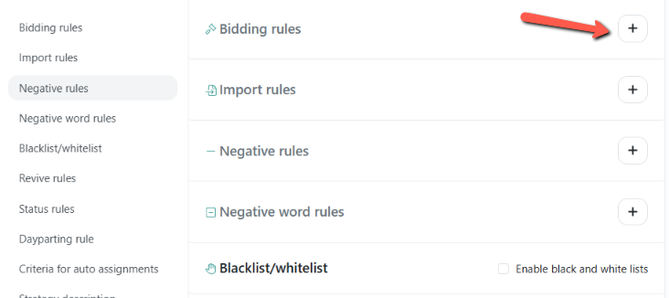
- Select the automation rules you want to include.
- Enter a name and description for your strategy.

- Click Create Strategy to save it.



Tip
Use a descriptive name that reflects your strategy's purpose, making it easier to identify when assigning it to ad groups.
[drawer]Assign a Strategic Objective to Ad Groups
Once you've created a Strategic Objective, you can assign it to the ad groups you want to optimize.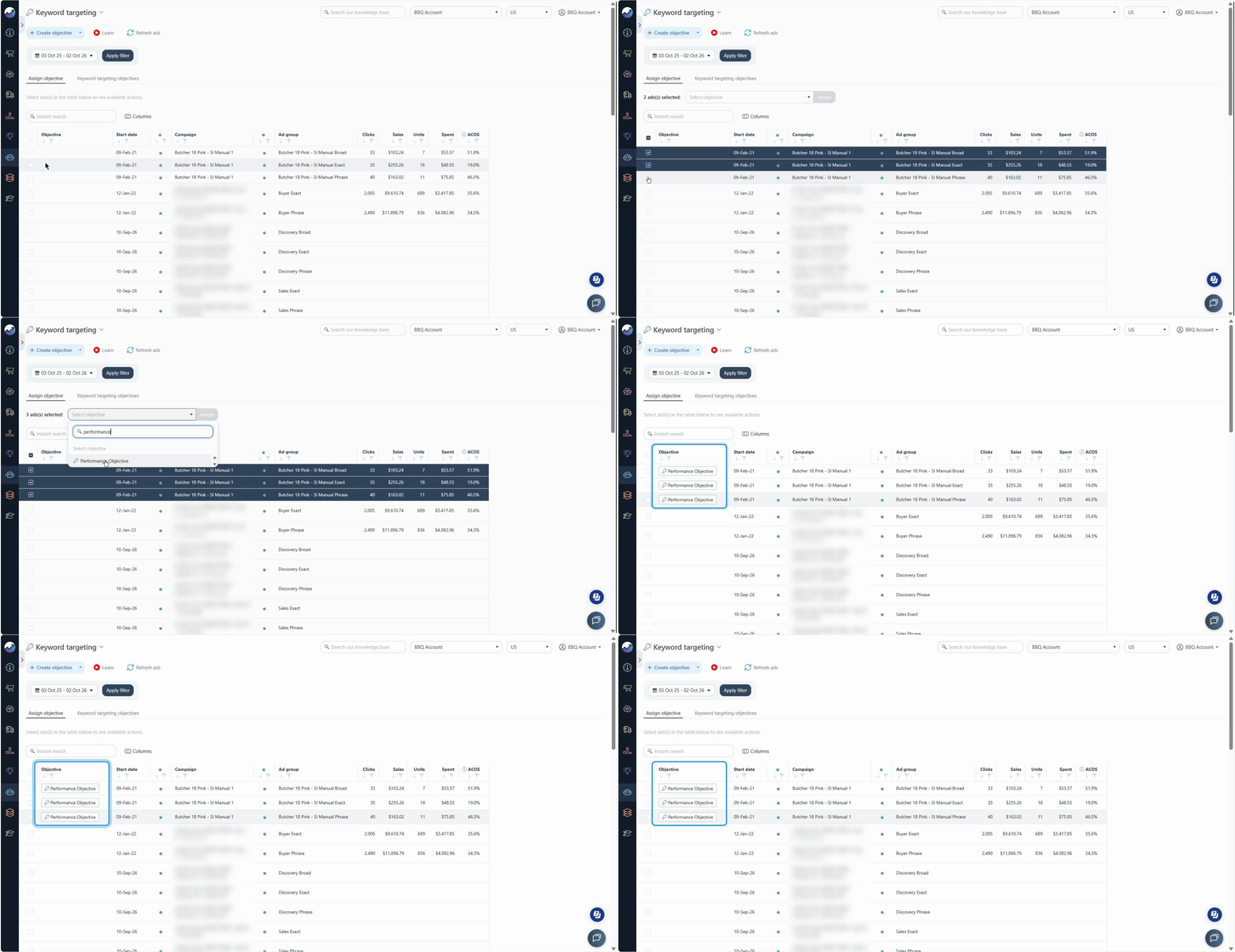
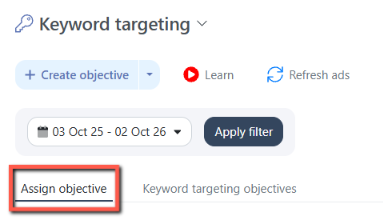
- Open the Assign Objective tab.
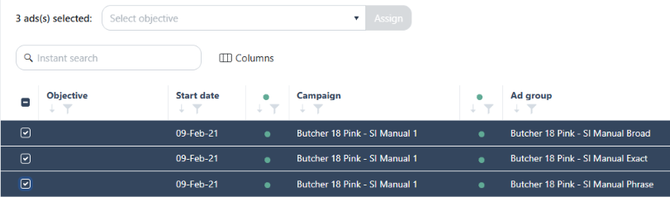
- Select the ad groups you want to assign the strategy to.
- Choose your Strategic Objective from the dropdown at the top.
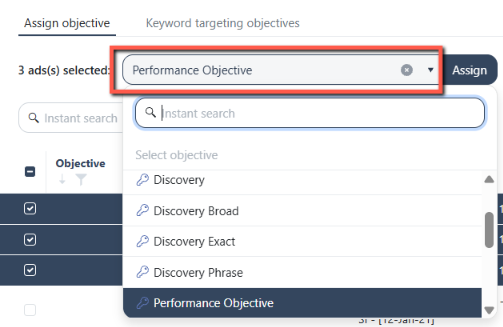
- Click Assign to apply it to the selected ad groups.

This lets you apply the same strategy to multiple ad groups without configuring each one separately.
[drawer]Edit a Strategic Objective
To update an existing strategy: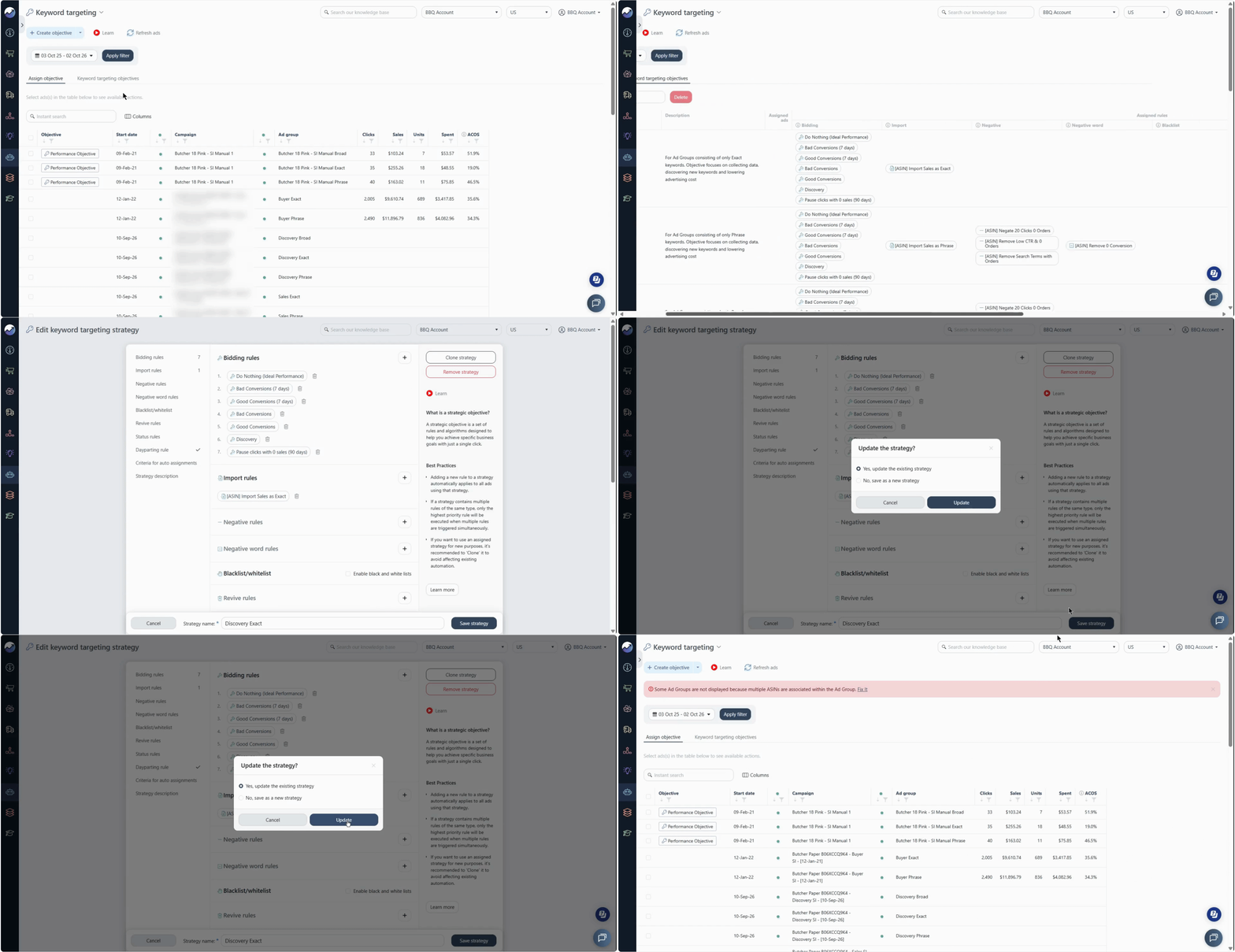
- Open the Objectives tab.
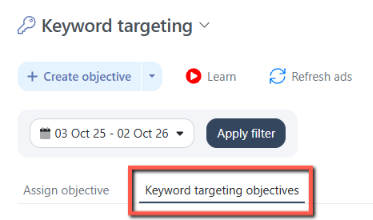
- Find the Strategic Objective you want to update. Click the edit icon in the Action column.

- Update the strategy name, description, or selected rules.
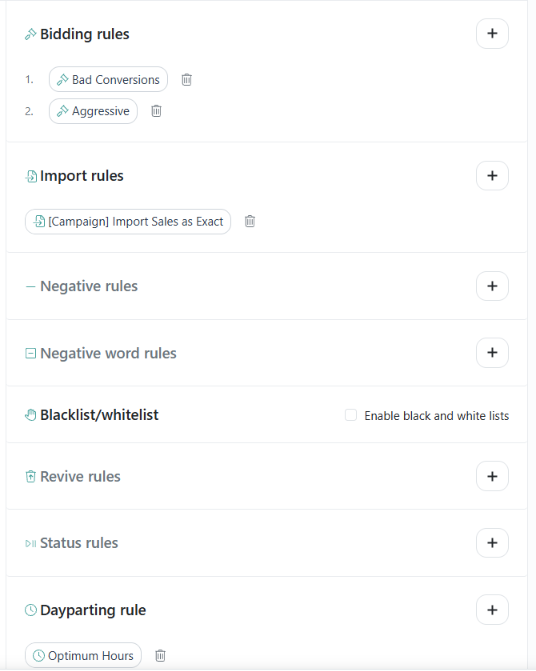
- Click Save Strategy.

Review the selected rules before saving to ensure they still align with your intended strategy.
[drawer]Clone a Strategic Objective
If you want to create a variation of an existing strategy, clone it instead of building a new one from scratch.
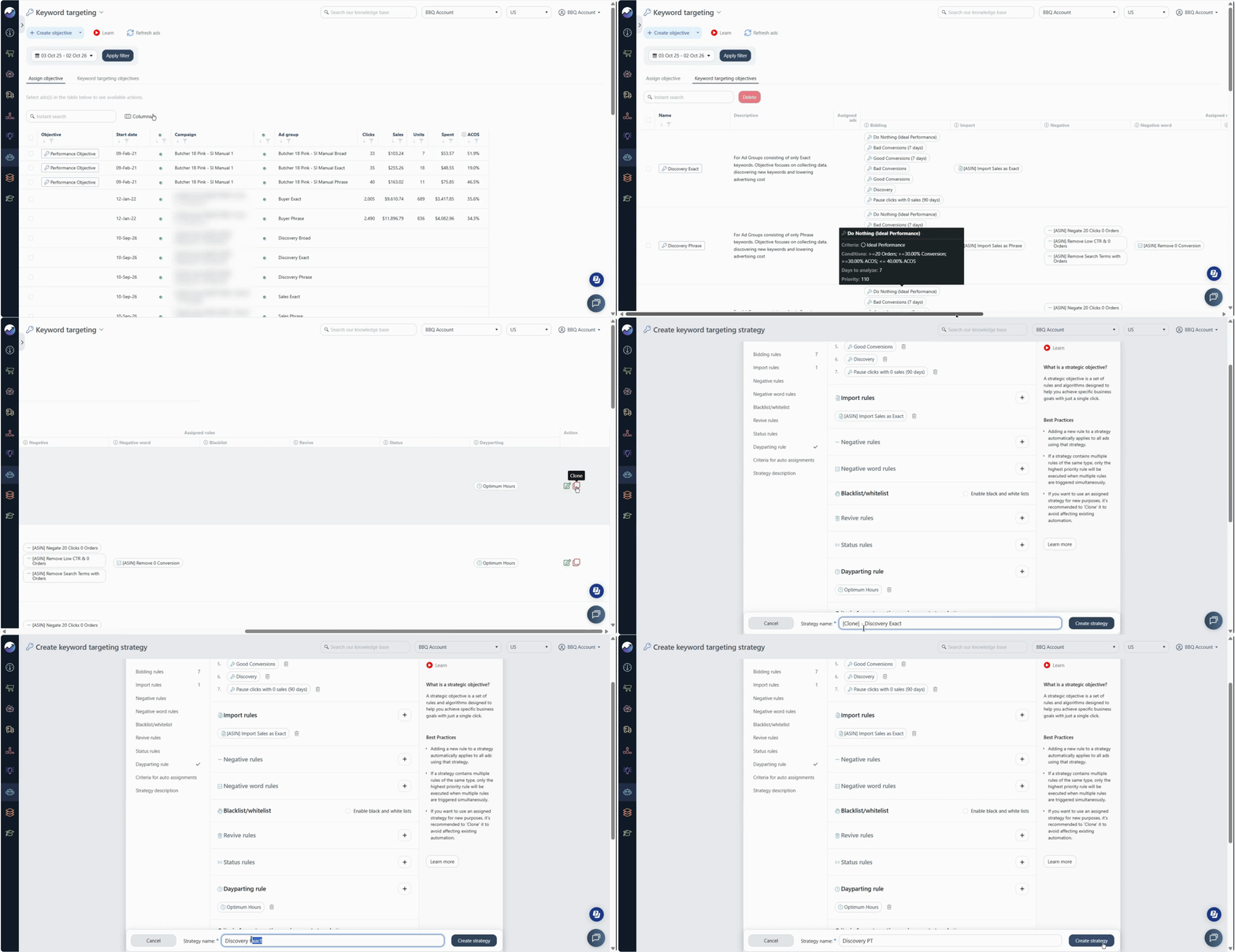
- Open the Objectives tab.
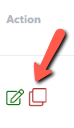
- Find the strategy you want to duplicate. Click the clone option in the Action column.
- Update the strategy's details and rules as needed. Make sure to rename the new strategy.
- Save the new strategy.

For example, you might clone an existing strategy to create a variation with different rule criteria for another group of ad groups.
[drawer]Unassign a Strategic Objective
If you no longer want an ad group to use a particular strategy, you can unassign it.
- Open the Assign Objective tab.
- Select the ad groups from which you want to remove the strategy.
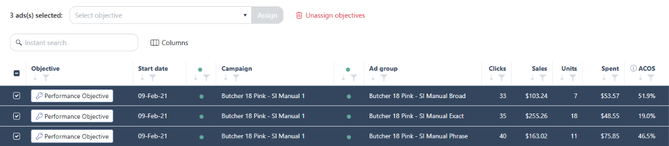
- Click Unassign Objectives.

Check your selection before proceeding to make sure you're removing the intended assignments.
What's Next?
After assigning a Strategic Objective, review your automation activity to check whether the rules are executing as expected.
See Reviewing Automation Actions to learn how to review recorded automation actions.
For more information about the available algorithms for each Sponsored Ad type, see Available Algorithms for Strategic Objective.