
The Dayparting Rule lets you schedule when ad groups are enabled or paused throughout the day. Instead of running your ads 24/7, you can focus your advertising activity on the hours that make the most sense for your products and customers.
A good starting point is to use Dayparting Trend to identify recurring sales patterns, then use those insights to build your ad schedule.
Note
This article covers Ad Scheduling only. For hourly keyword bid adjustments, see Getting Started with Hourly Bid Adjustments.
Why use Ad Scheduling?
Not every hour is equally valuable for every product.
For example, your products may consistently generate most of their sales during the day, while overnight hours generate clicks but very few orders. Keeping your ads active during those low-performing hours can consume budget before your customers are most likely to buy.
With Ad Scheduling, you can:
- Focus ad spend on stronger hours by keeping your ads active when sales are more likely.
- Reduce wasted spend by pausing ads during consistently weak periods.
- Respond to customer behavior when your products have clear time-of-day sales patterns.
- Protect your budget from unusual activity, such as periods with high clicks but few conversions.
- Create different schedules for different ad groups based on your advertising strategy.
[drawer]Find your best hours with Dayparting Trend
Before creating a schedule, look at when your products actually generate sales.
Go to Sales > Dayparting Trend.
Dayparting Trend aggregates your sales data and shows the average number of orders and sales for different hours and days. The data follows the marketplace's time zone.
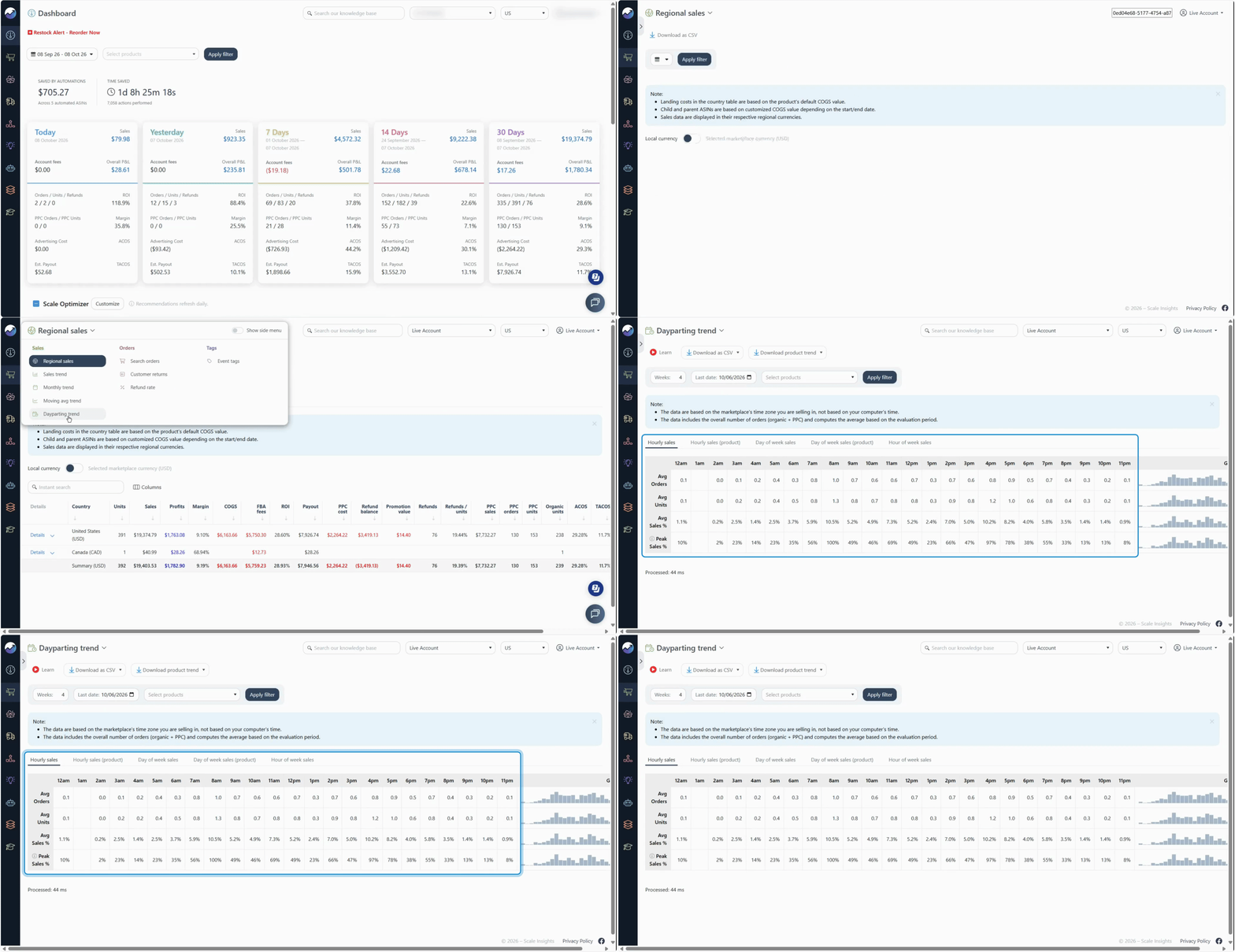
Customize the report
Use the filters to focus the report on the data you want to analyze:
- Weeks — Choose how many weeks of historical data to include.
- Last Date — Set the end date of the period you're analyzing.
- Select Products — Analyze one or more products, or leave this blank to see overall performance.
Click Filter to update the report.
Which views should you use?
Use the different Dayparting Trend views to look for patterns:
| View | What it helps you see |
|---|---|
| Hourly Sales | Average sales and orders by hour |
| Hourly Sales (Product) | Hourly performance for individual products |
| Day of Week Sales | Which days generally generate more sales |
| Day of Week Sales (Product) | Day-of-week performance by product |
| Hours of Week Sales | Hourly sales and orders across each day of the week |
What should you look for?
Don't base your schedule on a single unusually good or bad day. Instead, look for patterns that appear consistently across your selected period.
For example:
Your product consistently generates significantly more sales between 6 AM and 9 PM, while sales are much lower overnight.
That pattern could be a good reason to keep your ads active during the stronger period and pause them overnight.
Keep in mind
Dayparting Trend shows sales and orders, not hourly PPC metrics such as impressions, clicks, spend, or conversion rate. If you need to evaluate advertising performance specifically, use Amazon's hourly advertising data as an additional source of insight.
[drawer]Create your Ad Scheduling rule
Once you've identified the hours you want to target, go to: Automation > Dayparting
Configure the schedule
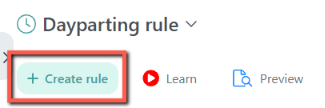
- Go to the rule creation page.
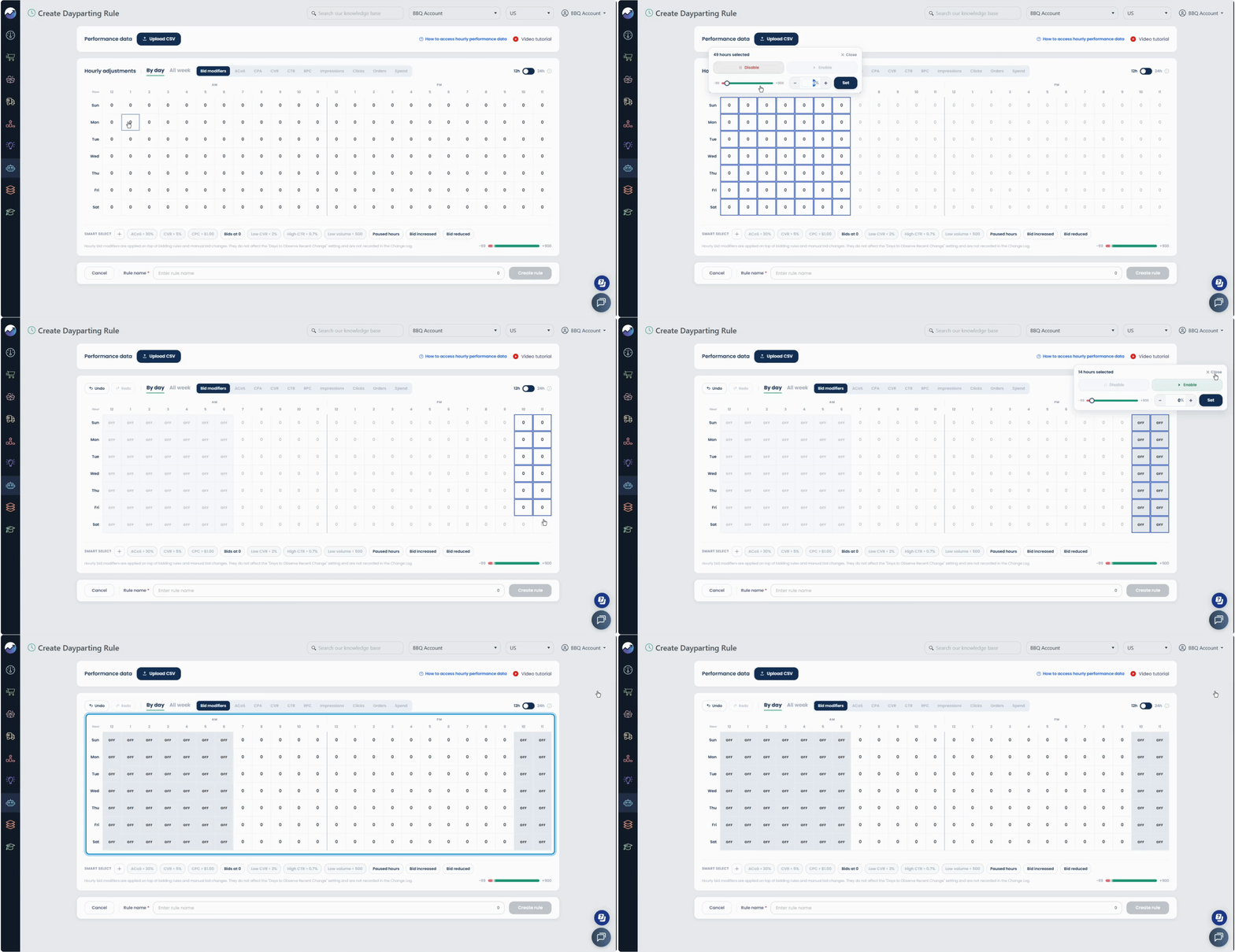
- Select the days and hours you want to change. By default, all days and hours are enabled.
You can bulk-select multiple days and hours to apply the same setting at once.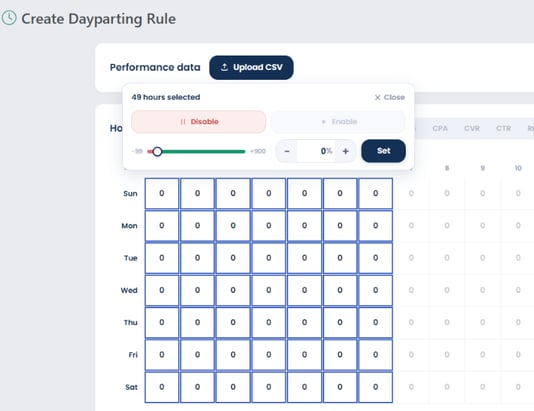
- Use the selector to choose Enable or Disable.
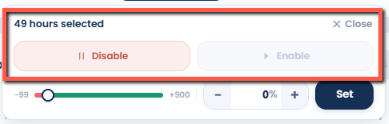
For example, if your data shows consistently weak sales between 10 PM and 6 AM, you could select those hours across the relevant days and choose Disable. - After configuring the Dayparting rule, click Create Rule to save it.

Understanding the values
The schedule also displays a value for each hour: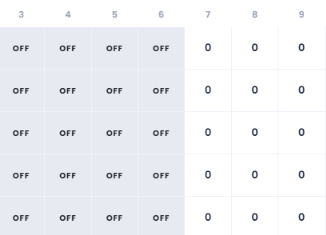
- 0 means the ad group is enabled and the hourly bid adjustment is 0%.
-
OFF indicates that the ad group will be paused during that hour.
Note
You can configure both Ad Scheduling and Hourly Bid Adjustment within the same Dayparting Rule. This article focuses on Ad Scheduling, so see the Dayparting Rule documentation for details about hourly bid adjustments.
Preview the schedule before saving
Before finalizing the rule, use Preview to check what changes the rule would make if it were to run during the current hour.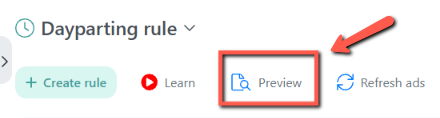
This gives you a quick way to verify that:
- The correct ad groups are affected.
- The current hour has the expected status.
- Your Enable/Disable settings are configured correctly.
If the preview doesn't show the expected changes, review the schedule before saving the rule.
[drawer]Start with a data-backed schedule
A common mistake is to assume that low sales during an hour automatically means ads should be turned off.
Instead, ask:
"Is this consistently a weak period, and does limiting ad activity make sense for my advertising strategy?"
For example, a product with a high average order value or strong repeat-purchase potential may still benefit from advertising during hours with fewer immediate conversions. Similarly, some campaigns may be intended to support long-term growth rather than maximize immediate sales.
For this reason, Ad Scheduling works best when the schedule is based on actual performance patterns and your campaign objective, rather than simply cutting off every low-sales hour.
[drawer]Check that your schedule is working
After the rule runs, verify that Scale Insights applied the scheduled changes as expected.
Go to: Automation > Change Logs > Dayparting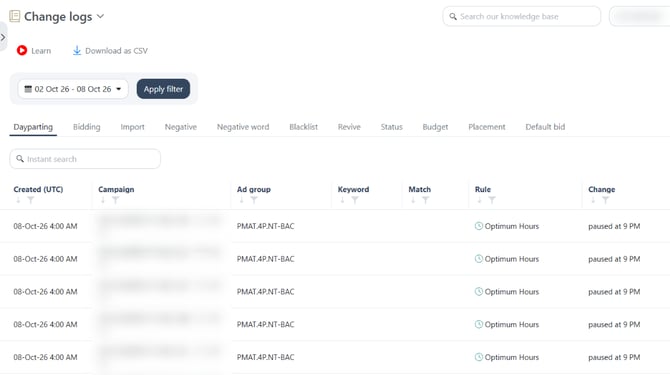
Check the relevant entries to confirm:
- The scheduled action ran at the expected time.
- The correct campaign and ad group were affected.
- The ad group was enabled or disabled as configured.
If you need to troubleshoot a schedule, the Change Logs provide a useful record of the actions performed by the rule.
[drawer]Things to keep in mind
Use recurring patterns
Avoid creating a schedule based on one unusual day. Analyze several weeks of data and look for patterns that consistently occur.
Dayparting Trend shows sales, not hourly PPC performance
Dayparting Trend is useful for understanding when sales happen, but it doesn't tell you whether your advertising performed well during each hour.
It does not provide hourly PPC metrics such as impressions, clicks, spend, or conversion rate. Consider additional advertising data when deciding whether a low-sales period should actually be paused.
Don't assume low sales mean ads should be paused
An hour with fewer orders isn't necessarily a poor advertising period. Your campaigns may have other objectives, such as maintaining visibility or generating new customers.
Consider your campaign strategy, product economics, and advertising performance before excluding a time period.
Check the marketplace time zone
Dayparting Trend uses the marketplace's time zone. Make sure you interpret the reported hours using the correct time zone when creating your schedule.
Already-disabled or enabled ad groups may not generate a new action
If an ad group is already disabled when the schedule calls for it to remain disabled, no additional disable action is needed. The same applies when an ad group is already enabled.