
New Features
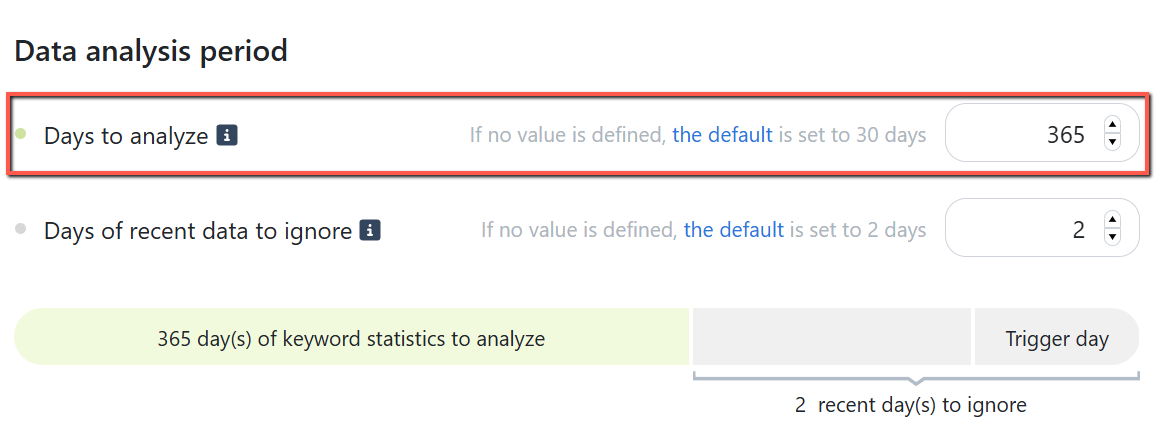
1. Bidding Rule: Extended Lookback Period to 365 Days
The Bidding Rule now supports a lookback period of up to 365 days, increased from the previous maximum of 90 days.
The 365-day lookback period gives you a more accurate view of performance across different seasons and periods, providing more data for automated bid decisions.
For seasonal products, you can include last year’s peak-season performance, such as Halloween or Christmas, in your analysis rather than relying only on recent off-season data.
Where to set it up:
- The Bidding Rule Create/Edit page
- Bidding Rule General Settings
- The Bulk Import Rule template
Navigation: Automation > Bidding Rule
2. Algorithms: Extended Lookback Period to 180 Days
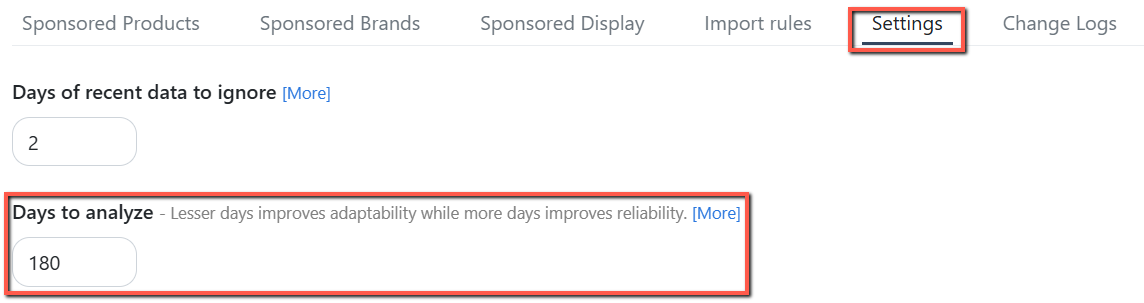
All automation rules can now analyze up to 180 days of historical data, except Dayparting and Blacklist.
The extended lookback provides a broader performance history for rule decisions.
This is especially useful for seasonal products and slow-moving, long-tail keywords, where more data can help reveal meaningful trends.
For example:
- Negative Rule can evaluate a broader range of performance data before making negation decisions.
- Import Rule can use a wider range of historical search term data when building targets.
Navigation: Automation > Algorithms
3. Negative Rule: Specific Ad Groups as Search Terms Source
The Negative Rule now lets you select Specific Ad Groups as your Search Terms Source, so you can choose exactly which ad groups to analyze without creating a Custom Group.
You can:
- Select up to 60 ad groups, with a maximum of 30 Sponsored Product (SP) and 30 Sponsored Brand (SB) ad groups.
- Select ad groups even if they aren't linked to the ASIN
This gives you more control over the search terms the rule uses, making setup faster and more flexible.
Navigation: Automation > Negative Rule > Create/Edit Rule

4. Bidding Rule: Added Portfolio Budget Condition
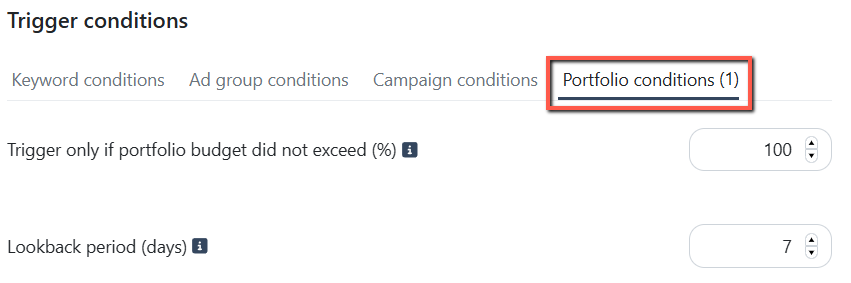
The Bidding Rule includes a new Portfolio condition that helps prevent bid changes when a portfolio has been consistently reaching its budget cap.
Set a budget usage threshold and a lookback period. The rule triggers only if the portfolio remained below the threshold on every day of the lookback period. If it reaches or exceeds the threshold on any day, the rule won't trigger.
This helps avoid bid changes when the budget, rather than bid levels, is limiting ad delivery.
You can configure:
- Trigger only if portfolio budget did not exceed (%)– set the maximum budget usage allowed for the rule to trigger.
- For example, setting this to 80% means the rule won't trigger if the portfolio used 80% or more of its budget on any day in the lookback period.
- Lookback period (days) – specify how many days to check for portfolio budget usage.
Navigation: Automation > Bidding Rule > Create/Edit Rule
Enhancements
Ads Insights: Enhanced Portfolio Performance
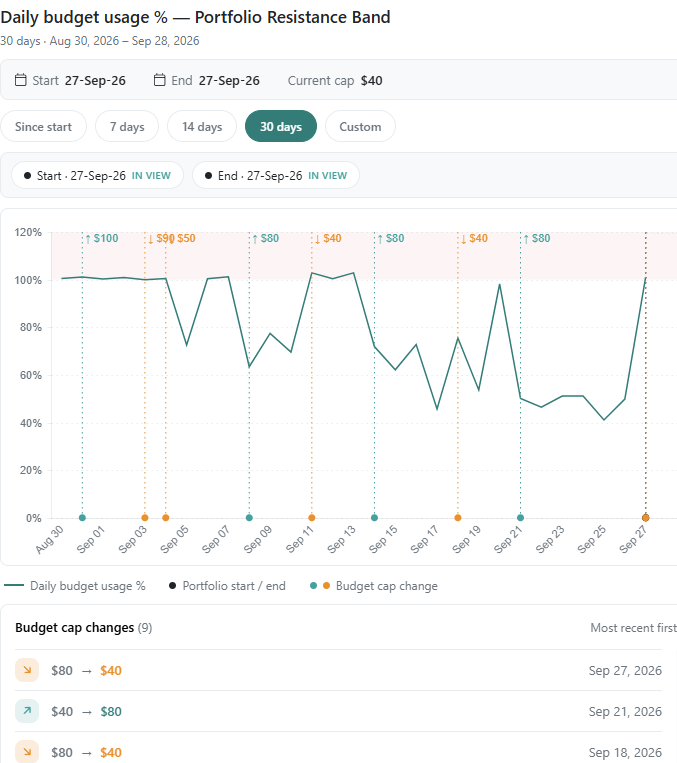
The Ads Insights Portfolio Performance page now includes new budget insights to help you monitor portfolio spending and understand how quickly your budget is being used.
Navigation: Ads Insights > Performance > Portfolios
1. Budget Usage Graph
Visualize how Daily Budget Usage % changes over a selected period to see how quickly a portfolio is using its budget.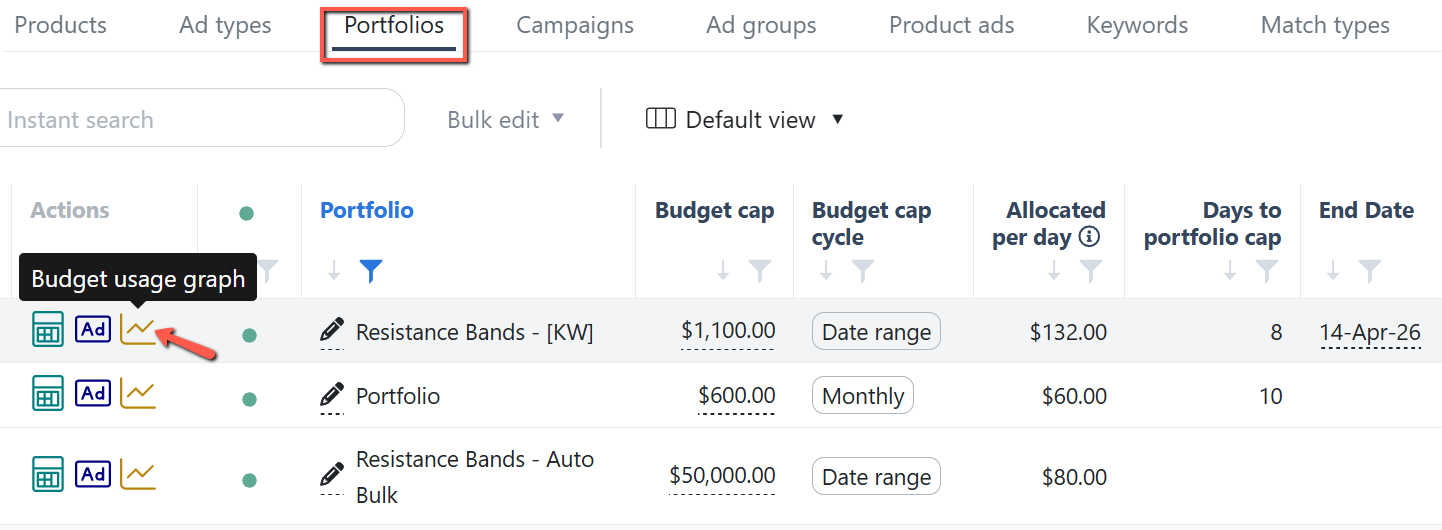
These insights also help you understand the data used by the Bidding Rule's Portfolio Conditions, making it easier to see when budget usage may be limiting ad delivery.
2. Allocated Per Day
View the total daily budget allocated across all campaigns in the portfolio.
3. Days to Portfolio Cap
Estimate how many days the portfolio's budget will last at its current spending pace, based on its budget settings.
- For Monthly Recurring budgets, the estimate is capped at the number of days in the current month.
- For budgets with an end date, the estimate is capped at the number of days between the budget's start and end dates.
.png)