How to Use the SI MCP with Multiple Scale Insights AccountsOverview
The Scale Insights Model Context Protocol (SI MCP) lets you connect your Scale Insights account to compatible AI assistants so you can interact with your account data using natural-language prompts and supported MCP commands.
If you manage multiple Scale Insights accounts or prefer to use different AI assistants for different tasks, you can configure your connections to fit your workflow.
There are two common setups:
- Multiple SI accounts connected to one AI assistant: The setup depends on whether your SI accounts are merged.
- One SI account connected to multiple AI assistants or agents: You can connect the same SI account to different assistants, such as Claude and GPT, or to multiple agents within the same assistant.
This guide explains how to set up both configurations.
[drawer]Connecting Multiple SI Accounts
The connection method depends on whether your SI accounts are merged into one account structure.
Option 1: Your SI Accounts Are Merged
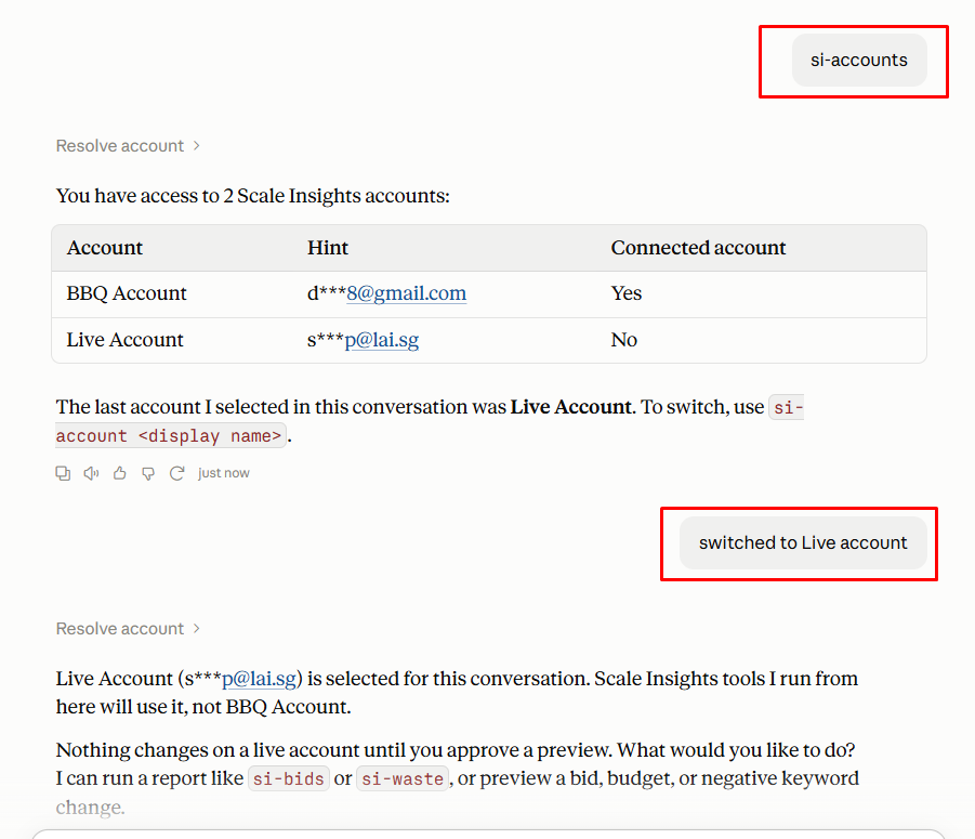
If your accounts are merged and accessible as sub-accounts, you can use the si-accounts command to view the available accounts and switch between them.
How to switch accounts
- Open your AI assistant with the SI MCP connection configured.
- Run the
si-accountscommand to display your available sub-accounts. - Select or switch to the sub-account you want to work with, using the supported account-switching workflow.
- Run a command relevant to that account to retrieve its data.
Example use case
You manage the "BBQ Account" and "Live Account" under one merged SI account. You want to review daily performance for each account without setting up a separate MCP connection for every brand.
Use si-accounts to view the available sub-accounts, switch to the appropriate account, and then run si-daily to review its daily performance data.
Why this setup is useful
- Keeps multiple sub-accounts accessible through one connection.
- Reduces the need to configure a separate connector for each sub-account.
- Makes it easier to move between accounts while reviewing performance.
Option 2: Your SI Accounts Are Not Merged
If your SI accounts are separate and cannot be accessed as sub-accounts through one connection, you can use Claude's custom connector workaround to configure each account separately.
The workaround uses a unique URL parameter for each connector. This allows Claude to treat each connection as a separate MCP connector, even though both connect to the same SI MCP server.
Step 1: Connect your first SI account
- Open Claude on the web.
- Go to the custom connector settings and add a new connector for the SI MCP.
- Use the following URL for the first account:
https://mcp.scaleinsights.com/mcp?act1 - Complete the connection and authorization process.
Step 2: Verify the first account
- Start a new chat in Claude.
- Use a prompt that identifies the account you want to access, such as
run BrandA account. - Run
si-dailyto retrieve the account's daily data. - Confirm that the returned information matches the intended SI account.
Step 3: Connect your second SI account
- Return to Claude's custom connector settings.
- Add another SI MCP connector.
- Use a different URL parameter:
https://mcp.scaleinsights.com/mcp?act2 - Complete the connection and authorization process for the second account.
Step 4: Verify the second account
- Start a new chat.
- Use the prompt or account-selection workflow associated with the second connector.
- Run
si-daily. - Confirm that the results match the second SI account.
Repeat this process for additional separate accounts, using a unique parameter for each connector.
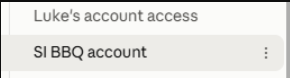
Each account will then have its own agent, similar to the example below:
Important
The act1 and act2 parameters are identifiers used to distinguish the connector URLs in this workaround. They are not replacements for account authorization. Make sure each connector is authorized for the intended SI account and verify the returned data before relying on it.
Example use case
You manage BrandA and another BrandB through two separate SI accounts. Since the accounts are not merged, you configure a separate Claude connector for each account.
When you need to review BrandA's performance, use its connector. When you need to review the other brand, use the corresponding connector. This helps keep the two account connections distinct.
Why this setup is useful
- Provides a workaround for managing separate SI accounts from Claude.
- Lets you keep each account's connection distinct.
- Reduces the risk of unintentionally reviewing the wrong account when the connections are clearly labeled and verified.
[drawer]Connecting One SI Account to Multiple AI Assistants or Agents
You do not need to limit one SI account to a single AI assistant. The same SI account can be connected to multiple compatible assistants or agents, provided each connection is supported and properly authorized.
For example, you can connect your BBQ SI account to:
- Claude and GPT.
- Multiple Claude agents.
- Multiple GPT agents.
How to set it up
- Configure the SI MCP connection in your first AI assistant or agent.
- Complete the required authorization and confirm that the connection works.
- Configure the SI MCP connection in the second assistant or agent.
- Complete any required authorization for that connection.
- Run a supported command, such as
si-daily, in each assistant to confirm that it can retrieve the intended account's data.
Repeat these steps for any additional agents you want to use.
Example use case
You use Claude to explore account performance and identify possible areas for improvement. You also use GPT to organize findings into a summary or help prepare an action plan.
By connecting the same SI account to both assistants, you can use each assistant for different parts of your workflow without having to merge your accounts.
Benefits
- Flexible workflows: Use different assistants for analysis, summaries, planning, or other supported tasks.
- Convenient access: Make the same SI account available in more than one compatible agent.
- Task specialization: Organize your workflow around the capabilities of each assistant.
Keep in mind that connecting multiple agents does not automatically synchronize their chat history, instructions, or context. Each agent may need its own prompts and setup.
[drawer]Limitations and Things to Keep in Mind
Before configuring multiple SI MCP connections, consider the following:
- Account structure matters. Merged accounts can use the available sub-account workflow. Non-merged accounts may require distinct connectors.
- The multiple-connector workaround is Claude-specific. The URL-parameter method described above is intended for Claude's web custom connectors. Other AI assistants may have different connection requirements.
- Verify the active account. Always confirm which SI account a connector or agent is accessing before interpreting data or making decisions.
- Each connection may need separate authorization. Adding another connector or agent does not necessarily authorize it automatically.
- Context is not automatically shared. Conversations, saved instructions, and previous analysis may remain separate between agents.
- Access depends on supported MCP functionality. Connecting an AI assistant does not mean every SI feature or action is available through MCP. The available commands and capabilities depend on the current implementation and the assistant's support.
- Review results before acting. Use the retrieved data to inform decisions, and verify important findings in Scale Insights before taking action.
[drawer]Frequently Asked Questions
Can I connect several unmerged SI accounts to Claude?
Yes. You can use the custom connector workaround described in Connecting Multiple SI Accounts to configure a distinct connector URL for each account. Verify each connection independently.
Can I use the same SI account with both Claude and GPT?
Yes, provided the relevant assistant supports the SI MCP connection and you complete the required setup and authorization in each one.
Do I need to merge my SI accounts to use the SI MCP?
Not necessarily. Merged accounts can use the sub-account workflow, while non-merged accounts can be connected independently using a supported connection method.
How can I confirm that I'm using the correct SI account?
Run si-accounts when using the merged-account workflow, or use a known account-specific prompt and run si-daily when verifying a separate connector. Compare the results with the intended account in Scale Insights.
Additional Resources
For a video walkthrough of the SI MCP setup, see TrainAdz's tutorial:
Scale Insights Just Dropped Their Biggest Update of the Year
For the steps to merget multiple Scale Insights account, check: How to Access Multiple Accounts
For further assistance, contact the Scale Insights Support team.