
A Bidding Rule can increase bids when performance meets your targets. However, if the portfolio is already using most of its budget, increasing bids may not be the right move.
The Portfolio budget-usage condition lets you add a budget check to your Bidding Rule. When the portfolio has reached your specified budget-usage level within the selected lookback period, the rule skips its bid adjustment.
Why Use a Portfolio Budget Condition?
Use this condition when you want your bidding strategy to consider the portfolio's budget usage before making bid changes.
- Prevent unnecessary bid increases when the budget is already a constraint.
- Keep bid automation aligned with portfolio-level budget limits.
- Use recent budget usage as an additional rule trigger condition.
How the Portfolio Condition Works
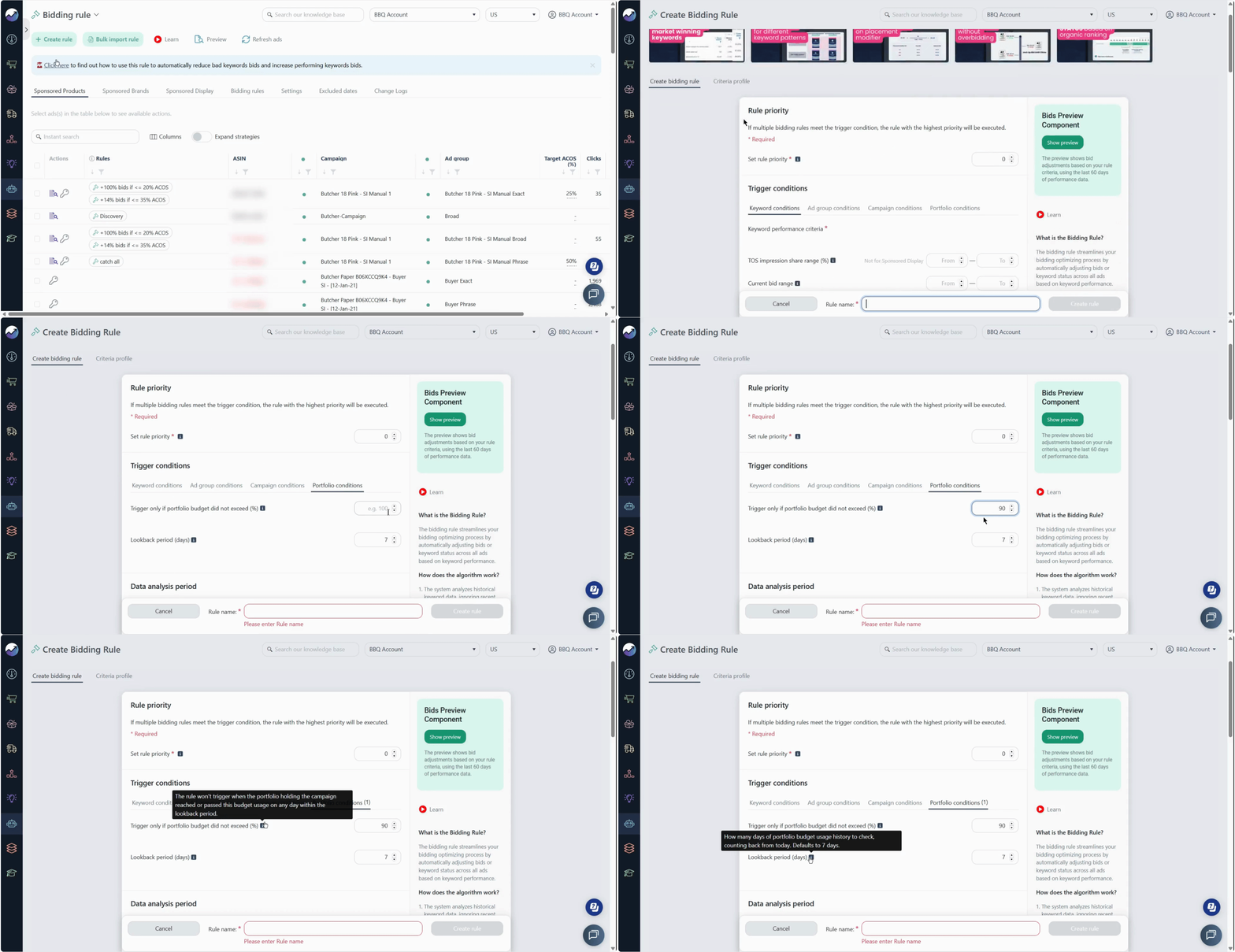
The condition has two settings:
| Setting | Description |
|---|---|
| Budget Usage | The budget-usage threshold. You can set up to 200%. |
| Lookback Period | The period used to check historical budget usage. Default is 7 days, up to 180 days. |
Scale Insights checks whether the portfolio reached the configured budget-usage threshold on any day during the lookback period.
If the threshold was reached, the Bidding Rule skips its bid adjustment.
How to Set Up a Portfolio Condition
See how to configure a Portfolio condition to control bid adjustments based on portfolio budget usage.
- Go to Automation → Bidding Rule → Create Rule.
- Configure your Bidding Rule as usual.
- Under Trigger Conditions, open the Portfolio Conditions tab.
- Set your Budget Usage threshold.
- Set the Lookback Period.
- Save the rule.
The Portfolio condition is evaluated together with the other trigger conditions in the rule.
Example: Prevent Bid Increases When Budget Is Tight
Suppose you have a bidding rule that gradually increases bids for keywords meeting your performance targets.
The keywords belong to a portfolio that frequently approaches its budget cap. You set:
- Budget Usage: 90%
- Lookback Period: 7 days
The portfolio reached 103% budget usage on Tuesday. When the bidding rule is evaluated, the system detects that the 90% threshold was reached within the last 7 days.
Even if the keyword meets the inch-up conditions, the rule skips the bid adjustment.
This prevents the rule from increasing bids while the portfolio is already experiencing a budget constraint.
Check Portfolio Budget Usage
Use Ads Insights → Performance → Portfolios to review the portfolio's budget situation.
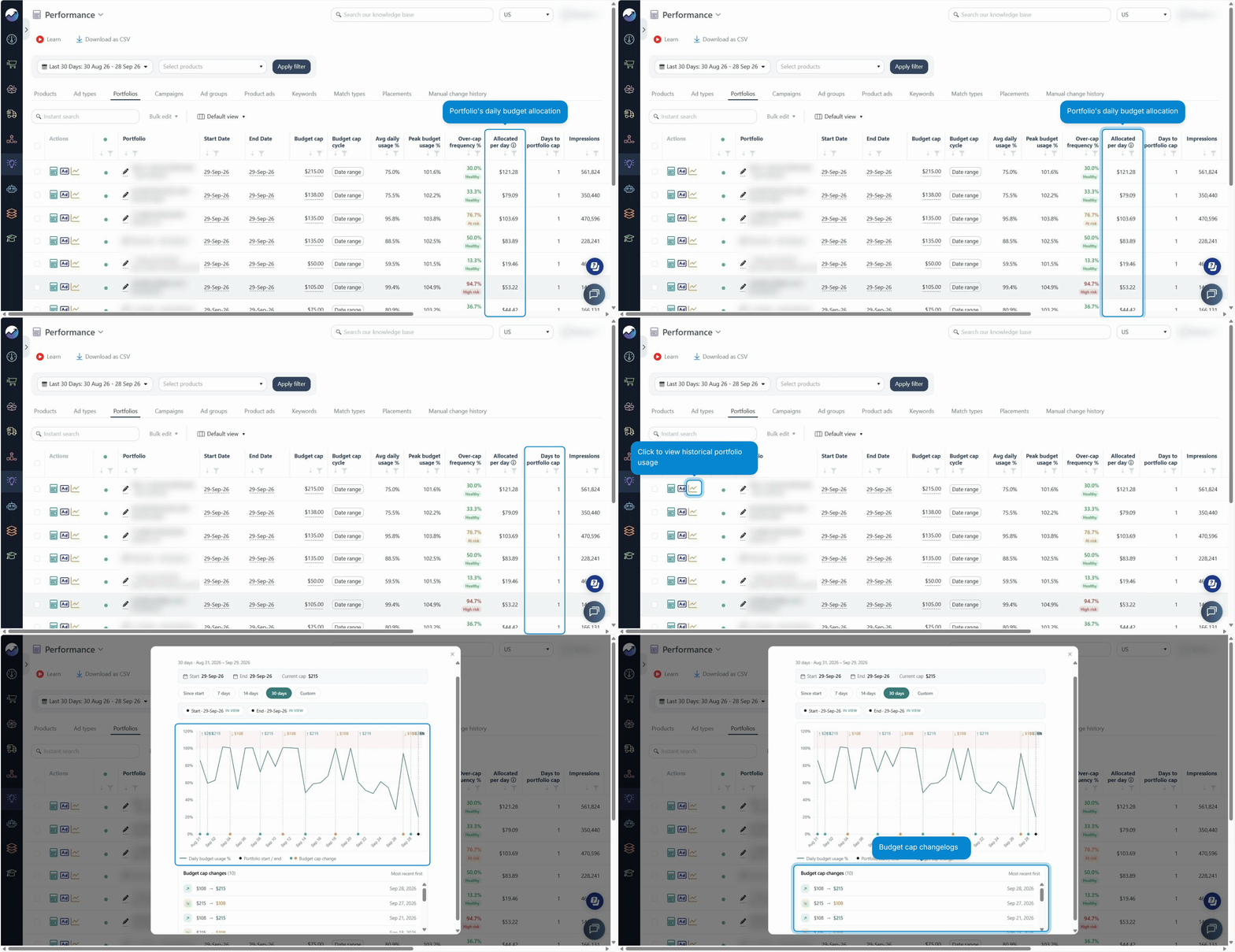
The Portfolio view includes:
- Allocated per day — the portfolio's daily budget allocation.
- Days to portfolio cap — the number of days to the portfolio cap based on current usage.
- Budget-usage chart — historical portfolio budget usage.
- Cap-change markers — show when the portfolio cap changed.
Use these details to understand your portfolio's budget pattern and choose a suitable condition for your Bidding Rule.
Key Considerations
- Budget Usage supports values up to 200%.
- Lookback Period supports up to 180 days and defaults to 7 days.
- The condition checks whether the threshold was reached on any day in the lookback period; it does not calculate an average.
- When the condition is triggered, the rule skips the bid adjustment only. It does not change the portfolio budget or cap.
- Other Bidding Rule conditions still need to be satisfied before the rule can make an adjustment.
When to Use It
The Portfolio budget condition can be useful when:
- Your portfolio frequently approaches its budget cap.
- You use bid-increase strategies such as inch-up.
- Higher bids could cause the portfolio to consume its budget faster.
- You want your bidding automation to account for portfolio-level budget usage.