
Before You Connect Your Amazon Account
Before starting the connection process, make sure you have the following:
- An active Scale Insights (SI) account.
- Access to the Amazon Seller Central account you want to connect.
- The necessary permissions to authorize third-party applications.
- Access to the Amazon Advertising account for the marketplace you want to onboard.
- The ability to approve Amazon authorization requests.
Important: Your Scale Insights and Amazon login email addresses do not need to be identical.
If you are using a secondary Seller Central user, make sure the account administrator has granted the required permissions before starting the connection process.
[drawer]Connecting Your First Amazon Marketplace to SI
Follow these steps to connect your first Amazon marketplace.
Step 1: Open the SI Onboarding Page
- Log in to your Scale Insights account and navigate to the Onboarding page.
- Select the Amazon marketplace you want to connect.
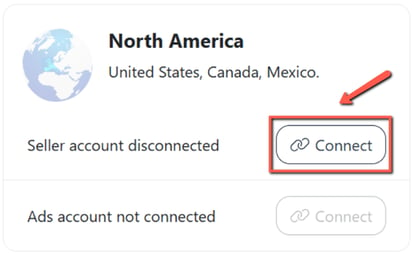
- Under Seller Account, click Connect.
Step 2: Connect Your Seller Account
- Click Login With Amazon.
- Sign in using the Amazon Seller Central account associated with the selected marketplace.
- Once redirected to the Scale Insights Authorization page, review the requested permissions.
- Tick the authorization checkbox at the bottom of the page.
- Click Confirm to authorize Scale Insights.
You will be redirected back to Scale Insights once the authorization is completed.
Step 3: Connect Your Advertising Account
After connecting your Seller Account, you also need to authorize your Amazon Advertising account.
- Return to the SI Onboarding Page.
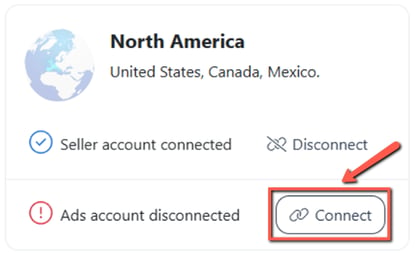
- Locate the Ads Account section.
- Click Connect. If you are automatically redirected to the Link Advertising page, proceed with the authorization.
- Sign in to your Amazon account when prompted.
- Review the authorization request and click Allow.
- Wait until you are redirected back to the SI Onboarding Page.
Important: Connecting your Seller Account does not automatically connect your Advertising Account. Both connections must be completed for SI to access the respective account data and advertising functionality.
Step 4: Check Your Integration Progress
Once both connections are completed, you can monitor the initial data download.
- Return to the SI Onboarding Page.
- Scroll down to the integration progress section.
- Check the download status for your connected marketplace.
- Wait for the initial data synchronization to finish.
Data Download Considerations:
- SI downloads up to 60 days of historical data for each country per ad type, subject to Amazon data availability.
- Larger accounts may take approximately 24–48 hours to complete the initial download.
- You can monitor the integration progress directly from the onboarding page.
Once the connection is successful, the SI portal's left navigation menu will become available, and the connected marketplace will display a Disconnect button.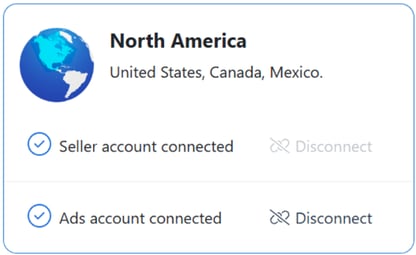
[drawer]Connecting Additional Amazon Marketplaces
If you already have an Amazon marketplace connected to SI, you can onboard additional supported marketplaces under your existing SI subscription.
You do not need to create another SI account for each marketplace.
There are two possible connection scenarios, depending on how your Amazon Seller Central accounts are configured.
Scenario A: Connect Using the Same Amazon Login
If you use the same Amazon login across multiple marketplaces, you can generally use the same credentials to connect the additional regions.
Follow these steps:
- Open the SI Onboarding Page.
- Select the additional marketplace you want to onboard.
- Under Seller Account, click Connect.
- Sign in using your existing Amazon login.
- Complete the authorization process by reviewing the permissions and clicking Confirm.
- Once the Seller Account is connected, proceed to the Ads Account section.
- Click Connect and complete the Amazon Advertising authorization.
If the Advertising Account connects successfully, you can proceed to monitor its integration progress.
Scenario B: Connect Using a Separate Amazon User Login
In some cases, Amazon may require a separate user login when connecting the Advertising Account for another marketplace, particularly when the same primary email is used across multiple regions.
If Amazon displays a warning or requires a separate user login when connecting the Advertising Account, follow the steps below.
If this happens, you may need to create an additional Seller Central user with a unique email alias.
Step 1: Log In to the Regional Seller Central Account
- Open the Seller Central account for the marketplace you want to connect.
- Sign in using your primary Seller Central email address.
For example, if your primary email is client@company.com, use this email to access the regional Seller Central account.
Step 2: Create an Additional Seller Central User
- Navigate to Settings → User Permissions.
- Locate the option to add a new user.
- Create a new user using a unique email alias derived from your primary email.
For example:
- Primary email:
client@company.com - Additional user:
client+UK@company.com
Note: The plus alias method allows you to create unique email addresses without setting up separate email inboxes, provided your email provider supports plus addressing. Emails sent to the alias are generally delivered to the original mailbox.
Step 3: Grant the Required Permissions
- Locate the newly created user under User Permissions.
- Click Edit.
- Grant the required Campaign Manager – Edit permission for the Advertising Account connection.
- Save the changes.
Step 4: Connect the Advertising Account Using the New User
- Return to the SI Onboarding Page.
- Locate the Ads Account section for the marketplace you want to connect.
- Click Connect.
- When redirected to Amazon, select Login With Amazon.
- Sign in using the newly created user (e.g.,
client+UK@company.com). - Review and authorize Scale Insights to access the Advertising Account.
Once authorized, you will be redirected back to SI.
Important: If you use a single Amazon login across multiple regions and Amazon requires separate users for Advertising Account authorization, create a unique email alias for each affected region.
Example:
| Marketplace | Amazon Login Email |
|---|---|
| North America | thomas@scaleinsights.com |
| Europe | thomas+EUmarkets@scaleinsights.com |
| United Kingdom | thomas+UKmarkets@scaleinsights.com |
You do not need to create separate SI accounts for these marketplaces. They can be connected under your existing SI subscription, provided the required Amazon permissions and subscription access are in place.
[drawer]Giving Global Permissions to Amazon Secondary Users
If you are using a secondary Seller Central user to authorize Scale Insights, the primary account administrator may need to grant additional Global Permissions.
This is particularly relevant when Amazon requires the secondary user to authorize an external application or authorized partner.
Before proceeding: The primary Seller Central account must have a Professional selling plan to grant the relevant Global Permissions.
Follow these steps:
- Log in to Amazon Seller Central using the primary account or an authorized administrator account.
- Navigate to Settings → User Permissions.
- Locate the secondary user who will authorize Scale Insights.
- Click Edit next to the user's name.
- Under Global Permissions, locate Manage Authorized Partners.
- Enable the permission if required by the applicable SI authorization workflow.
- Save the changes.
Once the necessary permissions are granted, the secondary user can proceed with the Scale Insights authorization process.
Important: Avoid removing the permissions or authorization granted to the secondary user after connecting the account. Changes to these permissions may interrupt the Advertising Account connection or revoke the authorization credentials.
[drawer]Troubleshooting Amazon Account Connection Issues
If you encounter problems while connecting your Amazon account, check the following:
| Issue | What to Check |
|---|---|
| Unable to log in to Amazon | Make sure you are using the correct Amazon login credentials and regional Seller Central account. |
| Amazon authorization page does not appear | Restart the connection process and verify that you are signed in to the correct Amazon account. |
| Unable to authorize Scale Insights | Check whether your Seller Central user has the required permissions to authorize the application. |
| Initial data download is taking longer than expected | For larger accounts, the initial data download may take up to 24–48 hours. If it takes longer, contact Scale Insights Support. |
| Previously connected Advertising Account becomes disconnected | Check whether the user's permissions or Amazon authorization were changed or revoked. |
Browser-Related Issues During Amazon Account Connection
If the Amazon connection page is stuck, fails to redirect, or does not progress to the next step, the issue may be related to your browser session, cached data, or browser settings.
Try the following troubleshooting steps:
- Log out of other Amazon accounts. Make sure you are logged out of other Amazon Seller Central or Advertising accounts in your browser. Having multiple active Amazon sessions may cause the authorization process to use the wrong account.
- Clear your browser cache and cookies. Clear your browser's cached files and cookies, then restart the connection process. This may also log you out of other websites.
- Try an Incognito or Private window. Open a new Incognito window in Google Chrome or a Private window in your browser and attempt to connect your Amazon account again. This helps rule out issues caused by existing browser sessions or extensions. If necessary, make sure extensions are disabled in the private window.
- Try another browser. If the issue persists, use another supported browser to check whether the problem is browser-specific.
- Restart the connection process. Return to the SI Onboarding Page and initiate the connection again.
If you have completed the troubleshooting steps above but still cannot connect your Amazon account, contact the Scale Insights Support Team.