
Scale Insights lets you merge separate Scale Insights accounts so you can switch between them without repeatedly logging in and out.
This is useful for agencies, aggregators, and sellers managing multiple brands or Seller Central accounts.
Before you begin:
- Each Seller Central account must have its own Scale Insights account.
- You must have access to the master account you want to use.
- The owner of each sub-account must approve the merge request.
How to Merge Multiple Accounts
Follow the steps below to connect your Scale Insights accounts under one master account.
Step 1: Create Separate Scale Insights Accounts
If you manage multiple Seller Central accounts—for example, as a brand owner, advertising agency, or aggregator—sign up for a separate Scale Insights (SI) account for each one.
Each SI account requires a unique login email address.
You can create multiple email aliases using one email account by adding a plus sign (+) followed by a label to your email address. This lets you register multiple Scale Insights accounts without creating separate email accounts.
For example, if your email address is brand@gmail.com and you manage three Seller Central accounts, you can use the following email addresses to register three SI accounts:
brand+subaccount1@gmail.combrand+subaccount2@gmail.combrand+subaccount3@gmail.com
All emails sent to these addresses will arrive in your brand@gmail.com inbox.
Step 2: Send a Merge Request
Who: Master account owner
- Log in to the Scale Insights account you want to use as your master account.
- Click your account name in the top-right corner.
- Select Merge Accounts.
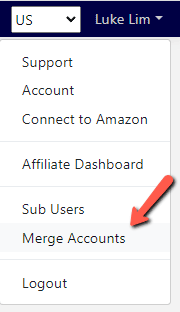
- Send a merge request to the sub-account you want to connect.
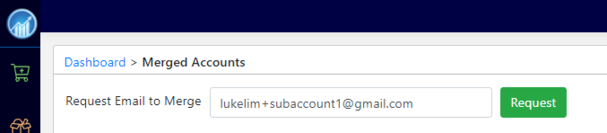


Repeat this process for each sub-account you want to merge.
Step 3: Accept the Merge Request
Who: Sub-account owner
The sub-account owner must approve the request before the accounts can be connected.
- Log in to Scale Insights using the sub-account owner's credentials.
- Click the account name in the top-right corner.
- Select Merge Accounts.
- Locate the pending request and accept it.
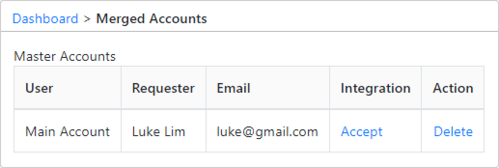

Once the request is approved, the sub-account can be accessed through the master account.
Important: Sub-users (non-account owners) cannot accept merge requests on behalf of the sub-account owner.
[drawer]How to Switch Between Merged Accounts
Once the merge is complete, you can switch between your merged accounts without logging in and out each time.
- Log in to your master Scale Insights account.
- Click the account dropdown in the top-right corner.
- Select the sub-account you want to access.
Scale Insights will switch to the selected account, allowing you to manage its advertising campaigns and settings.
[drawer]Account Access and Permissions
Merging accounts makes it easier to manage multiple accounts, but it does not automatically give every user access to all merged accounts.
Here's how access works:
- Master account owner: Can switch between the merged sub-accounts.
- Sub-account owner: Can access other merged accounts by default. To limit their access, send the merge request to a sub-user account instead. Check the steps below.
-
Sub-users: Cannot switch between merged accounts unless they log in through the master account and have the appropriate access.
[drawer]Limiting Other Sub-Account Owners' Access
If you manage another person's Seller Central account but don't want that account owner to access your other merged accounts, you can use a sub-user account instead.
For example, an agency manages three brands. The agency wants to access all three accounts from one master login, but each brand owner should only be able to access their own account.
To achieve this:
- Ask the other account owner to create a sub-user account for you.
To learn how to create a sub-user account, see: How to Add Team Members - Send a merge request from your master account to that sub-user account.
- Ask the account owner to approve the merge request.
- Log in through your master account to switch between the accounts you have access to.
After the sub-account owner has accepted the merge, a drop-down menu will appear at the top right as shown in the screenshot below, allowing you to toggle between merged sub-accounts easily.

This setup lets you manage the connected accounts through your master login without giving the other account owner access to your master account's account-switching menu.
[drawer]Troubleshooting
I can't see the account dropdown.
Make sure the merge request has been accepted and that you're logged in to the correct master account.
I can't accept a merge request.
Check that you're logged in as the sub-account owner. Sub-users cannot approve merge requests on the owner's behalf.
A merged account isn't showing in the dropdown.
Confirm that the merge request was sent to the correct account and that the sub-account owner approved it.
A team member can't switch between accounts.
Check that the team member is logging in through the master account and has the appropriate access permissions.
If the issue persists, contact Scale Insights Support for assistance.
Key Takeaway
Merging your Scale Insights accounts lets you switch between multiple accounts from one master login. To set it up successfully, create separate accounts, send and approve the merge requests, and ensure each team member has the appropriate access permissions.